Volume abstract
What you get: the earthwork of a design route as an abstract of quantities, with the chainage-wise statement and the mass haul behind it, worked out from your cross sections. You set the factors, leave out stretches such as a culvert, choose Average End Area or Prismoidal, and take it out to Excel, a printer or a PDF.
You need: the Flood Protection Bund sample (a bund on stripped ground, Ch 2+000 to 2+500, 21 sections). About 10 minutes. The Quick Start shows the abstract in brief; this page goes through all of it.
1. Open the abstract
- Open the Flood Protection Bund sample from the Start page.
- Click Home › View › Cross Section (or press F6), then Open saved sections. The abstract is worked out from the sections, so they must be open.
- Click Section › Output › Volume Abstract.
The abstract opens in the main window, and an Abstract tab comes up on the ribbon. The Abstract settings panel is on the left.
The abstract is for one design route at a time. This sample has several (the stripping, the bund, its moorum top and the cut-off trench). Pick Bund in the box at the top of the Abstract settings panel.
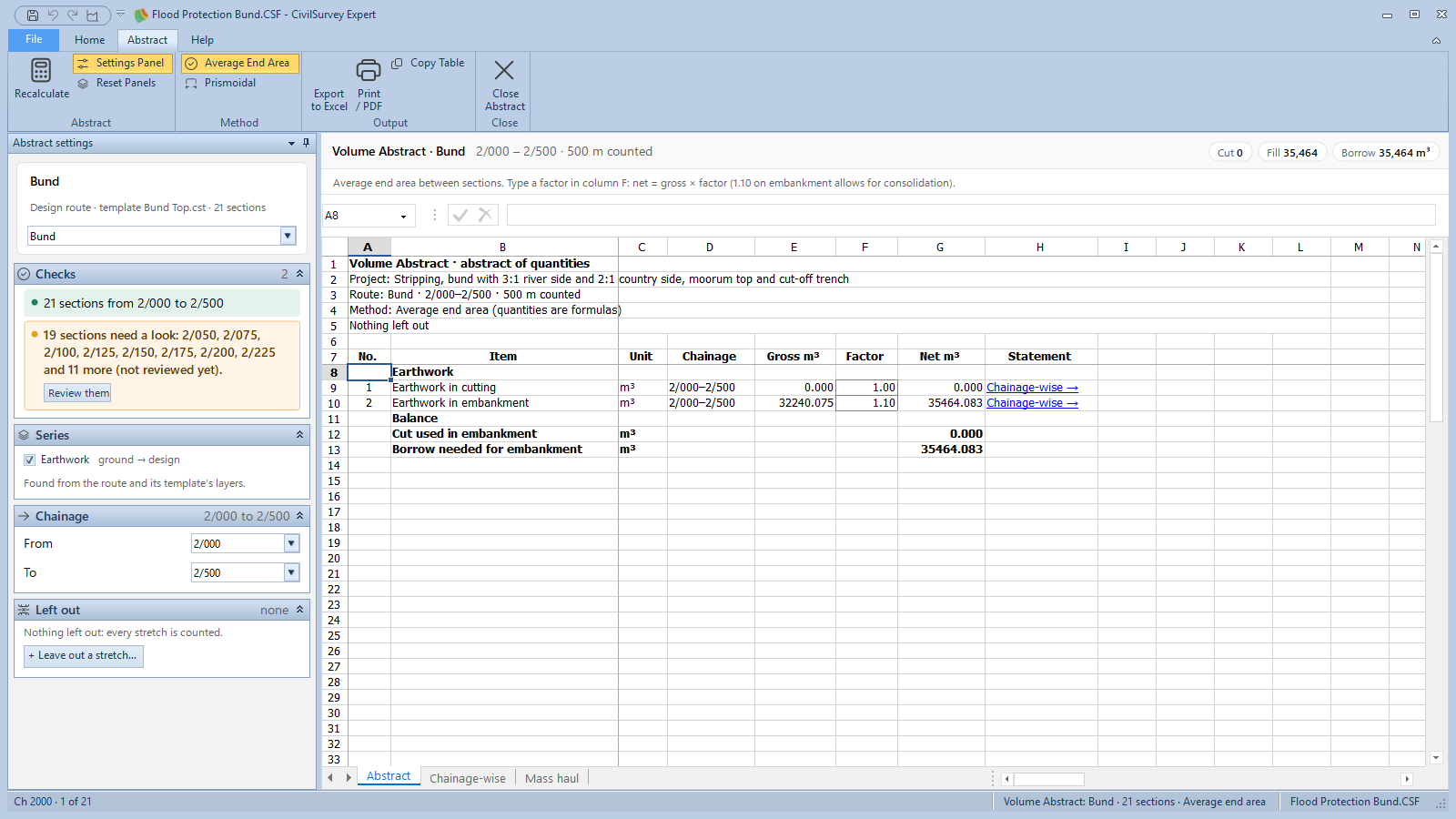
Across the top: the route (Volume Abstract · Bund), the chainages counted, and the totals in m³: Cut, Fill, and Borrow (or Surplus when there is more cut than fill). The status bar gives the route, the number of sections and the method.
2. The three sheets
The abstract is a workbook, like the Routes workbook. Pick a sheet by its tab at the foot.
Abstract
The abstract of quantities: No., Item, Unit, Chainage, Gross m³, Factor, Net m³ and Statement.
- Under Earthwork: Earthwork in cutting and Earthwork in embankment.
- Under Balance: Cut used in embankment, then Borrow needed for embankment or Surplus cut to dispose of.
Factor (column F) is the only cell you type in. Net = gross × factor. It starts at 1.10 for embankment (for consolidation) and 1.00 for the rest. Type a number from 0.00 to 9.99 and press Enter: the abstract is worked out again at once.
Chainage-wise → in the Statement column takes you to that item's statement.
Chainage-wise
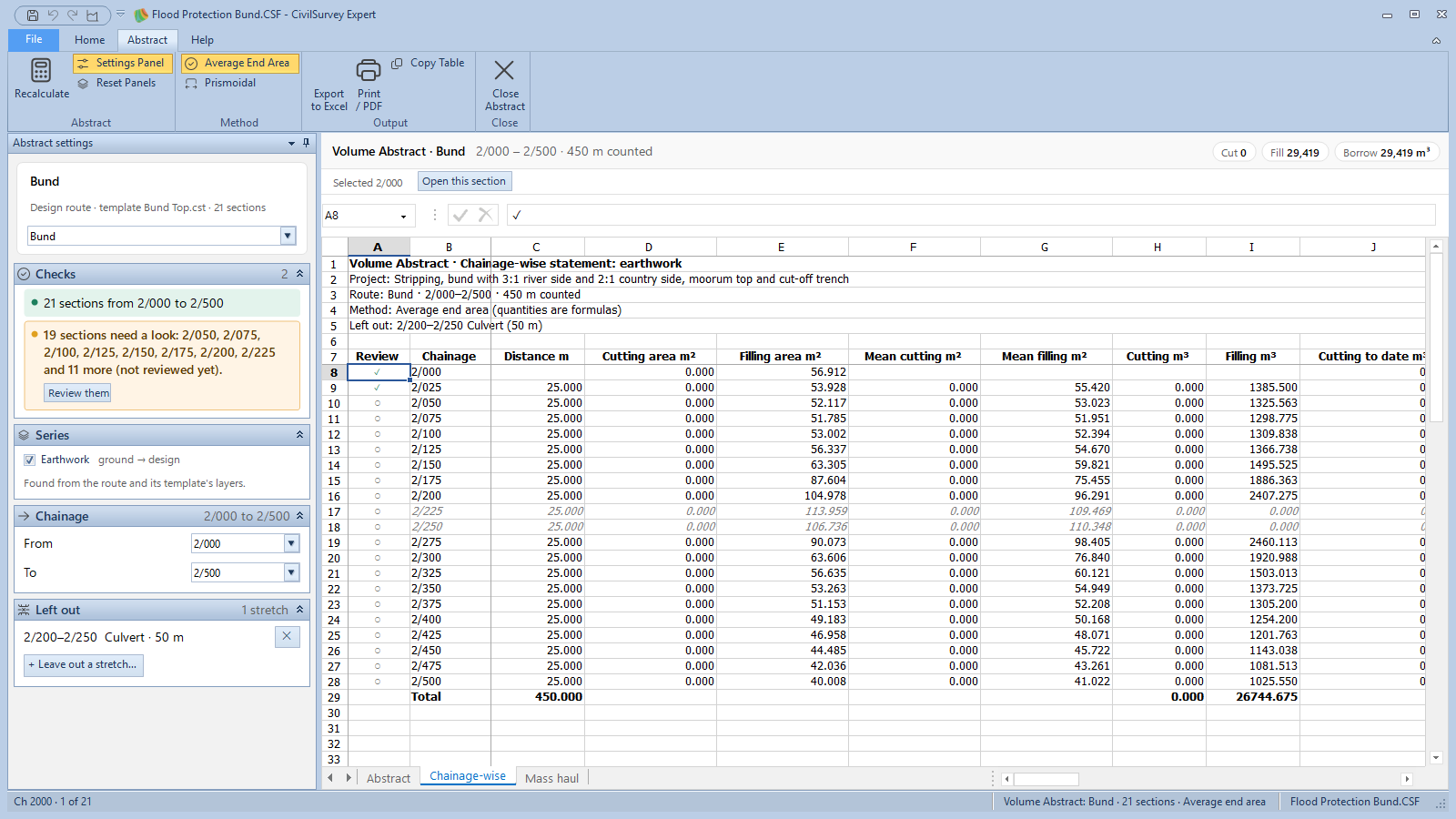
The statement between each pair of sections: Review, Chainage, Distance m, the cutting and filling areas, their means, the quantities, the quantities to date, Mass ordinate m³ and Remark.
- The Review column: ✓ reviewed, ○ not reviewed yet, ! changed after review. The Remark says Not reviewed yet or Changed after review.
- Double-click a row to open its section in the Cross Section screen. Check or edit it, then click Back to Abstract.
- Select a row and the bar over the sheet offers Open this section. Select a stretch of rows (Shift+click) and it also offers Leave out these rows….
Mass haul
The mass haul diagram, with the table under it (Chainage, Chainage m, Mass ordinate m³, Remark). Under the diagram: Balance points, Largest ordinate, and Borrow at the end or Surplus at the end.
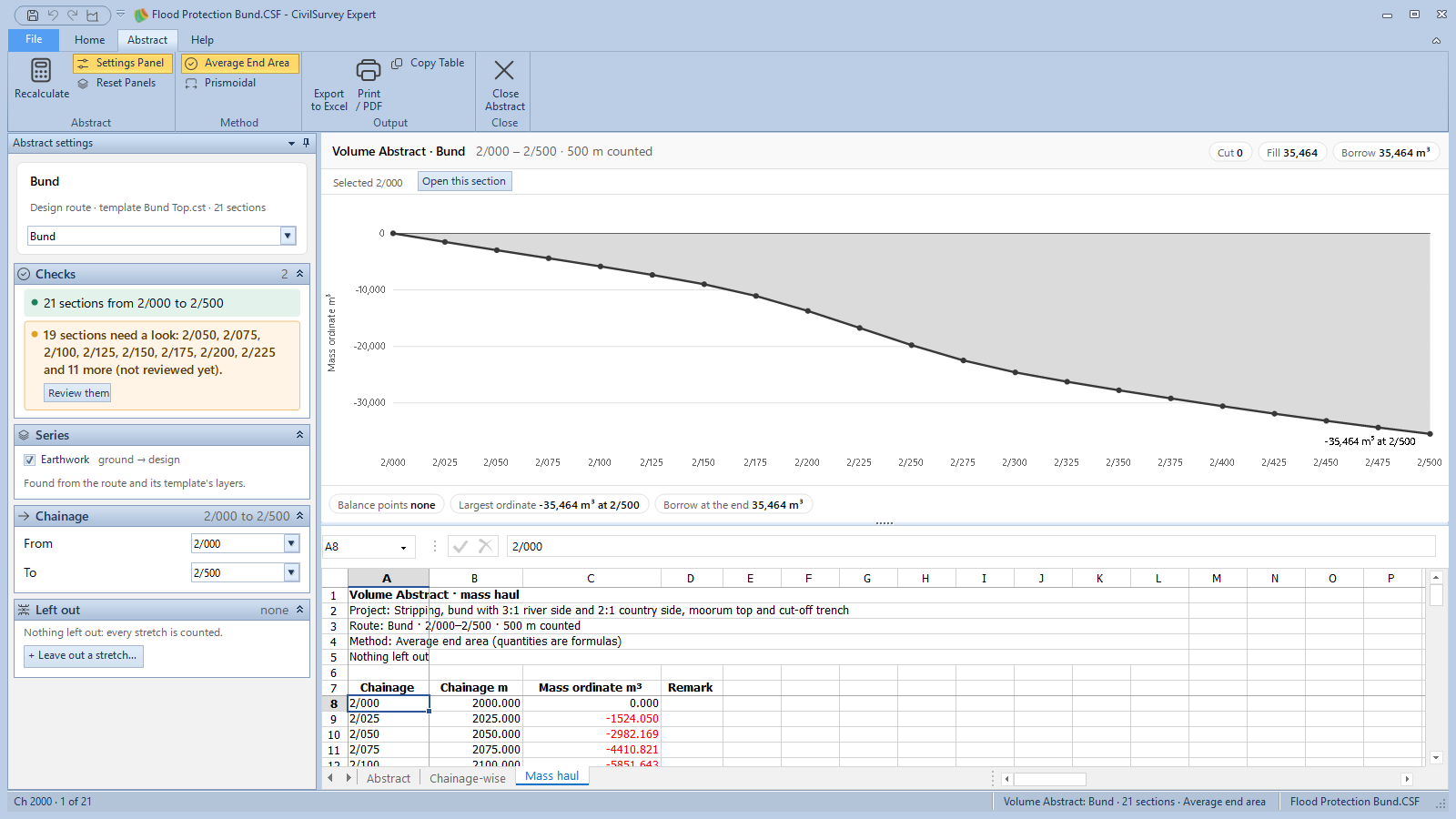
On a route whose template has layers, each layer gets its own statement sheet as well.
3. The Abstract settings panel
A change here works the abstract out again at once. Each part folds; click its title.
- The route box (top): the route the abstract is for. It shows only when the project has more than one.
- Checks: what to look at first. Here it says 21 sections from 2/000 to 2/500, then that 19 sections need a look because they are not reviewed yet. Review them opens the first one in the Cross Section screen. When one interval is much longer than the others, it asks A culvert or bridge?, with Leave out… and Keep it in.
- Series: what is counted. Earthwork (ground to design) and each template layer. Keep at least one ticked.
- Chainage: From and To, to work out the abstract for part of the route.
- Left out: the stretches not counted. To start with it says Nothing left out: every stretch is counted.
Leave out a stretch
For a culvert, a bridge or an existing road, where the earthwork is not paid:
- Under Left out, click + Leave out a stretch… (or select the rows on the Chainage-wise sheet and click Leave out these rows…).
- Pick the first and last chainage of the stretch. The dialog shows the length left out.
- Under Reason, choose Culvert, Bridge, Existing road or Other.
- Click Leave out.
The stretch shows in grey with its reason in every table, the Excel and the print. To count it again, click ✕ beside it under Left out.
4. Average End Area or Prismoidal
On the Abstract tab, under Method:
- Average End Area: the volume between two sections is their mean area times the distance.
- Prismoidal: Simpson's rule over pairs of equal intervals. An interval left over is worked out by average end area.
Click one and compare the totals. With Average End Area, every quantity in the Excel is a formula a checker can follow. With Prismoidal they are values, and the sheet's heading says so. See How CSE calculates › Volume for when the two differ.
5. When the sections change
Edit a section and come back: a card over the sheet says Sections changed since this abstract, lists them, and says the quantities below are from before. Click Recalculate on the card (or on the Abstract tab) to work it out again from the sections as they are now.
6. Export to Excel, or copy a table
- Export to Excel: saves the whole workbook (Bund abstract.xlsx is offered), with formulas a checker can follow. It then asks Open in Excel or Not now.
- Copy Table: copies the sheet in front, to paste into Excel or Word.
7. Print or save as PDF
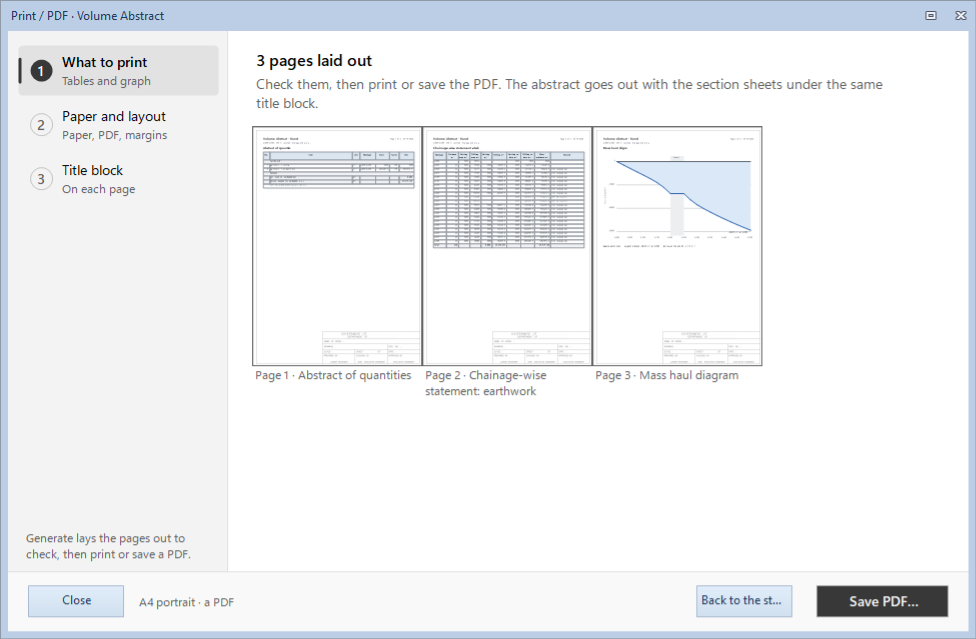
Click Print / PDF. It has three steps, as Print Sections has:
- What to print: Abstract of quantities, Chainage-wise statement, Mass haul diagram, and A chainage-wise statement for each layer as well (for a route with template layers). Each starts on a new page.
- Paper and layout: Paper (A4 or A3), Orientation (Portrait or Landscape), Output (Printer or PDF file), and Repeat the column headings on every page. Page numbers and the date go on every page.
- Title block: Title block on each page. It is the same title block as Print Sections, so the abstract and the section sheets go out as one set. To change it, use Print Sections › Title block (see Print sections).
Click Generate. The pages are laid out and shown small, to check. Then click Save PDF… (Bund abstract.pdf is offered) or Print…. Back to the steps goes back to change something.
8. The panel, and closing
- Settings Panel (Abstract tab) hides the Abstract settings panel at the left edge, or brings it back.
- Reset Panels puts it back where it was first laid out.
- Close Abstract closes it and takes you back to the screen you were on. Its settings (factors, range, stretches left out, method) stay with the route, and are saved with the project.
What next
- Print the sections with the same title block: Print sections.
- Your own title block: Set up the title block.
- Back to the start: Quick Start.
If something looks wrong
| You see | Do this |
|---|---|
| Open the sections first: the Volume Abstract is worked out from them. | Open the Cross Section screen (F6) first. |
| No route has sections with a cut or fill yet: build the sections of a design route first. | Add a design route, then open the sections with Rebuild from routes. |
| No route box at the top of the panel | The project has only one route with sections. |
| A factor is a number from 0.00 to 9.99. | Type a number in that range in column F. |
| Worked out from the sections; only the factors in column F are typed here. | The other cells come from the sections. Change the section, or use the settings panel. |
| Fewer than 2 sections … nothing to work out. | Widen From and To under Chainage. |
| The card says the sections changed | Click Recalculate. |
| No Mass haul sheet | Tick Earthwork under Series: the mass haul comes from it. |
| The sheet could not be opened: another program is using the clipboard. | Wait a moment, then click Recalculate. |
| The settings panel is gone | Abstract › Settings Panel, or Reset Panels. |