Set up the title block
What you get: your department, the name of work and the signature boxes on every sheet of sections, on the volume abstract's pages and on the contour plan. You make the project's own title block once, from the standard one or from your office's DWG, and place it on the sheet.
You need: the Irrigation Canal Survey sample. About 10 minutes.
1. Where the title block is set
The title block is set up in one place, the Title block step of Print Sections. The other prints use the same one:
- Print Sections: on each sheet of cross sections or the long section, on paper and in PDFs. The AutoCAD drawing has none.
- Abstract › Output › Print / PDF: on each page, when Title block on each page is on, so the abstract and the section sheets go out as one set (see Volume abstract).
- Contour › Output › Print / PDF: on the contour plan, at the sheet's bottom right corner, made larger with the paper (see Print and export a contour plan).
Portrait and landscape sheets each have their own title block. The contour plan always uses the landscape one.
2. Open the Title block step
- On the Start page, open the Irrigation Canal Survey sample.
- Click Home › View › Cross Section (or press F6), then Open saved sections.
- Click Section › Output › Print Sections.
- Click Title block in the list of steps on the left.
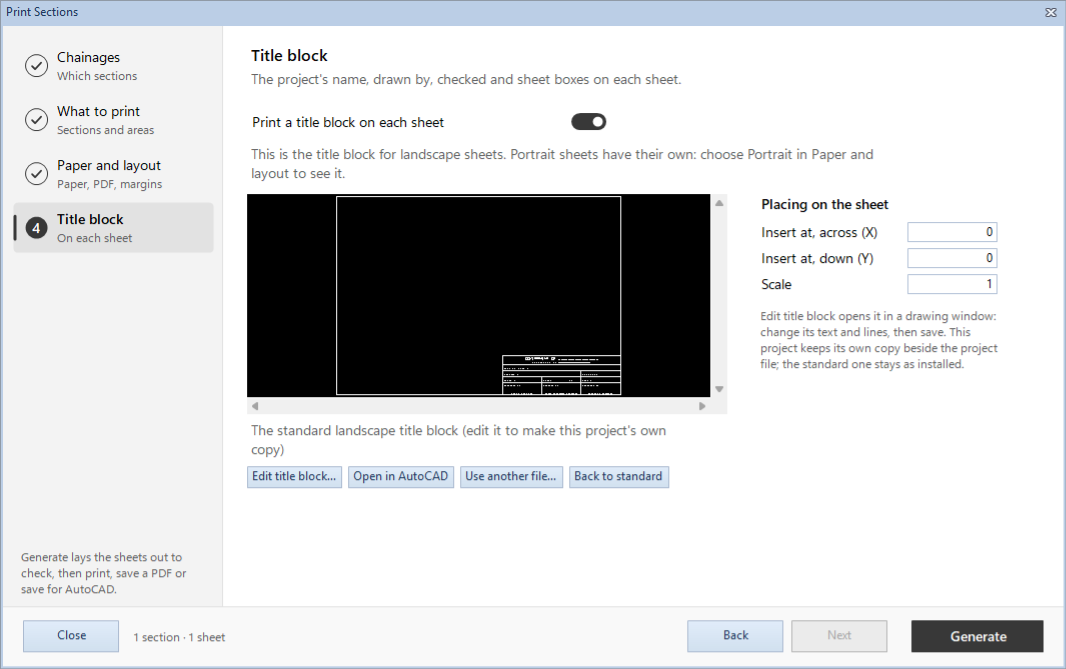
What you see:
- Print a title block on each sheet: on to start with. Turn it off for plain sheets.
- A line that says which one this is: This is the title block for portrait sheets. Landscape sheets have their own: choose Landscape in Paper and layout to see it.
- A picture of the title block, and under it which file it is. For the sample: The standard portrait title block (edit it to make this project's own copy).
- Four buttons: Edit title block…, Open in AutoCAD, Use another file… and Back to standard.
- Placing on the sheet, on the right.
To see the landscape one, go to Paper and layout, choose Landscape under Paper, and come back to this step.
3. What the standard title block has
The standard title block is a box at the bottom right of an A4 sheet, with a border round the sheet. Its boxes are:
- GOVERNMENT OF … and DEPARTMENT OF …
- NAME OF WORK :, DRAWING : and DRG. NO. :
- SCALE :, SHEET … OF and DATE :
- PREPARED BY, CHECKED BY and APPROVED BY, with the posts under them
The program does not fill these in. The title block is printed the same on every sheet, so type the details once in the project's own copy, and leave the boxes that change from sheet to sheet to fill in by hand.
4. Edit it in the program
- Click Edit title block…. The program makes the project's own copy from the standard one and opens it in the Edit Title Block window.
- Use the tools along its top. Rest the mouse on one to see what it does.
| Tool | What it does |
|---|---|
| Select | Ends the tool in use. |
| Text | Adds a text: click where it goes, then type it. |
| Line | Draws a line: click its two ends. |
| Rectangle | Draws a rectangle: click two corners. |
| Move, Copy, Erase | Move, copy or erase what you select. |
| Properties | A text's wording, height and colour, or a line's: select it first. |
| Undo, Redo | Ctrl+Z and Ctrl+Y. |
| Fit | Shows the whole title block. |
- To fill in a box, add a Text beside its label: after NAME OF WORK :, say, click and type the name of work. To change a text that is there, such as DEPARTMENT OF …, select it and click Properties.
- Click Save. The line at the foot says what it does: Saved to this project's title block; the standard one is not changed.
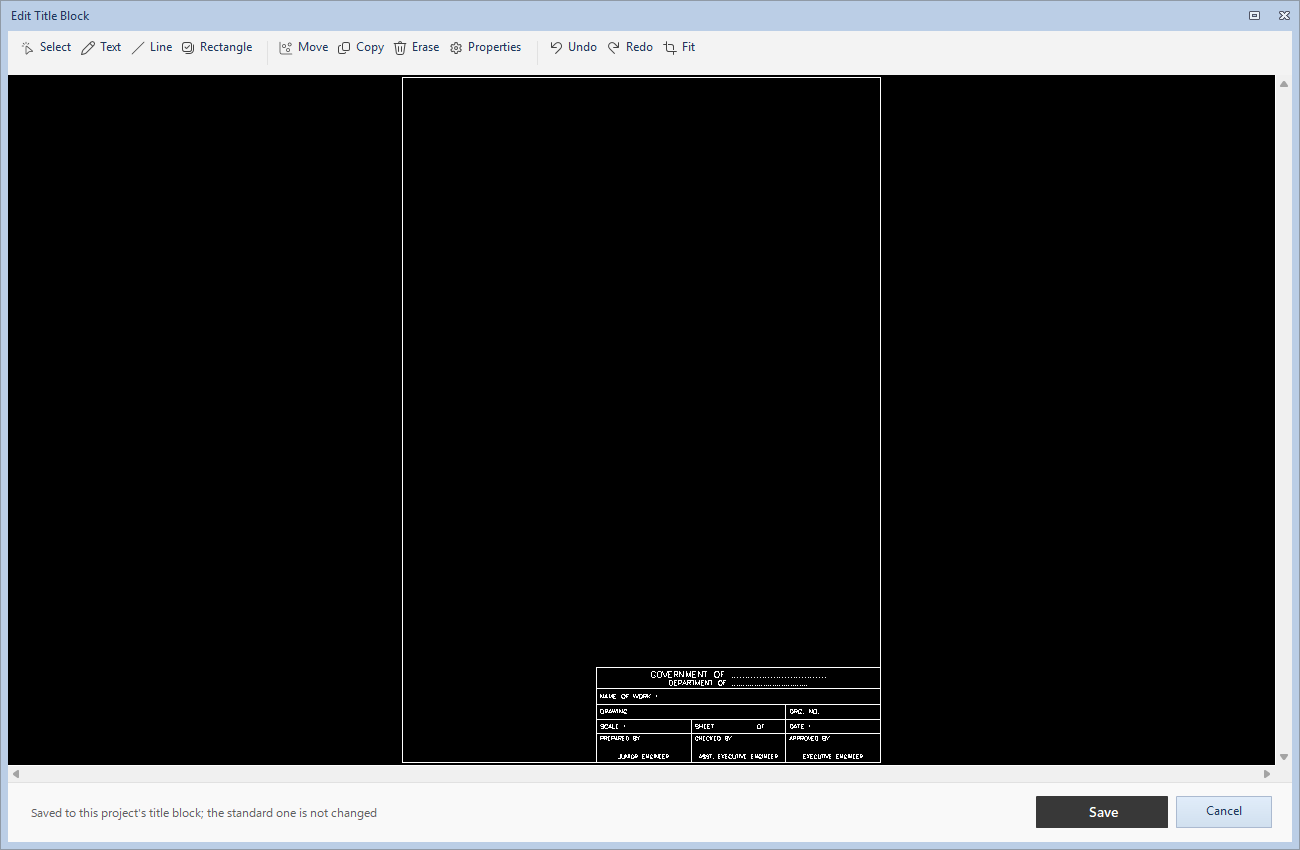
If you close the window with changes not saved, it asks Save the changes to the title block? Yes saves them, No leaves them, Cancel goes back to the window.
Back on the Title block step, the picture shows your title block, and the line under it says This project's portrait title block: Irrigation Canal Survey.titleblock.dwg.
5. Or use AutoCAD, or your office's DWG
- Open in AutoCAD: opens the project's own copy (made from the standard one the first time) in the program set to open DWG files on this computer. Change it there and save it. Go to another step and back to Title block to see it.
- Use another file…: choose a DWG, your office's title block say. It is copied in as the project's own title block; the file you chose is not changed.
- Back to standard: asks Use the standard title block again? This project's edited copy is deleted. Click Yes. The standard one is used again, and its place on the sheet is put back too.
Each of these changes the title block of the orientation shown, portrait or landscape.
6. Place it on the sheet
Under Placing on the sheet:
- Insert at, across (X) and Insert at, down (Y): where the title block's own origin goes on the sheet.
- Scale: its size. 1 is the size it was drawn.
A DWG from your office may have been drawn with its origin elsewhere, or in other units. If it lands off the sheet or the wrong size, change these and click Generate to look at the sheets. Back to standard puts the standard values back.
The contour plan places the landscape title block itself, at the bottom right corner, without its own sheet border: only its Scale is used there.
The area calculations on a sheet, and the abstract's tables, stop just above where the standard title block's box is. If your own title block's box is taller, look at the sheets before you print them.
7. Where it is kept
The project's own title block is kept beside the project file, named after it:
| File | What it holds |
|---|---|
| Irrigation Canal Survey.titleblock.dwg | The portrait title block. |
| Irrigation Canal Survey.titleblock.xml | Whether it is printed, and where it is placed. |
| Irrigation Canal Survey.titleblock.landscape.dwg | The landscape title block. |
| Irrigation Canal Survey.titleblock.landscape.xml | Whether it is printed, and where it is placed. |
A project without these files uses the standard one, installed with the program. The standard one is never changed. When you move the project or send it to someone, take these files with it. See Projects and files.
What next
- Print the sections with it: Print sections.
- The abstract with the same title block: Volume abstract.
- The contour plan: Print and export a contour plan.
If something looks wrong
| You see | Do this |
|---|---|
| Save the project first: its title block is kept beside it. | Save the project (Ctrl+S), then edit the title block. |
| The title block file is missing: … | The project's own copy was moved or deleted. Click Use another file…, or Back to standard. |
| No program is set to open DWG files on this computer. Use Edit title block instead. | Use Edit title block…, or set AutoCAD to open DWG files. |
| The title block is not the one you edited | Portrait and landscape have their own. Choose the other orientation in Paper and layout and look again. |
| The title block is off the sheet, or the wrong size | Change Insert at, across (X), Insert at, down (Y) or Scale, or click Back to standard. |
| The edited title block is gone on another computer | Its files stay beside the project file. Copy them with it. |
| No title block on the contour plan: The title block is turned off for this project (Print Sections › Title block). | Turn on Print a title block on each sheet with Landscape chosen in Paper and layout. |
| No title block on the AutoCAD drawing | That is how it works: the title block is for paper sheets and PDFs. |
| Text in the title block prints bold | See Text line weight in Change how sections are drawn. |