Projects and files
What you get: your own projects started, opened, saved and copied; the Start page and the File page put to use; and a clear idea of what is in a project file, what is kept beside it, and how to go back to an earlier copy.
You need: CivilSurvey Expert installed and activated (see Install and activate). About 10 minutes.
1. The project file
A project is one file ending in .CSF. It holds everything in the project: the field books, designs and From coordinates routes of the Routes workbook, your own sheets, the templates, the cross sections with their edits and reviews, the contour jobs and the project's settings.
- New projects go in Documents › CivilSurvey Expert › Projects unless you choose another folder.
- CivilSurvey Expert has one project open at a time. Opening or starting another one closes the one that is open, and asks first if something in it isn't saved.
- To move a project to another PC, copy its .CSF file. If you gave the project its own title block (see Title block), copy the files beside it whose names start with the project's name followed by .titleblock too.
2. The Start page
The Start page opens when you start the program, and when you close a project. With a project open, click the File tab and then Home to see it.
Across the top are New project (Ctrl+N), Open (Ctrl+O) and Sample projects.
Pick up where you left off
Under Continue where you left off is the last project you opened, with its folder and when it was last changed.
- Click Open to open it on the Input screen.
- Or, under Jump to, click Input or Sections to open it straight on that screen.
If that project is already open, the button says Back to project.
Projects: pinned and recent
The Projects list shows the projects you have opened lately (the last 10), under Recent, and the ones you keep at the top, under Pinned. Each row has the project's Name, its Location and when it was Modified.
- Click a project to open it.
- To keep a project at the top, click the pin at the end of its row (Pin to the top). Click it again to Unpin.
- To find one, type part of its name or folder in Search by name or folder. Enter opens the first match.
- Right-click a project for more: Open, Open in Sections, Open containing folder, Copy path, Pin to the top (or Unpin) and Remove from list.
Remove from list only takes the project off the list. The file stays where it is.
A project that has been moved, renamed or deleted shows Not found. Clicking it asks whether to Remove from list or Keep it.
Drop a project file
Drag one .CSF file from File Explorer and drop it anywhere on the Start page. It opens on the Input screen.
The samples
The first time, the samples are listed under Open a sample project. Once you have projects of your own, they are under the Sample projects button and in the Sample projects card on the right. Opening a sample opens your own copy of it in Documents › CivilSurvey Expert › Samples; the next time, the same copy opens, with your changes.
3. Start a new project
- On the Start page, click New project (or press Ctrl+N, or click the File tab, then New). Create a new project opens.
- Type the Project name. It becomes the file's name, so it can't have any of these characters: \ / : * ? " < > |
- Check the Location. It starts at Documents › CivilSurvey Expert › Projects. Click Browse for another folder, or one of the Recent folders under the box. A folder that isn't there yet is made for you.
- Add a Description (optional): the client, the chainage range, the survey date.
- Saved as shows the full path of the new file. Click Create project.
The project is made from the standard template and opens on the Input screen, ready for its first route. See Enter a field book.
Cancel (or Esc) goes back to the Start page without making anything.
4. Open a project
- From the list: click it on the Start page (section 2).
- From the PC: click Open on the Start page, or click the File tab, then Open…. The window starts in Documents › CivilSurvey Expert › Projects. Choose the .CSF file. Ctrl+O opens a project too.
When you open a project made in an older version of CivilSurvey Expert, it is brought up to date as it opens. The file as it was is kept beside it (section 8), and the status bar says so.
5. Save
Press Ctrl+S, or click Save Project at the very top left, or Home › Project › Save. From the File page, Save saves and takes you back to the project.
Save saves everything that changed: every route (field books and designs, with the workbook) and the section data, with the reviews. The status bar says Saved.
Two screens save their own work into the project:
- a template in the Template Designer: Template › Save to Project (see Design a template);
- a contour job: Contour › Job › Save to Project (see Contours from a point survey).
When a section's points changed since the last save, Save sections asks why first. See Review the cross sections.
Save writes over the project file and keeps no copy. Before a big change, make a copy you can go back to (section 6).
6. Save a copy
Save a copy… saves the project to another file. You go on working in the project you have open; the copy isn't opened.
- Click the File tab, then Save a copy….
- If something isn't saved, the program asks Save changes before making a copy? The copy is made from the project file:
- Save all saves your changes first, so the copy has them.
- Don't save copies the project as it was last saved. Your changes stay in the open project, still not saved.
- Cancel makes no copy.
- The Save a copy window offers the project's own folder and the project's name with (copy) after it, or (copy 2) and on when that name is taken. Change the name or folder if you like, and save.
The status bar says Saved a copy: and the copy's path.
A title block of the project's own is not copied with it. Copy its files by hand if the copy needs it.
7. Close the project, or the program
- Close project: click the File tab, then Close project. The project closes and the Start page opens.
- Exit: click the File tab, then Exit, or close the window. CivilSurvey Expert closes.
If anything isn't saved, the program asks first, for the whole project at once:
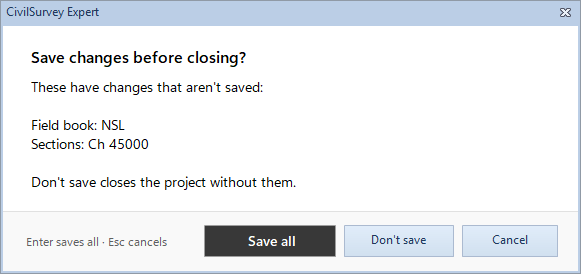
Save changes before closing? lists what has changes: each route by its kind and name, the sections by their chainages, a template, a contour job.
- Save all (or Enter) saves them all, then closes.
- Don't save closes without them.
- Cancel (or Esc) keeps the project open.
The same question comes when you open or start another project, and before Compact and repair. When everything is saved, nothing is asked.
8. Info: where the project is, compact and repair, import settings
Click the File tab, then Info.
At the top are the project's name, its description and its full path. Open folder shows the file in File Explorer. Below are four tiles: Saved (when the file was last saved), Size, Field books (with From coordinates routes) and Designs.
Under Tools:
Compact and repair
A project file grows as you work. Compact and repair makes it smaller and fixes small faults in it.
- Click Compact and repair. The program says what it will do. Click OK.
- If something isn't saved, it asks Save changes before closing? (section 7).
- The project closes for a moment, is compacted and opens again. The message gives the size before and after, and the name of the file as it was.
Import settings
Copies settings from another project into this one, so a new project draws and calculates like one you already have.
- Under Import settings, click Choose project…. The Import Settings window opens.
- Next to Select Project File:, choose the project whose settings you want.
- Under Settings Options, tick what to copy: Section Settings, Series Settings, SideSlope Settings.
- Click Import. Each ticked line shows Done or Failed, and the program says Settings imported.
See Change how sections are drawn for what the section settings do.
The copies kept beside the project
Some commands keep the file as it was, in the same folder as the project, before they change it:
| When | The copy beside the project |
|---|---|
| Compact and repair | {project}.CSF.{date}-{time}.bak |
| A project from an older version is brought up to date when it opens | {project}.CSF.{date}-{time}.bak |
| Import from Excel (File › Excel) | {project} (before import {date} {time}).CSF |
These copies stay until you delete them.
To go back to a .bak copy:
- Close the project (section 7).
- In File Explorer, copy the .bak file, and rename the copy to a new name ending in .CSF.
- Open that file (section 4). Keep the original project until you are sure.
A (before import …) copy is a project already: open it as it is.
9. Excel, Theme and About
- Excel: the whole project to an Excel workbook (Export…), and field books, designs and sheets back from one (Import…). See The whole project to Excel and Bring in a field book from Excel.
- Theme: the look of the whole window: Light, Silver, Blue, Dark Grey, Dark or Follow Windows. Click one to switch to it. The sections keep their own drawing colours.
- About: the version and the licence. See Install and activate.
Press Esc, or click Back, to go back to the project from the File page.
What next
- Enter a field book: the first route of a new project.
- The whole project to Excel
- Change how sections are drawn
- The screens at a glance
If something looks wrong
| You see | Do this |
|---|---|
| The project wasn't found | The file has been moved, renamed or deleted. Open it from its new place with Open, and remove the old entry from the list. |
| The project couldn't be opened | Check that it is a CivilSurvey Expert project (.CSF) and that no other program has it open, then open it again. |
| This isn't a CivilSurvey Expert project | The file isn't a .CSF project. Open the project file itself. |
| A project with this name already exists in the folder | Give the new project another name, or choose another folder. |
| Save, Save a copy…, Close project, Info and Excel are greyed on the File page | No project is open. Open one first. |
| The copy couldn't be saved | The open project is as it was. The message says why (a full disk, a folder that isn't there); choose another place and try again. |
| You saved over something you wanted back | Save keeps no copy. Look beside the project for a .bak or (before import …) copy (section 8), or a copy you made with Save a copy…. |
| The project file has grown large | File › Info › Compact and repair. |
| The settings couldn't be read | This project hasn't been changed. Check that the project you chose opens on its own, then try again. |