Find, replace and edit rows
What you get: the Routes workbook on the Input screen edited the quick way: text found in one sheet or all of them, replaced in one go, rows put in and taken out, cells cut, copied and pasted, and every step undone if you need to. You also see the Route Editor and how to remove a route.
You need: CivilSurvey Expert installed and activated. About 10 minutes. You use the Railway Formation sample.
1. Open the sample
- On the Start page, under Open a sample project, click Railway Formation.
Once you have projects of your own, the samples are under the Sample projects button at the top right of the Start page.
The Input screen opens with the Routes workbook. Its sheets, by their tabs at the foot: NSL (the level book), Subgrade, Blanket and Ballast (the designs) and Stripping.
The Home tab's Edit and Find groups work on the sheet in front. On another screen they work on that screen's own table, or are grey with a tip that says where they work.
2. Find
- Click the NSL tab.
- Click Home › Find › Find (or press Ctrl+F). The find bar opens over the sheet, with the cursor in Find.
- Type Change Point.
- Press Enter (or F3, or the ▼ button). The next cell that has it is selected and brought into view, and the bar says which match it is out of how many. Shift+F3 (or ▲) goes back to the one before. After the last match it goes round to the first.
- Click Find all. Every match is listed under the bar: its Sheet, its Cell and what it Shows. Click a line to go to that cell.
The options on the bar:
| Option | What it does |
|---|---|
| Match case | CL finds CL, not cl. |
| Whole cell | Only cells that hold the text and nothing else. CL then misses a remark such as CL peg. |
| Within | This sheet (the sheet in front) or All sheets of the workbook. With All sheets, the bar also says which sheet and cell each match is in. |
| Look in | Values, as the cells show them, or Formulas, as they are written (such as the H.I. in row 2). |
Home › Find › Find Next finds the next match of the text in the bar, as F3 does. Press Esc, or click ✕, to close the bar.
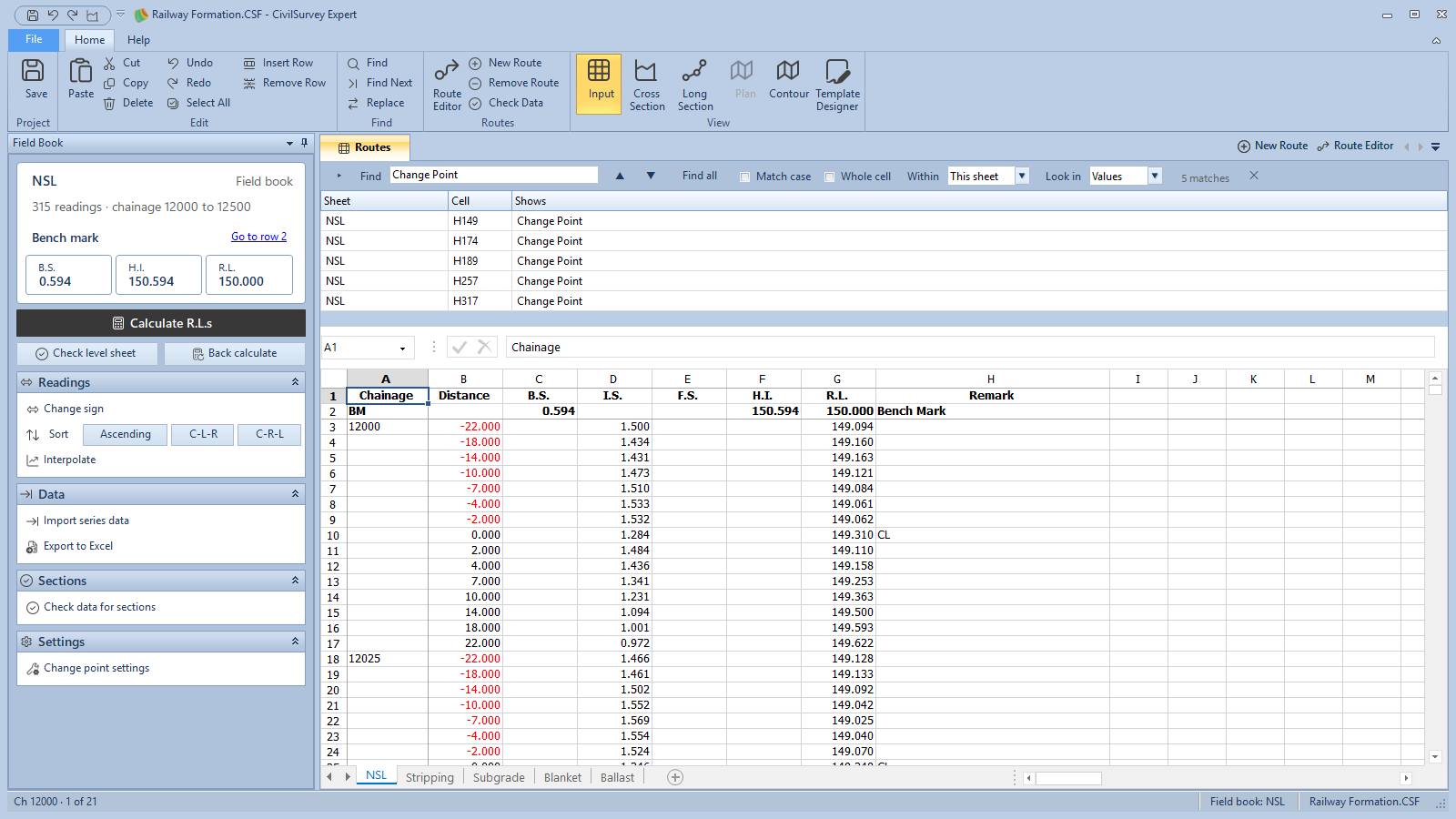
3. Replace
The level book's centre line readings have the Remark CL. Write it out in full, then undo.
- Click Home › Find › Replace (or press Ctrl+H). The bar opens with a second row, Replace. (The ▸ button at the left of the bar shows and hides that row.)
- Under Find, type CL. Tick Whole cell. Leave Within on This sheet.
- Under Replace, type Centre line.
- Click Replace. The first click finds a match; the next one replaces it and goes to the next match, as in Excel.
- Click Replace all. Every match on the sheet is replaced. The bar says how many cells were replaced.
- Click Home › Edit › Undo (or press Ctrl+Z). Replace all is one step, so one Undo puts every cell back.
Some cells are never replaced: the headings in row 1 of a route sheet, and on a design sheet the chainage and centre level (they come from the field book) and the height and gradient (they are worked out). The bar then says how many were left, fixed headings or worked-out columns.
4. Insert and remove rows
- On the NSL sheet, click a row number in the readings of Ch 12025 (any row from row 3 on).
- Click Home › Edit › Insert Row. An empty row goes in at that row; the rows below move down. Select several rows first to put in as many.
- Click Home › Edit › Remove Row. The selected rows are taken out.
- Click Home › Edit › Undo twice to put the sheet back.
On a field book, rows 1 and 2 are the headings and the bench mark: rows go in and out from row 3 on. On a From coordinates route's sheet, from row 2 on. Your columns from I on move with the rows.
After you change the readings of a level book, the panel warns that The R.L.s don't match the readings from row …. Click Calculate R.L.s on the Field Book panel. See Enter a field book.
5. Cut, copy, paste and the other Edit commands
| Command | What it does on the sheet in front |
|---|---|
| Paste (Ctrl+V) | Puts what you cut or copied at the selected cell. |
| Cut (Ctrl+X) | The selected cells move to where you paste them. They stay where they are until you paste. |
| Copy (Ctrl+C) | Copies the selected cells. |
| Delete | Clears the selected cells. |
| Undo (Ctrl+Z) | Undoes the last change to the sheet: typing, a paste, Replace all, a row put in or taken out, or a command on the panel. |
| Redo (Ctrl+Y) | Does again what Undo undid. |
| Select All (Ctrl+A) | Selects the whole sheet. |
| Insert Row | An empty row at the selected row. |
| Remove Row | Takes out the selected rows. |
Undo and Redo are also at the top left of the window, beside Save Project.
A route sheet keeps a few cells as they must be:
- Row 1, the headings, takes no typing. Your own columns, from I on, take anything.
- On a field book, row 2 is the bench mark: only its B.S., R.L. and Remark take typing. If you clear the BM label or the H.I., they come back.
- The number columns (Distance to R.L. on a field book) take numbers or formulas only.
6. The Route Editor
Click Home › Routes › Route Editor. The Route Editor lists every route of the project, in the order they were added:
| Column | What it is |
|---|---|
| Route | The route's name. |
| Type | Field book, Design or From coordinates. |
| Drawn as | The series the route is drawn as in the sections, or Not drawn. |
| Remark | Your note for the route. Type in the box to change it. |
- Number series in order gives the drawn routes NSL, SERIES2, SERIES3… in their present order, with no gaps. It can be clicked when the series are out of order.
- New route adds a field book or a design, as Home › Routes › New Route does.
- The button at the right end of a row marks the route to be removed. Nothing is removed until you save: a note under the list says what will go, and the button changes to Undo to keep the route.
- Save says how many changes you made. Click it to save them. Cancel with changes made asks Discard your changes?: Discard or Keep editing.
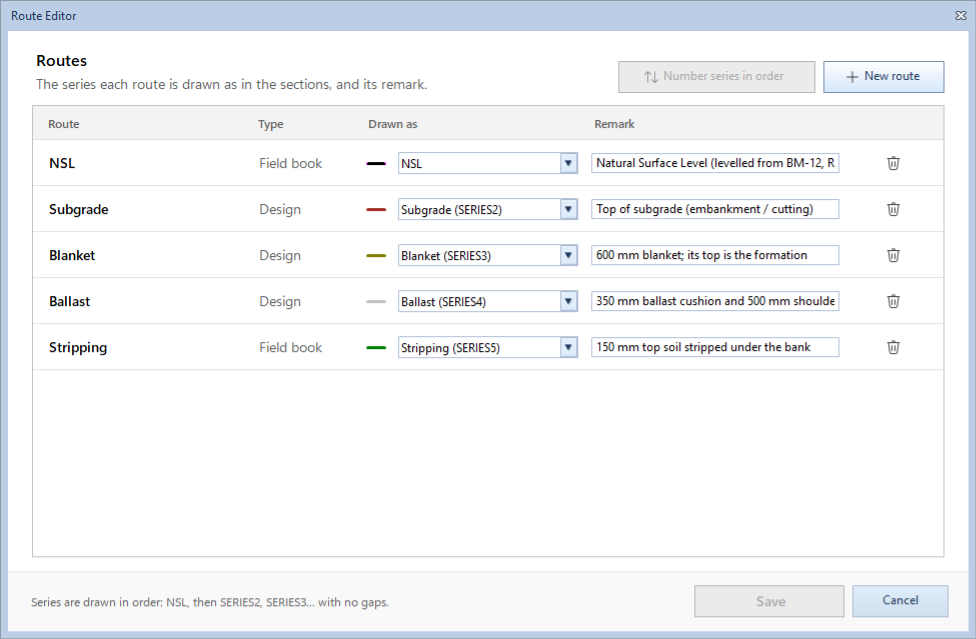
The Route Editor doesn't rename routes or change the order of their sheets. A route's sheet keeps the route's name: a new name typed on its tab goes back. What you can change is the order the routes are drawn in, by their Drawn as.
7. Remove a route
- Click the tab of the route to remove.
- Click Home › Routes › Remove Route.
- The program asks Remove the route …?: its readings, its sections and everything worked out from them are deleted from the project, and this can't be undone. Click Remove route, or Cancel.
For practice on the sample, add a route first (see Enter a field book) and remove that one.
If the route carries a template's layers as series, the program closes the cross sections first and asks again if those layers were edited.
What next
- Check the routes before drawing: Check the data before drawing.
- Type a level book: Enter a field book.
- Sheets from Excel: Bring in a field book from Excel.
- Save: press Ctrl+S. Every route that changed is saved.
If something looks wrong
| You see | Do this |
|---|---|
| Find, Find Next and Replace are grey | They work on the route sheets. Click Home › View › Input. |
| The bar says No matches | Check Within (This sheet looks only at the sheet in front), untick Whole cell and Match case, and set Look in to Values. |
| The bar says a cell is not changed here | It is a heading or a worked-out cell. Change it at its source: the field book for a design's chainage and centre level. |
| The status bar says Rows 1 and 2 are the headings and the bench mark: insert or delete rows from row 3 on | Select a row from row 3 on. |
| The status bar says … is not a number | Type a number, or a formula starting with =, in that column. |
| The status bar says Couldn't cut: another program is using the clipboard | Close the other program's copy or wait a moment, and try again. The cells are as they were. |
| This sheet belongs to … | You tried to delete a route's sheet. Remove the route instead (Home › Routes › Remove Route). |
| Select a route's sheet first | One of your own sheets is in front. Click a route's tab. |
| Save in the Route Editor is grey | Make a change first. If a note under the list says the series are out of order, click Number series in order. |