Check the data before drawing
What you get: a list of anything in your routes that would draw a cross section wrong (a point without a level, a design row without a template, a chainage without ground), each one a click away from its row. Or the all-clear, before you build a single section.
You need: CivilSurvey Expert installed and activated. About 5 minutes.
1. Run the check
- Start CivilSurvey Expert. On the Start page, under Open a sample project, click Railway Formation. (Once you have projects of your own, the samples are under the Sample projects button.)
- On the Input screen, click Home › Routes › Check Data.
The same check is on the side panel, under Sections › Check data for sections.
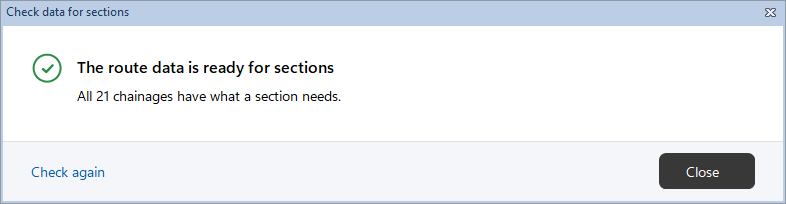
The Check data for sections window opens. For this sample it says The route data is ready for sections and All 21 chainages have what a section needs. Click Close.
The check reads the routes as they were last saved, as the sections are built from them. If you have changes not saved yet, it asks Save your changes first? first. Yes saves and checks; No checks the saved data as it is; Cancel stops.
2. What it looks at
Every route drawn in the sections: the field books, the designs and the From coordinates routes. A route whose Draw in sections as is Not drawn is not checked.
Errors. The chainage's section would be drawn wrong:
| Problem | To fix |
|---|---|
| A point with no chainage | Enter the chainage on the first row of its group. |
| A chainage that isn't a number | Correct the chainage. |
| A point with no level (RL) | Calculate the field book, or enter the level. |
| A design row with no chainage, or one that isn't a number | Correct the chainage on the field book the design is made from, then make the design rows again. |
| No template chosen at a chainage | Choose a template for the row and apply it. |
| A template that isn't in the project, or has no points | Choose another template for the row, or add the template's points in the template designer. |
| No design level at the template centre | Apply the template on the Design panel. |
| No ground (NSL) at a chainage, or only one point | Add the ground readings at that chainage, to the left and right of the centre line. |
| A layer's side slopes meet a series that has fewer than two points there | Add that series' points at the chainage, or change what the layer extends to in the section settings. |
Warnings. The section is drawn, but look at it:
| Problem | To fix |
|---|---|
| A chainage on more than one design row (its first row is used) | Remove the repeated row. |
| An offset on more than one row at a chainage | Remove the repeated reading, unless it is a vertical face. |
| A route with no points at some chainages (those sections are drawn without it) | If it should be there, add its points at those chainages. |
3. Try it: make a problem, then fix it
- Click the NSL tab. Pick a reading at chainage 12100 whose Remark is empty (not a change point). Click its R.L. cell and press Delete.
- Click Home › Routes › Check Data. It asks Save your changes first? Click Yes.
The window now says Chainage 12100 can't make a correct section, and lists the problem: Error, the route NSL, the Chainage, the Row and the Problem, The point at offset … has no level (RL). Under the list: To fix: Calculate the field book, or enter the level.
- Click the problem in the list, or Go to the problem. The NSL sheet comes to the front with that row selected. The window stays open beside the sheets.
- On the Field Book panel, click Calculate R.L.s. The R.L. is back.
- In the check window, click Check again, and Yes to save. It says The route data is ready for sections again.
4. Reading the window
- At the top, what it found: The route data is ready for sections; Chainage … can't make a correct section or … chainages can't make a correct section when there are errors; No errors in the route data when there are only warnings.
- The list has one problem a line: Error or Warning, then Route, Chainage, Row and Problem. Errors come first.
- Under the list, To fix: says what to do about the problem selected.
- Go to the problem (or a click on the problem, or Enter) takes you to its row on the Routes workbook. Check again checks the saved data again, after you correct and save. Close closes the window.
5. When you build the sections
When you open the cross sections for the first time, or choose Rebuild from routes…, the same check runs first. If all is well, it goes on to build them.
If it finds errors, the Build sections window shows them, with:
- Leave out and build: builds every other chainage, and leaves out the ones with errors. Correct their data on the Routes page and build the sections again.
- Go to the problem: stops, and takes you to the row of the problem selected.
- Cancel: stops.
With warnings only, it says The sections are ready to build; click Build sections.
What next
- Enter or correct a field book: see Enter a field book.
- Lay a design on the field book: see Lay a template along the route.
- Look at the sections: see Review the cross sections, or the Quick Start.
If something looks wrong
| You see | Do this |
|---|---|
| You corrected the data, but the problem is still listed | The check reads the saved data. Save (Ctrl+S), then click Check again. |
| No route drawn in the sections has points yet. | Enter the field book first. See Enter a field book. |
| The check is clear, but a section you opened is still wrong | Saved sections open as they were saved. After correcting a field book or a design, open the sections with Rebuild from routes…. |