The screens at a glance
What you get: a map of CivilSurvey Expert: its window, the ribbon, and the screens you work in, so the other pages make sense when they say "Home › View › Cross Section".
You need: nothing open yet. To look around as you read, open the Two-Lane Highway sample from the Start page.
The window
- The ribbon across the top holds every command. Home is always there; a screen's own tab (Section, Template, Abstract or Contour) comes up while that screen is in front, and goes when you leave it.
- The quick access buttons at the very top left: Save Project, Undo and Redo.
- The File tab (top left, in colour) opens the File page.
- The status bar along the bottom says where you are (for example Ch 45000 · 1 of 21 on the cross sections), which route is in front, and the project's file name.
The File page
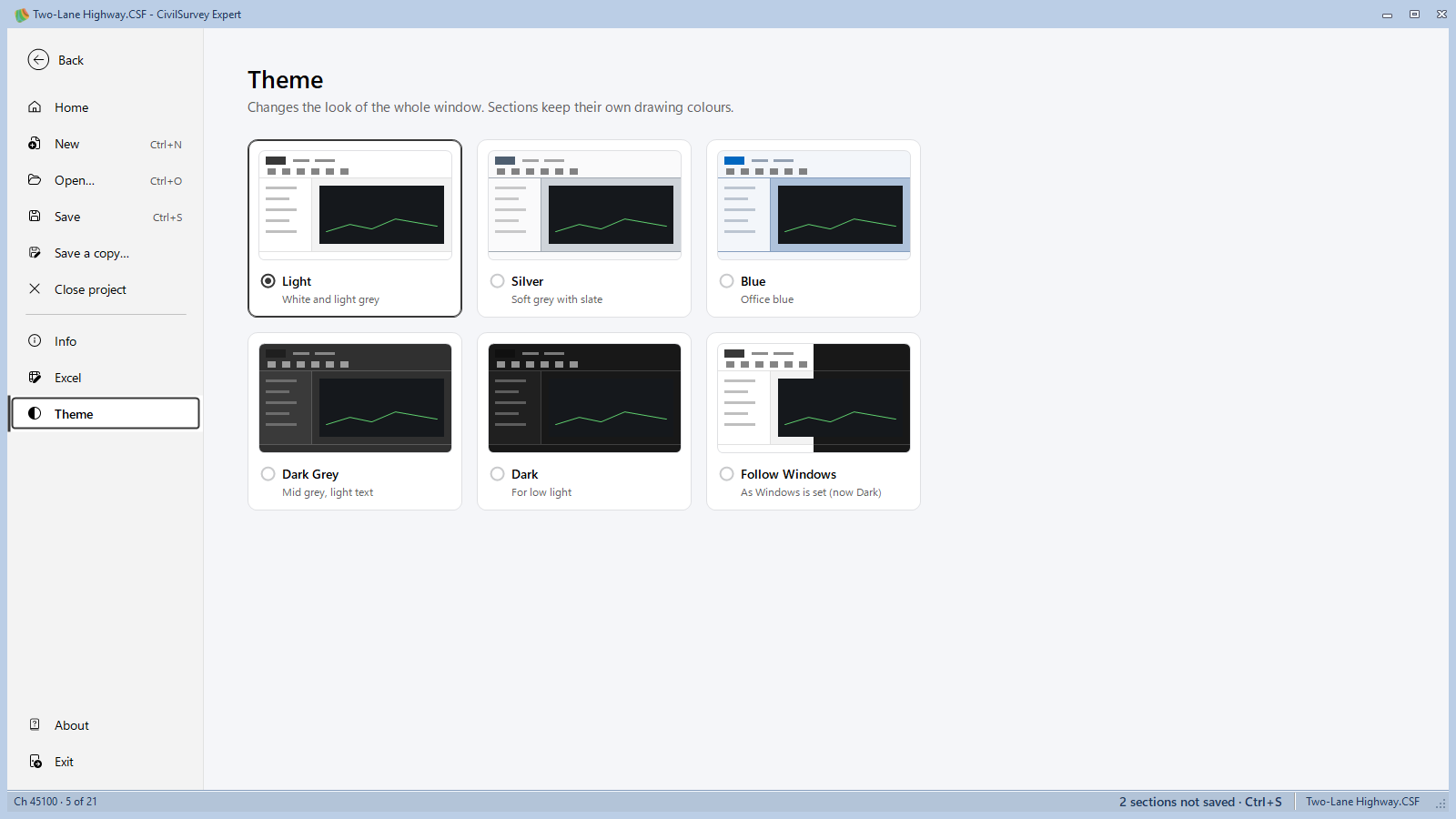
The list down the left side:
| Item | What it does |
|---|---|
| Home | The Start page: recent and pinned projects, the sample projects and the how-to videos. |
| New (Ctrl+N) | A new project from the standard template. |
| Open… (Ctrl+O) | A project on this PC. |
| Save (Ctrl+S) | Saves everything that changed, then goes back to the project. |
| Save a copy… | The project saved to another file; you go on working in this one. |
| Close project | Closes the project (asking to save what changed) and goes to the Start page. |
| Info | This project: where it is, Compact and repair, Import settings. |
| Excel | The whole project to and from an Excel workbook. |
| Theme | Light, Silver, Blue, Dark Grey, Dark, or Follow Windows. |
| About | The version and the licence. |
| Exit | Closes CivilSurvey Expert. |
Press Esc (or Back) to go back to the project.
The Start page
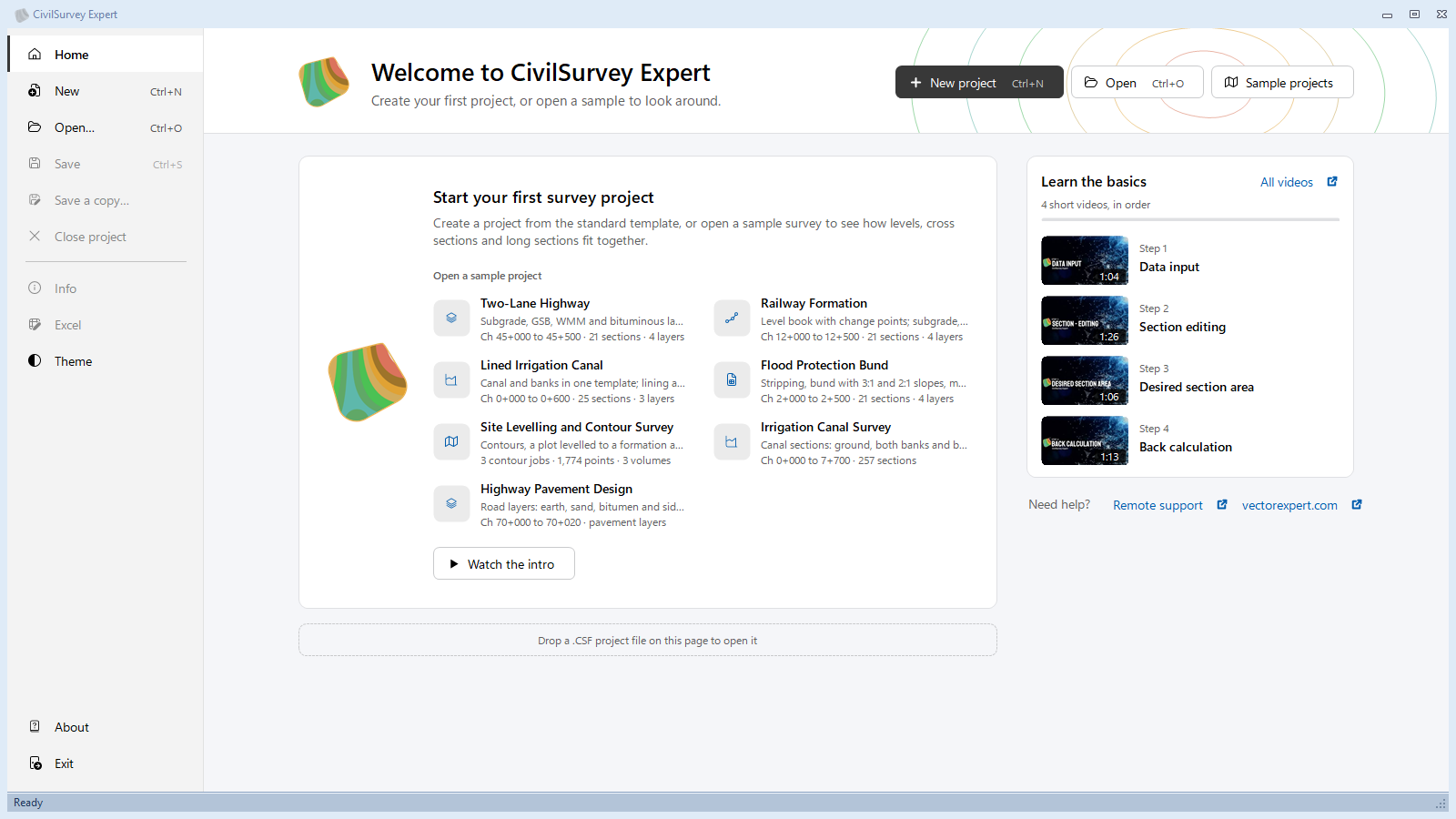
It opens when you start the program. From here you start a New project, Open one, open a sample project, or pick up a recent one where you left off. Learn the basics lists the short how-to videos.
Home: the screens, in the order of the work
The Home tab's View group has every screen:
| Button | The screen |
|---|---|
| Input | The Routes workbook: field books, designs and From coordinates routes, one sheet each. |
| Cross Section (F6) | Each chainage's section, its points and its areas. |
| Long Section (F7) | The route along its length. |
| Plan | The plan of a From coordinates route (only while such a route is in front). |
| Contour | Contours, a site boundary and the cut and fill to level it, from a point survey. |
| Template Designer (Ctrl+D) | Designs a template for the design routes. |
The other groups on Home: Project (Save), Edit (Paste, Cut, Copy, Delete, Undo, Redo, Select All, Insert Row, Remove Row), Find (Find, Find Next, Replace) and Routes (Route Editor, New Route, Remove Route, Check Data).
Input
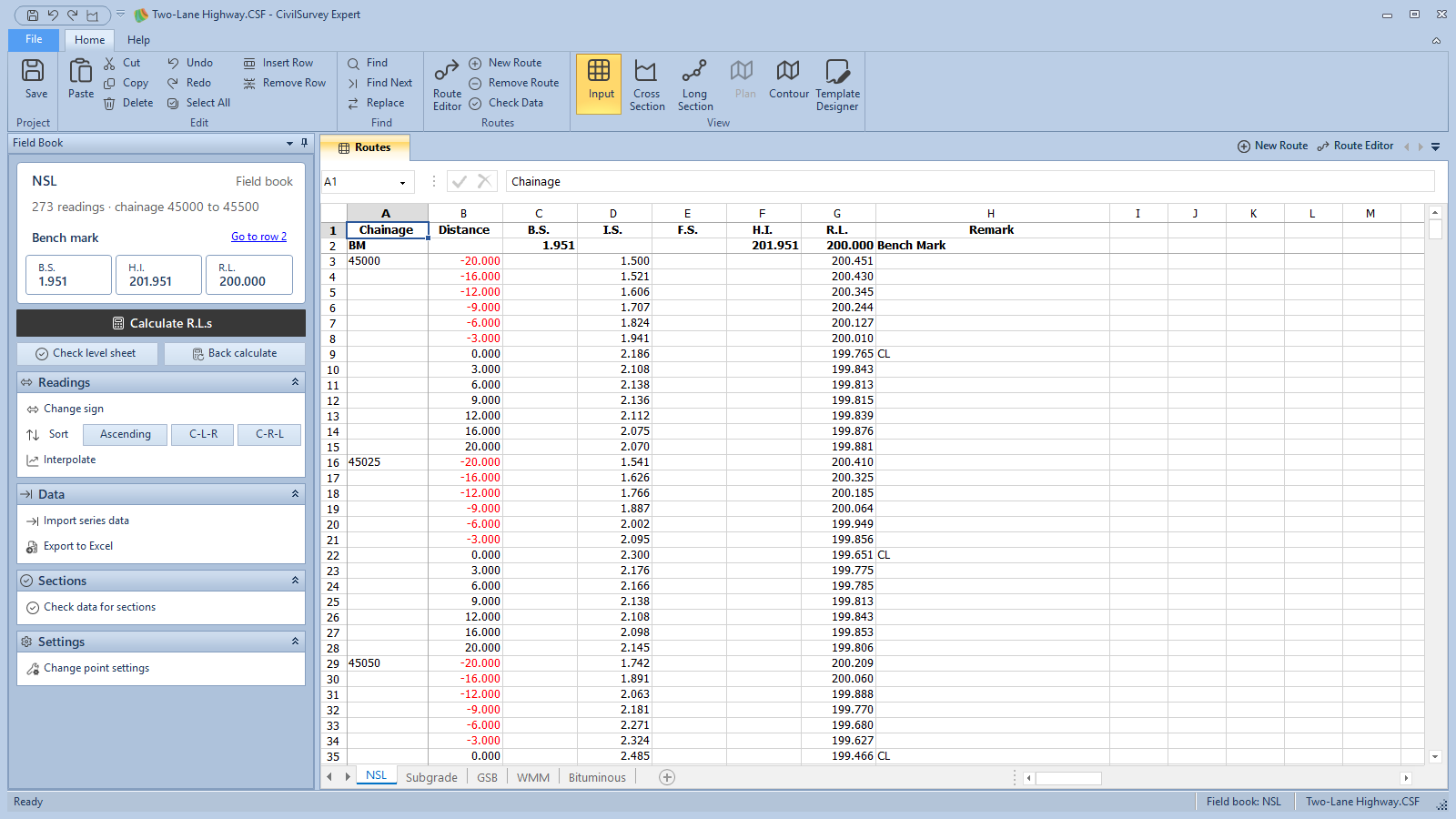
The Routes workbook fills the screen, one sheet per route; pick a route by its tab at the foot. The panel on the left changes with the kind of route in front: Field Book, Design or From Coordinates, each with the commands for that kind.
Cross Section
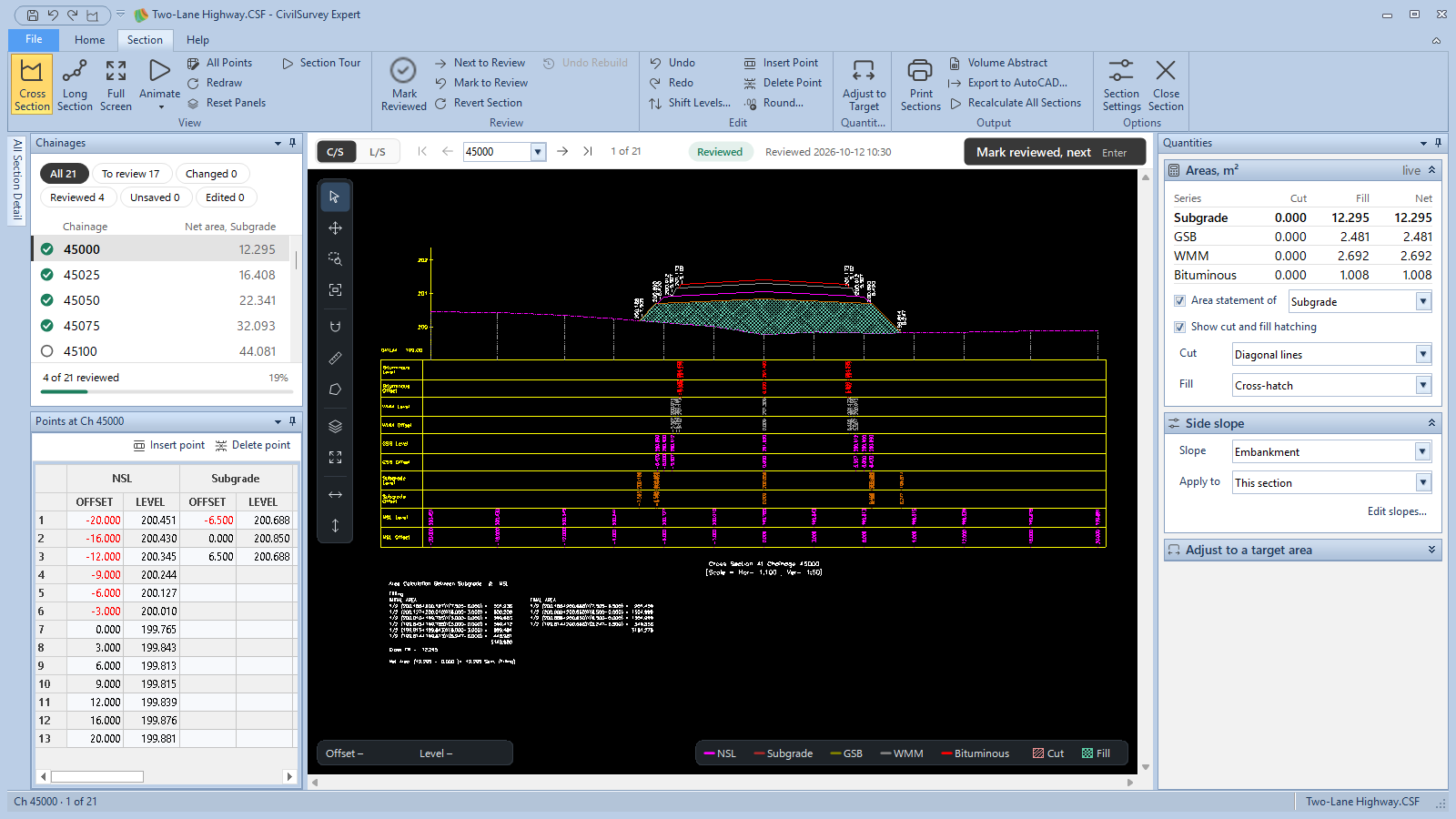
The section drawing in the middle, with the bar over it to move between chainages. On the left, Chainages (every section and its review) and Points (the section's offsets and levels). On the right, Quantities (the areas, the side slopes, and Adjust to a target area). The Section tab has View, Review, Edit, Quantities, Output and Options.
Long Section
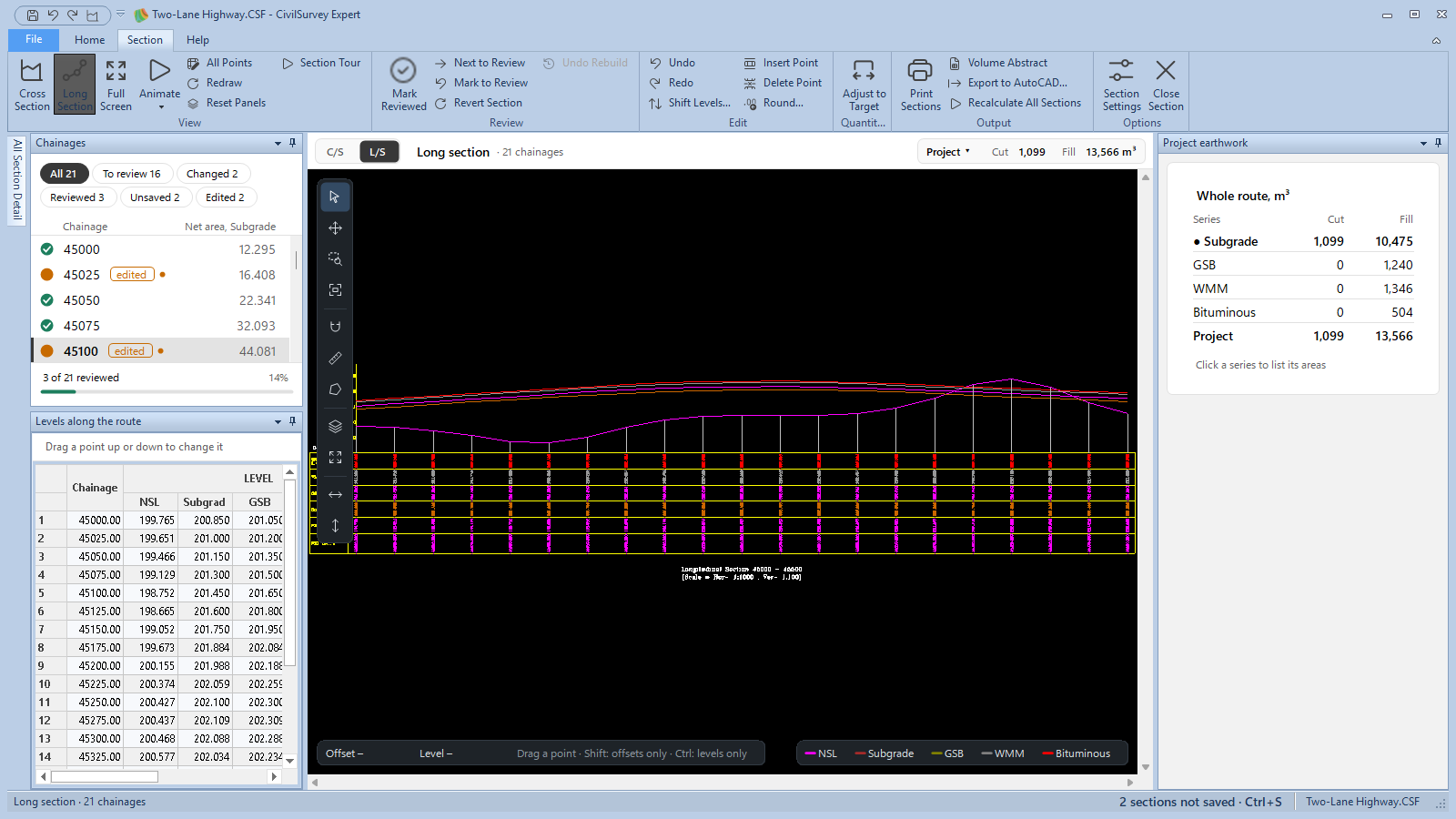
The same screen showing the route along its length: the ground and each design. Switch between the two with C/S and L/S over the drawing, or with F6 and F7.
Template Designer
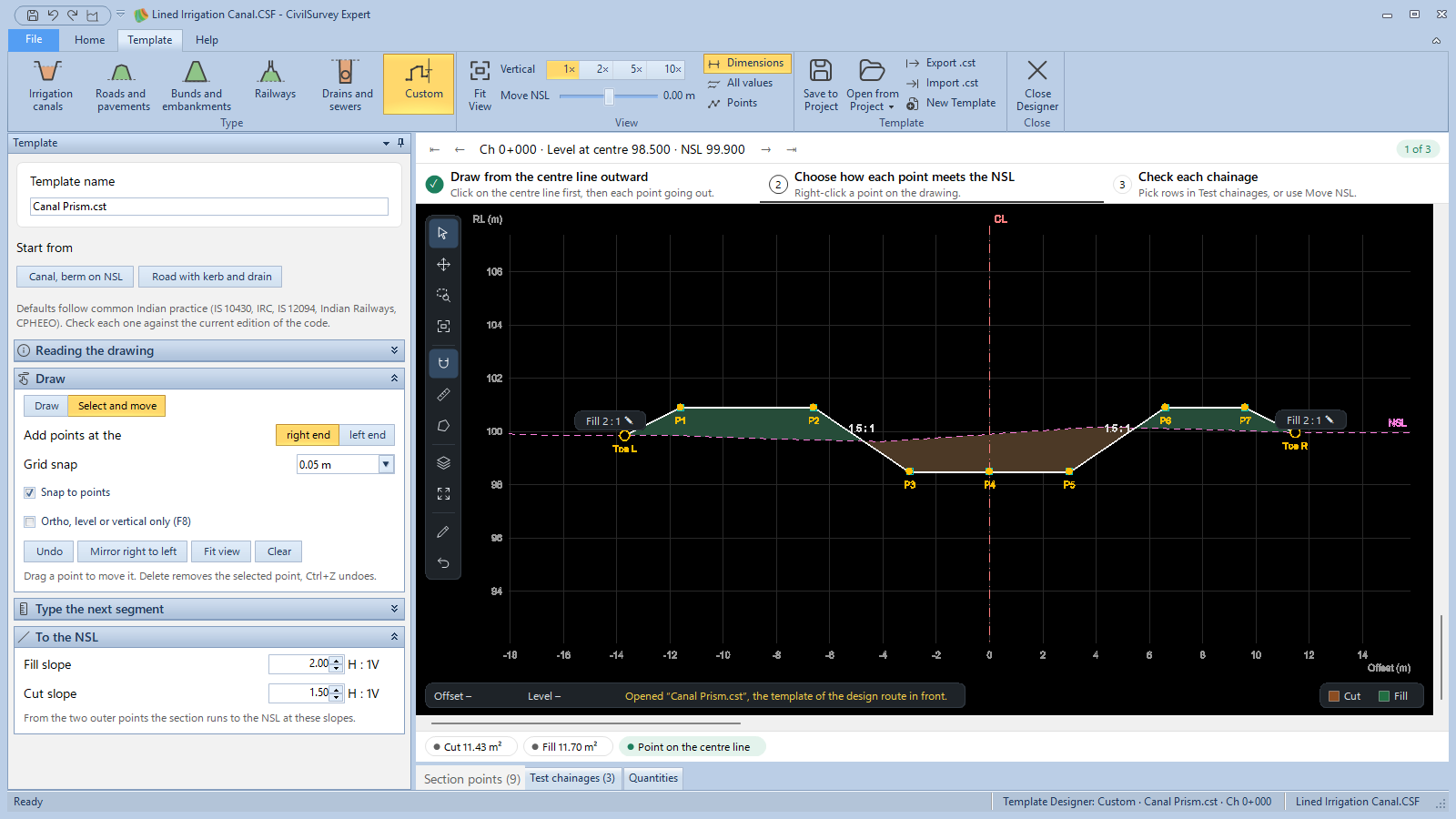
The template drawn in the middle with its dimensions; its values in the panel beside it. The Template tab has the template's Type (Irrigation canals, Roads and pavements, Bunds and embankments, Railways, Drains and sewers, or Custom, drawn point by point), the View options, and Save to Project, Open from Project, Export .cst and Import .cst.
Volume Abstract
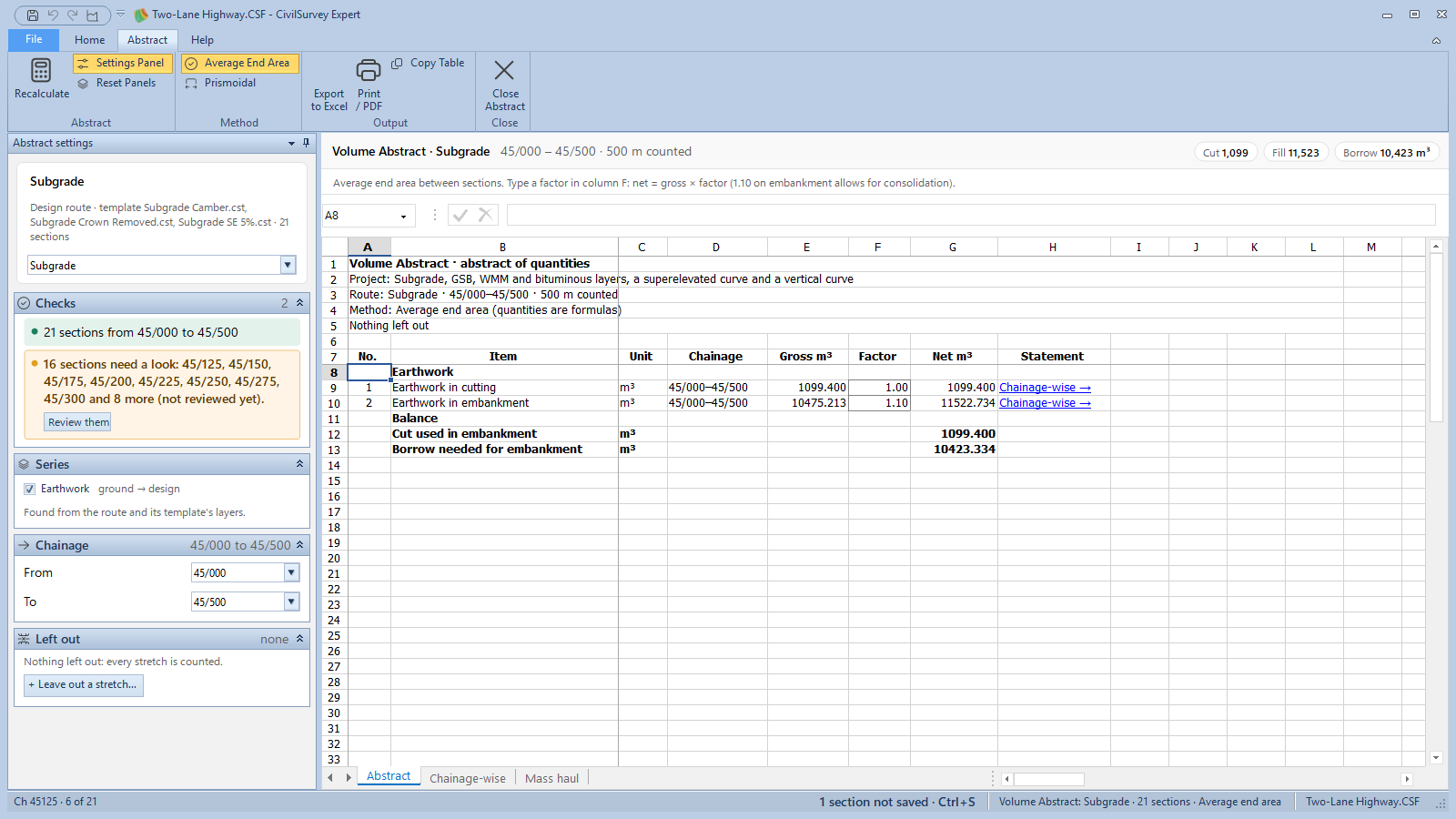
Opened from Section › Output › Volume Abstract: the earthwork of one design route as a workbook (Abstract, Chainage-wise and Mass haul sheets), with its settings on the left. The Abstract tab has the Method (Average End Area or Prismoidal) and the Output (Export to Excel, Print / PDF, Copy Table).
Contour
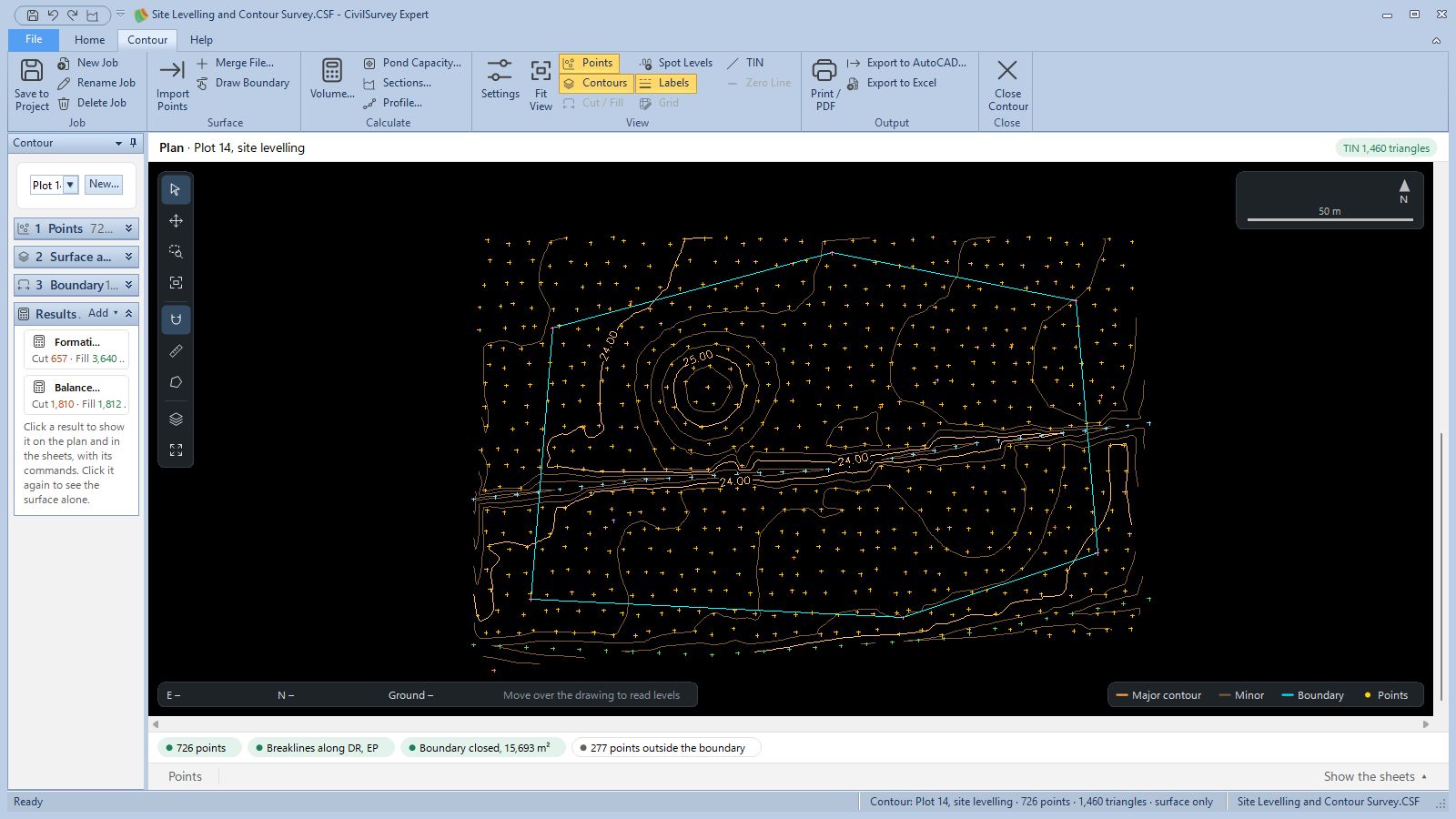
The plan of a point survey in the middle, with the job's steps in the panel on the left (points, surface and contours, boundary, results) and its sheets below. The Contour tab has Job, Surface, View and Output.
Help
The Help tab has the Section Tour and the Contour Tour (each with its screen open), Video Help, Remote Support and About.
What next
- Quick Start: the screens used on a sample, from field book to volume abstract.
- Enter a field book
- Review the cross sections