Add layers (subgrade, GSB, ballast…)
What you get: the layers of a road or railway (subgrade, GSB, WMM, bituminous; blanket, ballast) drawn on every cross section, each one measured against the layer under it, so the earthwork and each layer are counted once: in the Quantities panel, the area statements and the Volume Abstract.
You need: CivilSurvey Expert installed and activated. The Two-Lane Highway sample. About 15 minutes.
There are two ways to put layers on a section:
- One design route for each layer. Each layer is its own design route, drawn as its own series, and in Section Settings each series extends to the layer under it. The Two-Lane Highway and Railway Formation samples are made this way. Sections 1 to 3 show it.
- One road or railway template with its layers as series. You make one template in the Template Designer and lay it along one design route; the program makes a series for each of its layers. Section 4 shows it.
Use one way or the other for the same road: with both, the layers are drawn and counted twice.
1. Look at the sample's layers
- On the Start page, under Open a sample project, click Two-Lane Highway. (Once you have projects of your own, it is under the Sample projects button.)
- At the foot of the Input screen, look at the tabs. Besides the NSL field book there are four design routes, one for each layer: Subgrade, GSB, WMM and Bituminous.
Each design route lays its own templates along the NSL chainages, at its own level:
| Route | Level at the template centre | Its templates |
|---|---|---|
| Bituminous | the finished road level | Bituminous Camber.cst, Bituminous Crown Removed.cst, Bituminous SE 5%.cst |
| WMM | 100 mm below it (40 mm BC and 60 mm DBM) | WMM Camber.cst and the other two |
| GSB | 350 mm below it (250 mm WMM) | GSB Camber.cst and the other two |
| Subgrade | 550 mm below it (200 mm GSB) | Subgrade Camber.cst and the other two |
Each layer's templates are wider than the one above, so the layer above sits on it. The Crown Removed and SE 5% templates take the road round its curve.
2. See how each layer is measured
- Click Home › View › Cross Section (or press F6), then Open saved sections.
- Click Section › Options › Section Settings (or press F8), then Series on the left.
- In the list of series, click GSB (SERIES3 under its name). Under Side slopes, Extend to says Subgrade (SERIES2): the GSB is measured against the subgrade, and its side slopes run down to it.
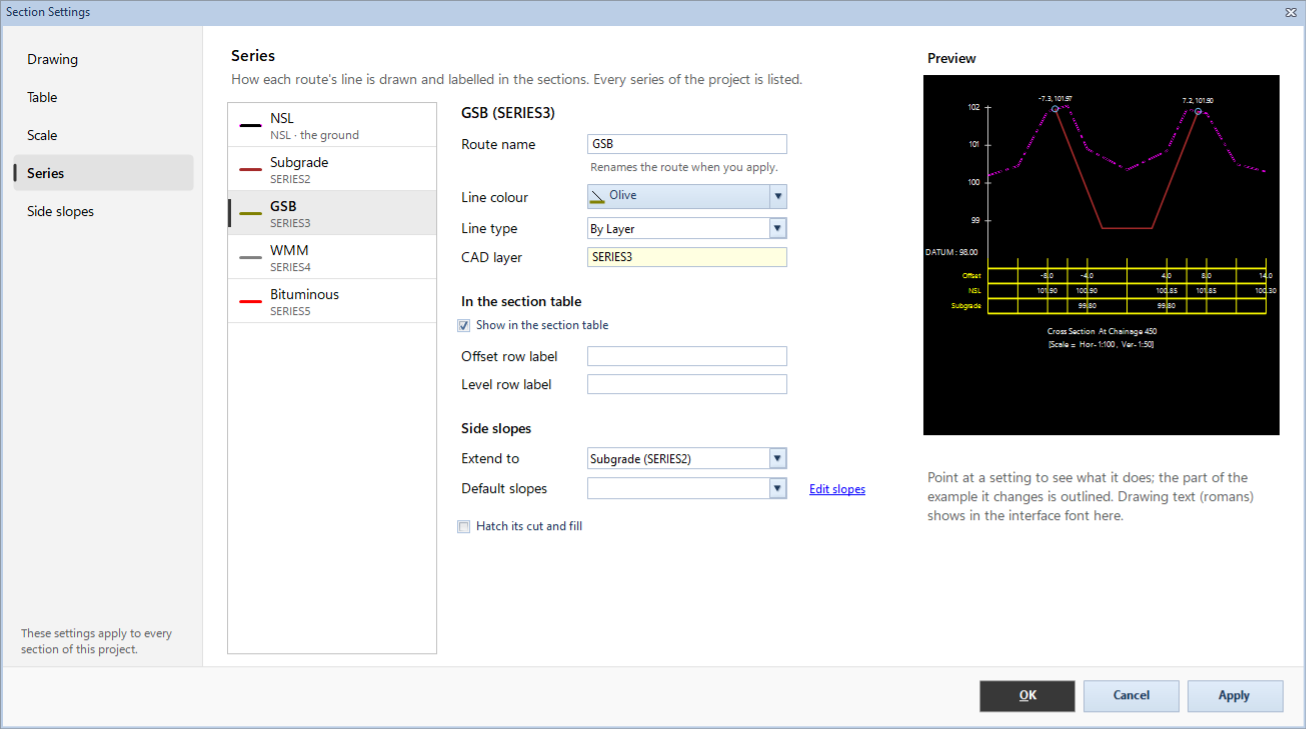
Click the other layers in turn:
| Series | Extend to | So its area is |
|---|---|---|
| Subgrade (SERIES2) | NSL (SERIES1) | the earthwork, up to the top of the subgrade (cut and fill) |
| GSB (SERIES3) | Subgrade (SERIES2) | the GSB, between the GSB and the subgrade |
| WMM (SERIES4) | GSB (SERIES3) | the WMM, between the WMM and the GSB |
| Bituminous (SERIES5) | WMM (SERIES4) | the bituminous courses, between them and the WMM |
The Railway Formation sample is the same: Subgrade extends to the NSL, Blanket to the subgrade and Ballast to the blanket.
A series can extend only to a series numbered below it (or to Surface below). Each series is worked out after the ones under it, so the lowest layer needs the lowest number.
Click Cancel to close Section Settings without changing anything.
3. Read the layers' areas
- Go to Ch 45+125 with the chainage box on the bar over the drawing. It is the highest bank, over the stream crossing.
- In the Quantities panel on the right, Areas, m² has one row for each series, with its Cut, Fill and Net. The Subgrade row is the earthwork. The GSB, WMM and Bituminous rows are the layers.
- Tick Area statement of and choose GSB in the box beside it. The statement drawn on the section is headed Area Calculation Between GSB & Subgrade.
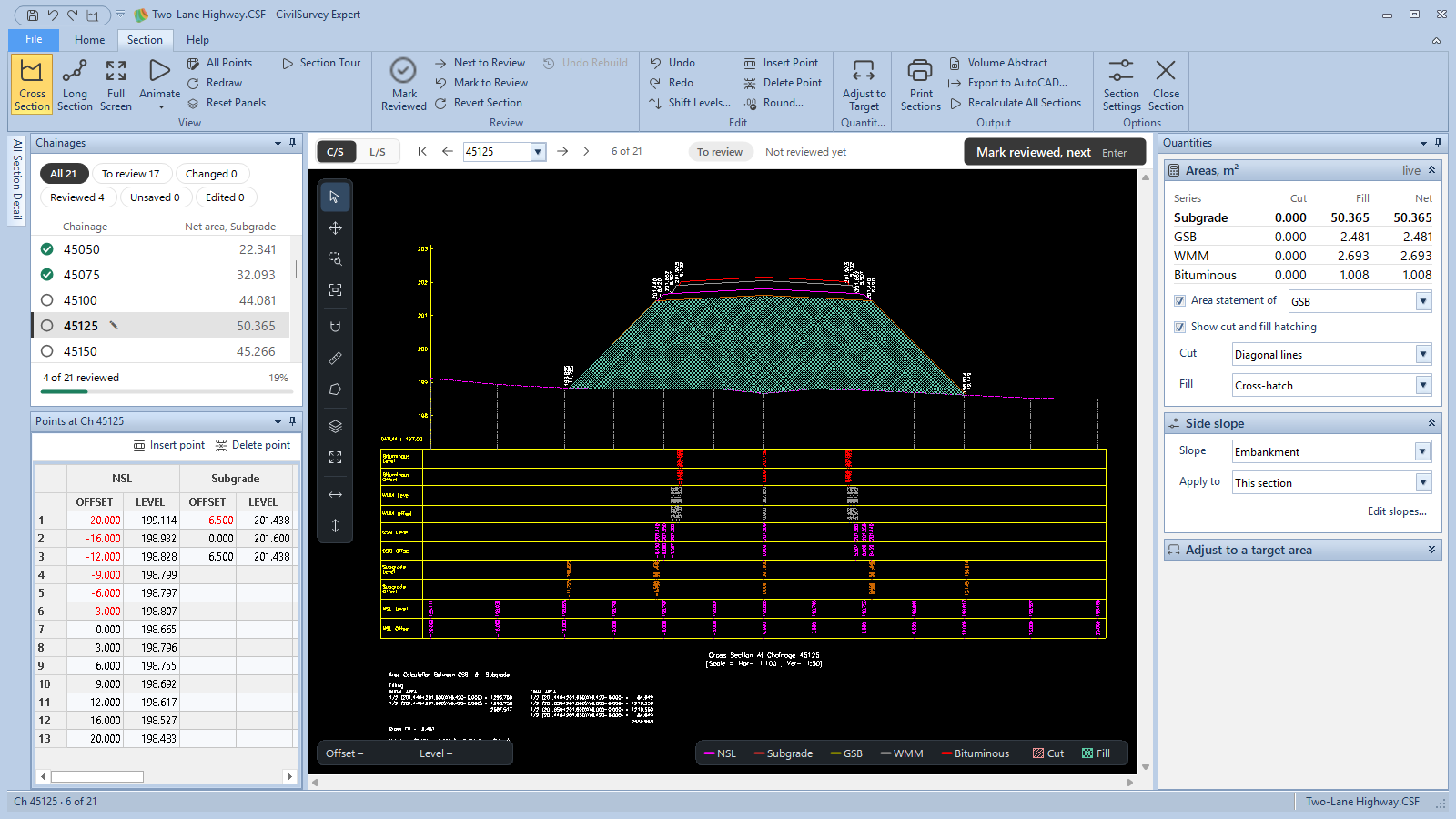
In the Volume Abstract (Section › Output › Volume Abstract) each layer route is a route of its own. Pick GSB in the box at the top of the Abstract settings panel: its Earthwork in embankment is the GSB, the fill between the GSB line and the subgrade line. See Volume abstract.
Layers of your own, one route each
- Add the lowest layer first: Home › Routes › New Route, Design, a Name, and under Draw in sections as keep the first choice, a new series. Choose the Target field book and click Add design. Place its templates as in Lay a template along the route.
- Add the next layer up the same way. Its new series has a higher number, so it can rest on the layer you added before.
- Press Ctrl+S, then open the cross sections with Rebuild from routes….
- In Section Settings › Series, click each layer and set Extend to to the layer under it. Leave the lowest at the NSL. Click Apply.
A new series extends to the NSL until you change it. Set each layer's side slopes under Side slopes (see Change how sections are drawn).
4. Layers from one road or railway template
A road template from the Template Designer has its pavement layers, and a railway template its blanket and ballast. Placed on a design route, each layer can become a series of its own: drawn in its own colour, editable like any series, and measured on the layer below.
Make the template
- Click Home › View › Template Designer (or press Ctrl+D).
- Click Template › Type › Roads and pavements. It starts from the Two-lane highway preset. Its Pavement layers are the same as the sample's four routes:
- Surface course (BC / PC): 40 mm
- Binder course (DBM): 60 mm
- Base (WMM / WBM): 250 mm
- Sub-base (GSB): 200 mm
- Subgrade: 500 mm
A layer set to 0 is left out. The earthwork is measured to the bottom of the subgrade. The earthen shoulders, set under Each side, are a layer too.
For a railway, click Railways: the Blanket is under Formation, and the ballast is set under Track › Ballast (Cushion below sleeper, Shoulder beyond sleeper, Ballast slope). The earthwork is measured to the bottom of the blanket. 3. The drawing shows each layer in its own colour. The Quantities tab under the drawing gives each layer's volume between the test chainages. 4. Type a Template name and click Template › Save to Project.
See Design a template for the rest of the designer.
Place it with its layers
- On your design route's sheet, in the Design panel, choose the template in step 3 and click Position in the designer…. Template and Position opens.
-
Under 1 Template, with a road or railway template chosen, Add the template's layers as series is ticked. The note under it names the layers that become series, drawn and editable, each measured on the layer below.
-
Choose the chainages and set the level at the template centre: for a road, the finished road level at the crown; for a railway, the formation level (the top of the blanket) at the centre. Click Apply to … chainages (the button counts them).
- Press Ctrl+S. The layer series are made when the design is saved. If the cross sections are open, they close first (they ask to save their changes) and open again after.
- Open the cross sections with Rebuild from routes…. The layers are drawn.
On a route that has no layer series yet, picking the template in the sheet's Template column and saving does the same: its layers are added as series.
What you get on the section
- The route's own series is the earthwork: the bottom of the subgrade (or the blanket) with its side slopes, measured on the NSL.
- Over it, one series for each layer, each measured on the one below: Subgrade, GSB, WMM / WBM, DBM, BC / PC; then Earthen shoulder, measured on Surface below. On a railway, Blanket, then Ballast.
- Section Settings › Series lists them with Template layer of and the route's name under each name. Their colours come from the template.
- In the section table only the finished level has rows: Finished road level on a road, Top of blanket level on a railway. Turn on another layer's rows with Show in the section table in Section Settings, or under Table rows in Print Sections.
- A layer counts as fill only. If you drag a layer below the one it rests on, that part is not counted, and Home › Routes › Check Data warns where.
- The Long Section leaves the layer series out.
To take the layers off, open Template and Position again, untick Add the template's layers as series, apply and save. If a layer's points were edited, the program asks before it removes them; No saves nothing.
If you change the template and Save to Project again, the routes that use it follow: the message ends The layer series of … follow it.
5. The Template layers card
On a section whose design route is placed with a template from the Template Designer, the Quantities panel has a Template layers, m² card under Areas, m². Its heading is the route and the template.
- Layers as series: the heading ends layers as series. Each layer has two figures: template, the area the template gives, and series, the area from the layer's line as the section has it now. Under a layer where they differ: edited, differs from the template or rounded to the section precisions. A pill, below and the layer under it, shows a part lying below what it rests on.
- Layers not as series: each layer of the template (pavement courses, blanket and ballast, and also a canal's lining or a bund's pitching) with its area, worked out from the template on the ground as the section has it now.
The card does not show for routes placed with point lists, such as the samples' layer routes.
In the Volume Abstract, a route with template layers lists them under Series as template layer, beside Earthwork. The Abstract sheet has them under Pavement layers (a road) or Layers, as Granular sub-base (GSB), Wet mix macadam (WMM), Blanket, Ballast and so on, and each layer has its own statement sheet. See Volume abstract.
What next
- Lay a template along the route: see Lay a template along the route.
- Change how the layers are drawn and printed: see Change how sections are drawn.
- The quantities: see Volume abstract.
- Before drawing from your own data: see Check the data before drawing.
If something looks wrong
| You see | Do this |
|---|---|
| … can't extend to …, which is numbered above it | A series can rest only on a series numbered below it. Choose a lower series, or draw the lower layer's route in a lower series. |
| A layer's area includes the ground under it | Its Extend to is still the NSL. Set it to the layer under it in Section Settings › Series. |
| Add the template's layers as series is not shown | The template is not a road or railway template from the Template Designer. Point lists and other types are placed as one series. |
| This route is not drawn as a series. Draw it in the Route Editor to add its layers as series. | Draw the route as a series in the Route Editor, then place the template again. |
| The template has no layers to add. | Every layer of the template is 0. Give the layers their thickness in the designer and save it. |
| The layers are not drawn after you saved | Open the cross sections with Rebuild from routes…. |
| The layer series of … do not match its templates | Open that route's design and save it: its layer series then follow the templates on its rows. |
| … lies below … It is counted as fill only. | A layer's points were moved below the layer it rests on. Check the edited points at that chainage. |
| The question says layers have been edited and would be removed | Yes saves and removes them with their edits; No saves nothing. |
| No Template layers, m² card | The route is placed with point lists, or you are on the Long Section. |
| A layer has no rows in the section table | Tick Show in the section table for it in Section Settings › Series. |
| You changed the sample and want it back | Close the project, delete your copy from Documents › CivilSurvey Expert › Samples, and open the sample again from the Start page. |