Draw or code a boundary
What you get: the area a contour job works in. You see how a boundary is made from points coded in the field, try another code, draw a boundary on the plan, and draw one for a single result without touching the job's own.
You need: CivilSurvey Expert installed and activated. About 10 minutes. It helps to have read Contours from a point survey first.
1. Open the tank
- On the Start page, open the Site Levelling and Contour Survey sample (under Open a sample project, or the Sample projects button). It opens in the Contour screen.
- In the Job list at the top of the panel, pick Village tank, desilting.
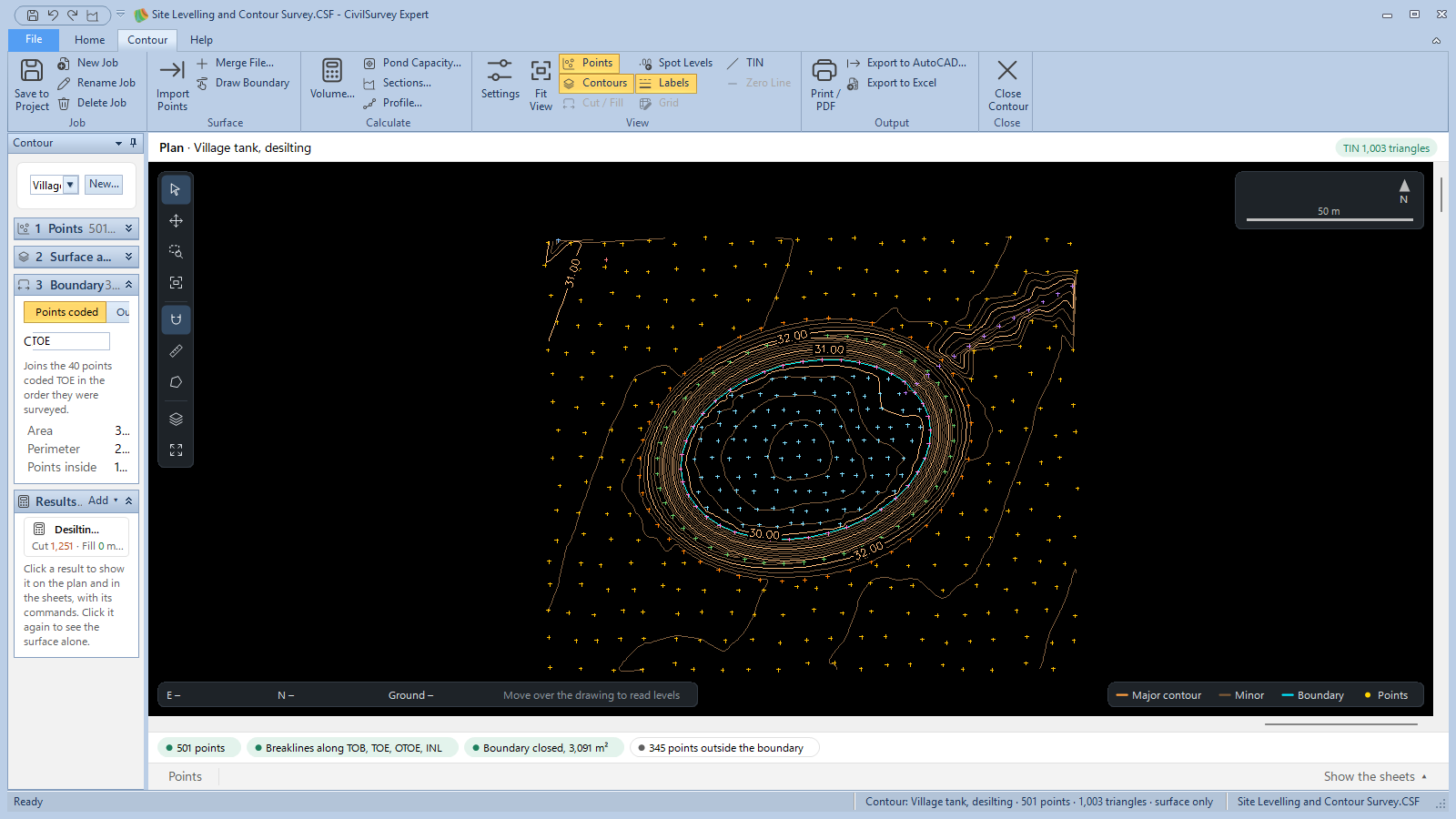
The tank was surveyed by total station. The top of the bund is coded TOB, the inner toe (the water's edge) TOE, the outer toe OTOE and the inlet INL. The job's boundary is the inner toe.
2. Look at the job's boundary
- In the panel, open 3 Boundary. Folded, its heading shows the boundary's area in m².
- Three buttons say where the boundary comes from:
- Points coded: the points with the code in Code are joined in the order they were surveyed. The tank's is TOE, and the line under it reads "Joins the 40 points coded TOE in the order they were surveyed."
- Outline: the boundary runs round the outside of all the points, along the TIN's outer edges.
- Drawn: a boundary you click on the plan.
- Under them, Area, Perimeter and Points inside (how many of the job's points are inside it).
The boundary is drawn on the plan. The checks strip under the plan says "Boundary closed," with its area, and how many points are outside it, if any are.
A job has one boundary. A new job starts with Points coded and BND in Code.
3. Code the boundary in the field
The quickest boundary is the one surveyed with it:
- Give every boundary point one code, BND unless you have your own.
- Survey them in order round the site, one after another. The program joins them in the order they are in the file, and closes the last back to the first.
- One point at each corner is enough. On a curved edge, such as a tank's toe, take points close enough that the straight lines between them follow it.
Try another code on the tank:
- In Code, type TOB and press Enter. The boundary moves out to the top of the bund, and the line under the buttons now names the 46 points coded TOB. Area, Perimeter and Points inside follow.
- In Results, the tile Desilting to bed 29.300 now says it is out of date: it was worked out inside the old boundary.
- Type TOE back in Code and press Enter. The boundary is as it was, and the tile is up to date again.
4. Draw a boundary
When nothing was coded, or the coded points do not make the area you want:
- Click Contour › Surface › Draw Boundary (or Drawn in 3 Boundary, while nothing has been drawn yet). The status bar says "Draw Boundary: click the corners, then the first corner again to close it; right-click to finish".
- Click the corners on the plan, one after another. The readout gives the length from the last corner, and the status bar how many corners so far.
- To put a corner exactly on a surveyed point, turn on Snap to points on the plan's toolbar first.
- Click the first corner again to close the boundary, or right-click or press Enter. Give at least three corners. Esc stops.
The status bar says "Boundary drawn:" with its corners and area, Drawn is chosen in 3 Boundary, and its line reads "Drawn on the plan. Draw Boundary again to redraw it."
The drawn corners are kept with the job. Click Points coded to go back to the coded boundary; click Drawn later and the drawn one comes back. Each change of boundary puts the results made on the job's boundary out of date.
If the boundary crosses itself, it is not taken: the status bar says between which corners, the last corner is taken back, and you go on drawing.
5. A boundary for one result
Sometimes one result needs another area: one part of a plot, or a tank up to the top of its bund while the job's boundary is the toe. The Volume and Pond Capacity dialogs can have a boundary of their own:
- Under Boundary in the dialog, choose Draw one on the plan for this result.
- The dialog steps aside. The status bar says "Boundary for this result: click the corners, then the first corner again to close it; right-click to finish".
- Click the corners as in step 4, and close it. The dialog comes back with "Drawn for this result," its corners and its area.
- Redraw draws it again. The job's boundary goes back to the job's.
The job's boundary stays as it is. On the plan, the result's own boundary is dashed while the result is shown, and its name ends in drawn area if you leave the name to the program. Changing the job's boundary does not put such a result out of date; changing the points does.
See Cut and fill to level a site for the Volume dialog, and Tank and pond capacity for Pond Capacity.
6. What the boundary is used for
- Volumes and capacities are worked out only inside it (or inside the result's own).
- Contours: with Only inside the boundary ticked on the Contours page of Contour Settings (F8), the contours stop at it.
- The Points sheet has an In boundary column: Yes or No for each point.
- Print / PDF chooses its scale so the boundary fits the sheet, and draws it.
- Export to AutoCAD… puts it on its own layer, BOUNDARY (a result's own on RESULT_BOUNDARY).
Click Contour › Job › Save to Project to keep a changed boundary in the project.
What next
- Cut and fill inside the boundary: see Cut and fill to level a site.
- A tank's capacity: see Tank and pond capacity.
- Print the plan: see Print and export a contour plan.
If something looks wrong
| You see | Do this |
|---|---|
| "Fewer than three points have this code." | Type the code your boundary points have in Code, or choose Outline or Drawn. |
| "The boundary crosses itself between corners…" | The coded points were not surveyed in order round the site. Choose Drawn and click the corners in order. |
| "Click at least three corners" | Click more corners before you right-click or press Enter. |
| "The boundary has no area: its corners are in a line." | Draw it again with corners round an area. |
| "No outline: the points make no triangles." | The job has too few points for a surface. Import the points first. |
| "No boundary yet" in the checks strip | Choose Points coded with the right code, Outline, or draw one. |
| "Draw Boundary stopped." | Esc was pressed. Click Draw Boundary to start again. |
| A result says it is out of date after a boundary change | Click Recalculate on its tile, or put the boundary back as it was. |
| Corners do not land on the surveyed points | Turn on Snap to points on the plan's toolbar. |