Tank and pond capacity
What you get: the capacity of a tank or pond and its water spread at each level, from the bed up to the full tank level (FTL), worked out inside a boundary. You get a table of levels (the Capacity sheet), the water drawn on the plan, and a printed plan with the capacity table and the area–capacity curve.
You need: CivilSurvey Expert installed and activated. About 10 minutes. It helps to have read Cut and fill to level a site: Pond Capacity works the same way.
1. Open the tank
- On the Start page, open the Site Levelling and Contour Survey sample (under Open a sample project, or the Sample projects button). It opens in the Contour screen.
- In the Job list at the top of the panel, pick Village tank, desilting.
The tank's boundary is its inner toe, the points coded TOE, all close to 30.12 m. Its one result, Desilting to bed 29.300, is a volume. How the boundary is made is in Draw or code a boundary.
2. Open Pond Capacity
- In Results, click Add ▾ and choose Pond Capacity…. (Or Contour › Calculate › Pond Capacity….)
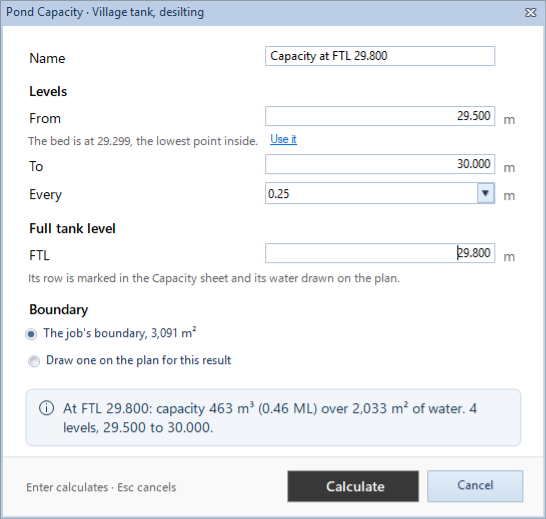
- Pond Capacity · Village tank, desilting opens, with the cursor in FTL.
Its parts, from the top:
- Name: follows the FTL ("Capacity at FTL …"), or the top level when there is no FTL ("Capacity to …"). Type a name of your own if you like.
- Levels:
- From: the first level. It starts at the bed rounded up to the step. The line under it says "The bed is at …, the lowest point inside." Use it puts From at the bed itself.
- To: the last level. It starts at the boundary's lowest point rounded down, so the water stays inside the boundary.
- Every: the step between levels: 0.10, 0.25 or 0.50 m. It starts at 0.25.
- Full tank level: FTL, if you have one. Its row is marked in the Capacity sheet and its water drawn on the plan. Leave it empty and the figures are at the top level.
- Boundary: The job's boundary, with its area, or Draw one on the plan for this result.
- The banner gives the capacity in m³ and in ML, and the water spread in m², at the FTL (or the top level), with how many levels there are.
3. Work out the capacity
- In FTL, type a level between From and To. As you type, the name and the banner follow. For the village tank, From starts at 29.500 and To at 30.000 (the bed is at 29.299). Type 29.800: the banner reads At FTL 29.800: capacity 463 m³ (0.46 ML) over 2,033 m² of water.
- Keep Every at 0.25 and The job's boundary.
- Click Calculate (or press Enter).
The new tile is added and shown. Its kind, Pond capacity, is at the right, and its line gives the number of levels, the capacity at the FTL in m³ and the water spread in m².
The levels are From, then each round step of Every, then To, with the FTL among them. When From is at the bed (Use it), the round levels still follow it, and a round level less than half a step above the bed is left out.
4. The pond on the plan
With the tile shown:
- The water at the FTL is shaded, and its edge, the FTL contour, is drawn.
- On the Contour tab, Cut / Fill reads Water: it shows or hides the water.
- The bar over the plan gives the FTL. Click it, type another FTL and press Enter: the pond is worked out again with it. (With no FTL the bar reads Water at and the top level.)
- The checks strip gives the bed and the FTL, and the boundary's lowest point.
5. The boundary's lowest point
Water rises inside the boundary until it reaches the lowest point on the boundary's line. Above that, it would spill out. The dialog checks this as you type: an FTL above the lowest point shows an amber warning, "The FTL is above the boundary's lowest point, …: the water would spill there." The same words go in the checks strip and on the print.
Try it: open Pond Capacity… again and type 30.200 in FTL, above the toe. The warning shows. Calculate would still work, but the capacity above the lowest point is not real: the water would run out there. Click Cancel.
On this tank the job's boundary is the inner toe, so the water can only rise to the toe. To work out the capacity up the inner face of the bund, give this result a boundary along the top of the bund:
- Open Pond Capacity… again, for a new result.
- Under Boundary, choose Draw one on the plan for this result.
- Click corners along the top of the bund, the points coded TOB, all the way round. Turn on Snap to points on the plan's toolbar to click on them exactly. Click the first corner again to close it.
- The dialog comes back. From and To follow the new boundary, and the name ends in drawn area. Type the FTL and click Calculate.
(Edit… on a result can draw it a boundary too, but keeps its levels as they were.)
The job's boundary, and the desilting volume, stay as they are. More on drawing in Draw or code a boundary.
6. The Capacity sheet
- Show the pond's tile and click Show the sheets at the foot of the plan. The tabs are Points, Capacity and Summary; it opens on Capacity.
- Capacity has one row a level, from the lowest:
- Level (m)
- Water spread (m²): the water's area on plan at that level.
- Volume of the step (m³): the water between this level and the one below (the first row's from the bed).
- Capacity (m³) and Capacity (ML): the water below this level, inside the boundary. The FTL's row is in bold, with FTL after its level.
- Summary gives the bed, the FTL, the capacity and water spread at it, the levels, the boundary's area, the boundary's lowest point and the method.
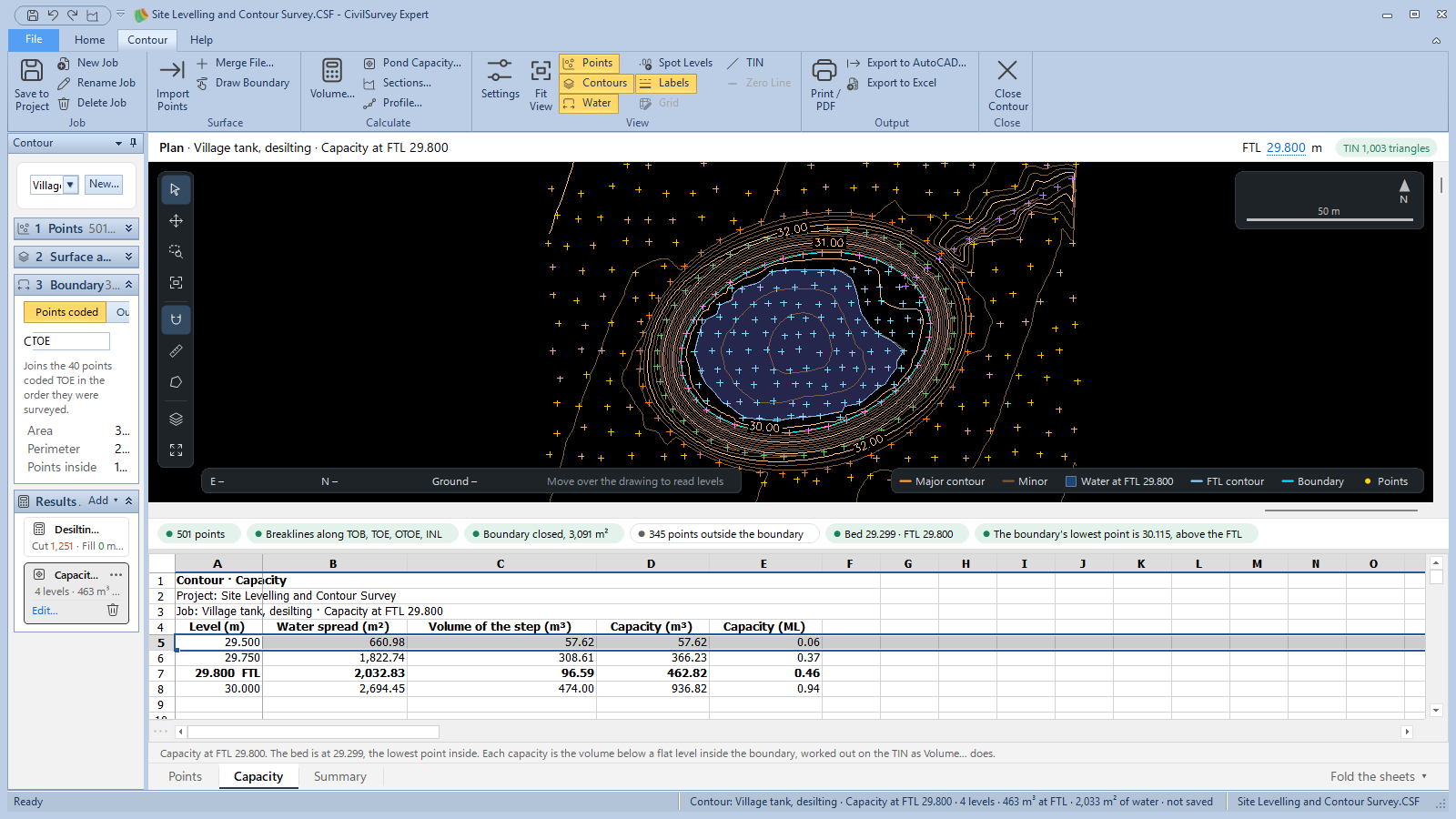
Each capacity is the volume below a flat level inside the boundary, worked out on the TIN as the Volume dialog works out fill. So the capacity at a level is the same figure a volume at that level would give as fill.
7. Print the capacity plan
- Show the pond's tile, and click Contour › Output › Print / PDF. Print · Village tank, desilting · and the result's name opens.
- Choose the Sheet: A3 landscape, A2 landscape or A1 landscape. The scale is chosen so the boundary fits.
- Click Save PDF… (or Print…). The PDF is named after the job, ending in pond capacity plan.
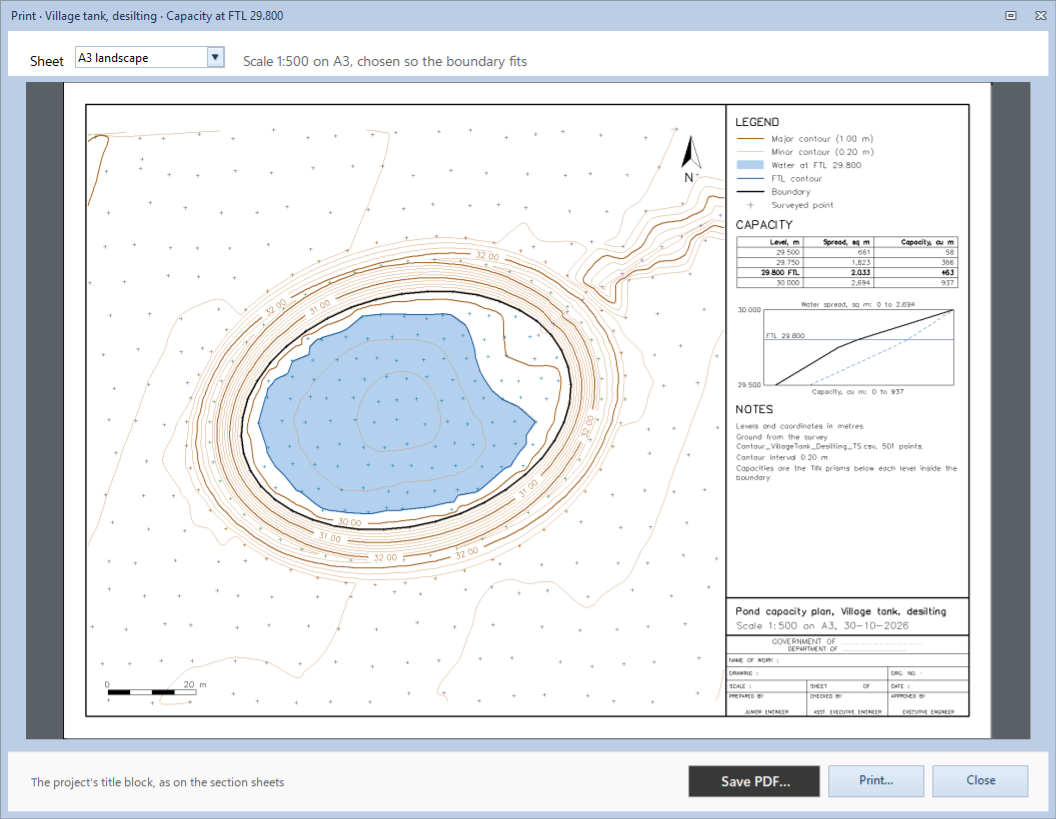
The sheet, titled Pond capacity plan and the job's name, has:
- The plan with the water at the FTL and the FTL contour.
- LEGEND: the contours, the water, the FTL contour, the boundary (and a boundary drawn for this result, dashed) and the points.
- CAPACITY: a table of Level, m, Spread, m² and Capacity, m³, the FTL's row heavier. When the levels do not all fit, the table keeps the first, the FTL's and the top one, and the rest at a coarser step; a note says "Every … m level is in the Capacity sheet."
- The area–capacity curve under the table: level up the side, capacity along the foot (a solid line), water spread along the top (a dashed line), and the FTL across it, labelled.
- NOTES, and the project's title block.
Grid with depths and Cut/fill shading belong to a volume and are not offered; the water is always on the sheet. Export to Excel saves the Points, Capacity and Summary sheets. Export to AutoCAD… puts the water on the WATER layer and its edge on FTL_CONTOUR. See Print and export a contour plan.
Click Contour › Job › Save to Project to keep the result in the project.
What next
- Sections across the bund, or a profile across the tank: see Sections and a profile.
- The desilting quantity: a volume against the bed level. See Cut and fill to level a site.
- The boundary: see Draw or code a boundary.
If something looks wrong
| You see | Do this |
|---|---|
| "The job has no boundary yet." | Set the boundary in 3 Boundary, or choose Draw one on the plan for this result. |
| "No boundary drawn for this result yet: Draw it takes you to the plan." | Click Draw it and click the corners. |
| "To must be above From." | Type a To level higher than From. |
| "The FTL is above the boundary's lowest point, …: the water would spill there." | Lower the FTL, or draw a boundary for this result that reaches higher ground, such as the top of the bund. |
| "That makes … levels, and at most 500 are worked out: choose a larger step or a smaller range." | Choose a larger Every, or bring From and To closer. |
| "There is no TIN inside the boundary." | The boundary is outside the surveyed points. Draw it over them. |
| "… m² of the boundary has no TIN under it and is left out" | Part of the boundary is outside the surveyed points. Draw the boundary inside them, or survey that part. |
| "Not recalculated: that FTL would make more than 500 levels." | The FTL typed in the bar is far from From and To. Use Edit… and change the levels. |
| The tile says it is out of date | The points, the surface or the job's boundary changed. Click Recalculate. |