The long section
What you get: the route along its length: the ground and each design through every chainage, with their levels in a table under them. You change a centre level by dragging it, print the long section on a sheet with the title block, and save it for AutoCAD.
You need: the Railway Formation sample. About 10 minutes.
1. Open the long section
- On the Start page, open the Railway Formation sample.
- Click Home › View › Long Section (or press F7). The first time, click Open saved sections.
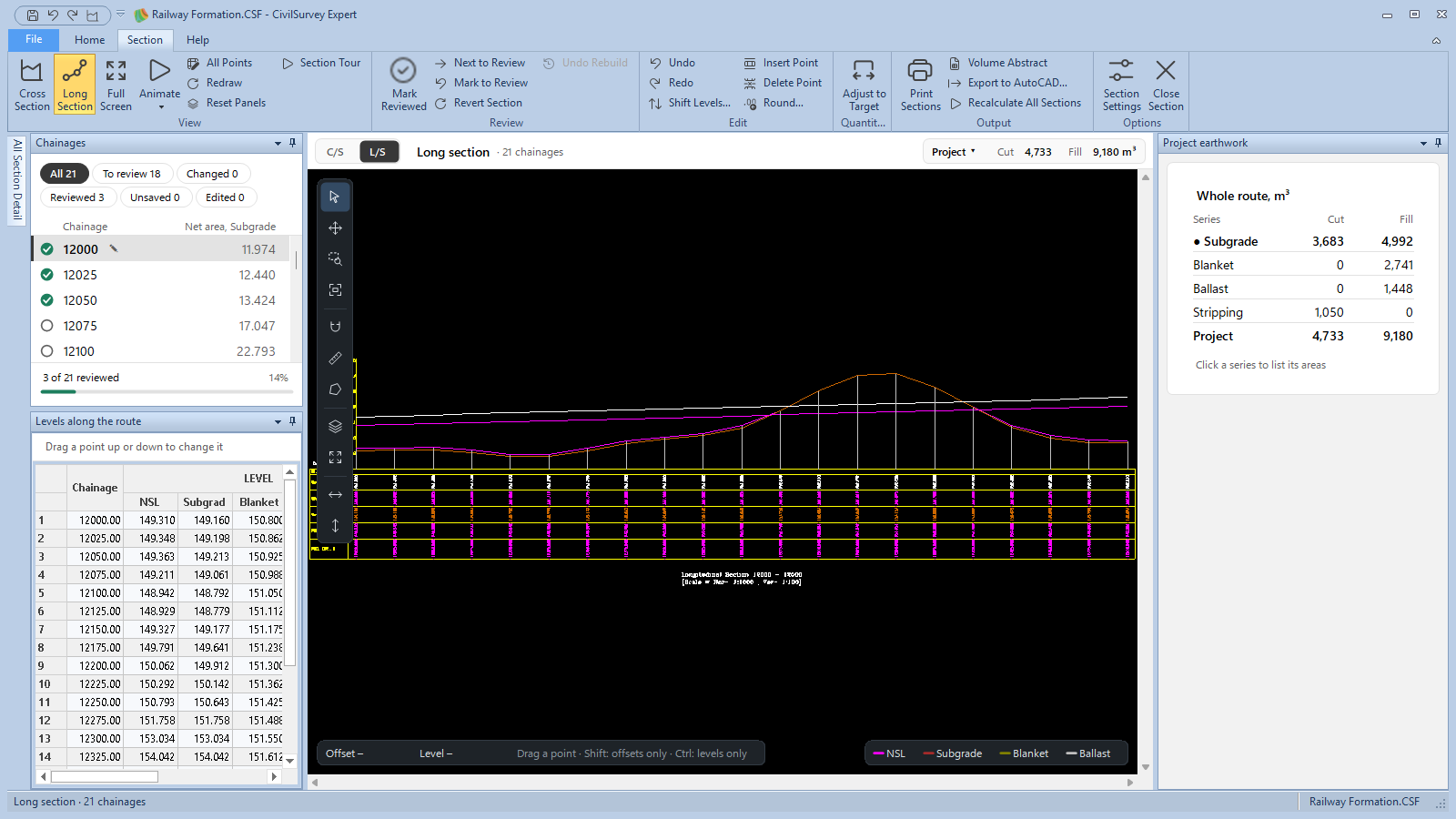
The long section opens on the same screen as the cross sections. The bar over the drawing says Long section · 21 chainages. Move between the two with C/S and L/S at the left of that bar, or with F6 and F7.
2. What it draws
The long section takes the level at the centre line (offset 0) of each cross section and joins them from chainage to chainage, a line for each series:
- NSL, the ground, with a dashed line down from it to the datum at each chainage.
- Each design: here Subgrade, Blanket, Ballast and Stripping. A series with no point at offset 0 at a chainage has no level there.
- The level reference bar on the left, and the datum.
- Under it, a table of each series' levels at each chainage.
- The title, Longitudinal Section 12000 - 12500, and the scales.
A template's layers (see Add layers) are not on the long section.
Each line has its series' colour, and its row in the table its Level row label, from Section › Options › Section Settings › Series. The long section's scales are on the Scale page, under Long section: the sample draws it at 1 : 1000 along the route and 1 : 100 in height. See Change how sections are drawn.
The panels change with it:
- Levels along the route (in place of the points table): a row for each chainage, with the level of each series. It is for reading: nothing can be typed in it.
- Project earthwork (in place of Quantities): the whole route's cut and fill, by series.
- Chainages: click a chainage to open its cross section.
The drawing's toolbar, Full Screen (F11) and Redraw (F5) work as on the cross sections. Reviewing does not: Mark reviewed, next is for cross sections.
3. Change a centre level
You can drag a point of the long section up or down. It changes the centre point (offset 0) of that chainage's cross section, in that series.
- Click a line, the ground line say. Small squares show on its points.
- Drag a square up or down. It moves up and down only. Its row in Levels along the route is selected and shows the level as you drag.
- Let go. The long section is drawn again. The status bar says what changed, for example Ch 12350: centre level … (not saved yet · Ctrl+Z undoes).
A centre level you changed has a ring round it until you save. Ctrl+Z takes the last change back, Ctrl+Y makes it again.
Only that one point changes. The other points of the cross section stay where they are. To see the whole section, click its chainage in Chainages: it opens with the change, shown as changed.
Note: Adjust to Target works on a cross section, not on the long section. Click C/S first.
4. Save
Press Ctrl+S. As for an edit on a cross section, the program asks why the sections changed and keeps the reason in each section's history. See Review the cross sections.
5. Print the long section
- On the long section, click Section › Output › Print Sections.
- The wizard opens with Long section chosen on the Chainages step and every chainage ticked. The long section is drawn through the ticked chainages: untick some to print part of the route.
- What to print is greyed out: The long section prints the profile through the ticked chainages: these choices are for cross sections.
- On Paper and layout, the Scale starts from the project's long section scales. Choose the Print type, the paper Size and Orientation.
The long section goes on a sheet of its own. At 1 : 1000 this 500 m route is 500 mm long, with the row labels to the left of it: choose paper wide enough in Landscape, or a smaller horizontal scale such as 1 : 2000. 5. On Title block, check the title block (see Set up the title block). 6. Click Generate, then Print All or Save PDF in the viewer.
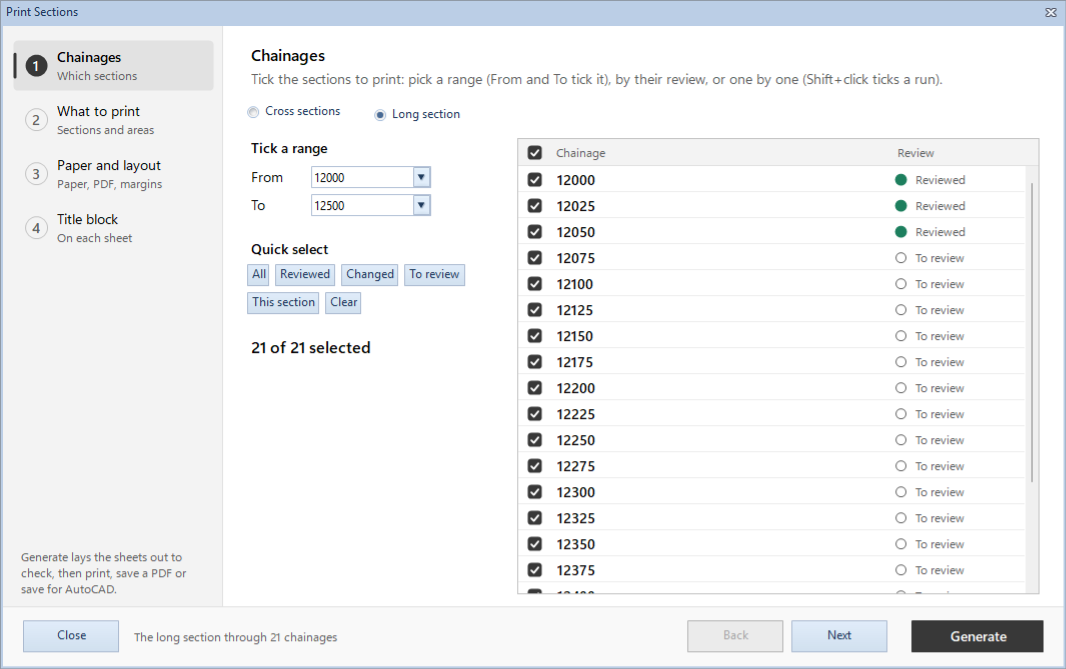
The footer line says what you will get: The long section through 21 chainages. For the rest of the wizard, see Print sections.
6. Save it for AutoCAD
- On the long section, click Section › Output › Export to AutoCAD… (or press Ctrl+E).
- The file name offered is the project's name and Long section: here Railway Formation Long section.
- Choose AutoCAD drawing (*.dwg) or AutoCAD DXF (*.dxf) and save.
The status bar says where it was saved.
What next
- Its scales and colours: Change how sections are drawn.
- A cross section at a time: Review the cross sections and Edit a section.
- The volumes: Volume abstract.
If something looks wrong
| You see | Do this |
|---|---|
| A series has gaps, or isn't drawn | It has no point at offset 0 at those chainages. Look at the cross sections there. A template's layers are not drawn on the long section. |
| The long section is squashed or too tall | Change the Long section scales in Section Settings › Scale. |
| Nothing happens when you type in Levels along the route | It is for reading. Drag the point on the drawing, or change the cross section. |
| A point moves only up and down | That is how it works on the long section: the chainage and offset stay. |
| Open a cross section first | The command works on a cross section. Click C/S in the bar over the drawing. |
| The long section runs past the edge of the sheet | It is longer than the paper at this scale. Choose larger paper in Landscape, or a smaller horizontal scale, on Paper and layout. |
| The What to print choices are greyed out | Long section is chosen on the Chainages step. They are for cross sections. |
| No sections yet | No route has readings to build sections from. Enter a field book, save, and open the sections again. See Enter a field book. |