Design a template
What you get: a lined canal template (bed, full supply depth, lining, both banks and the slopes down to the ground), tried on the sample's own surveyed ground and saved in the project, ready to lay along a design route.
You need: CivilSurvey Expert installed and activated. The Lined Irrigation Canal sample. About 15 minutes.
1. Open the sample and the designer
- On the Start page, under Open a sample project, click Lined Irrigation Canal. (Once you have projects of your own, it is under the Sample projects button.)
- At the foot of the Input screen, click the Canal Prism tab. It is one of the sample's three design routes, with Lining and Full Supply.
- Click Home › View › Template Designer (or press Ctrl+D).
The designer opens on the template of the design route in front, Canal Prism.cst. The sample's templates are point lists (offsets and levels), so it opens as a Custom template with its points as drawn. A Template tab comes up on the ribbon with everything for this screen.
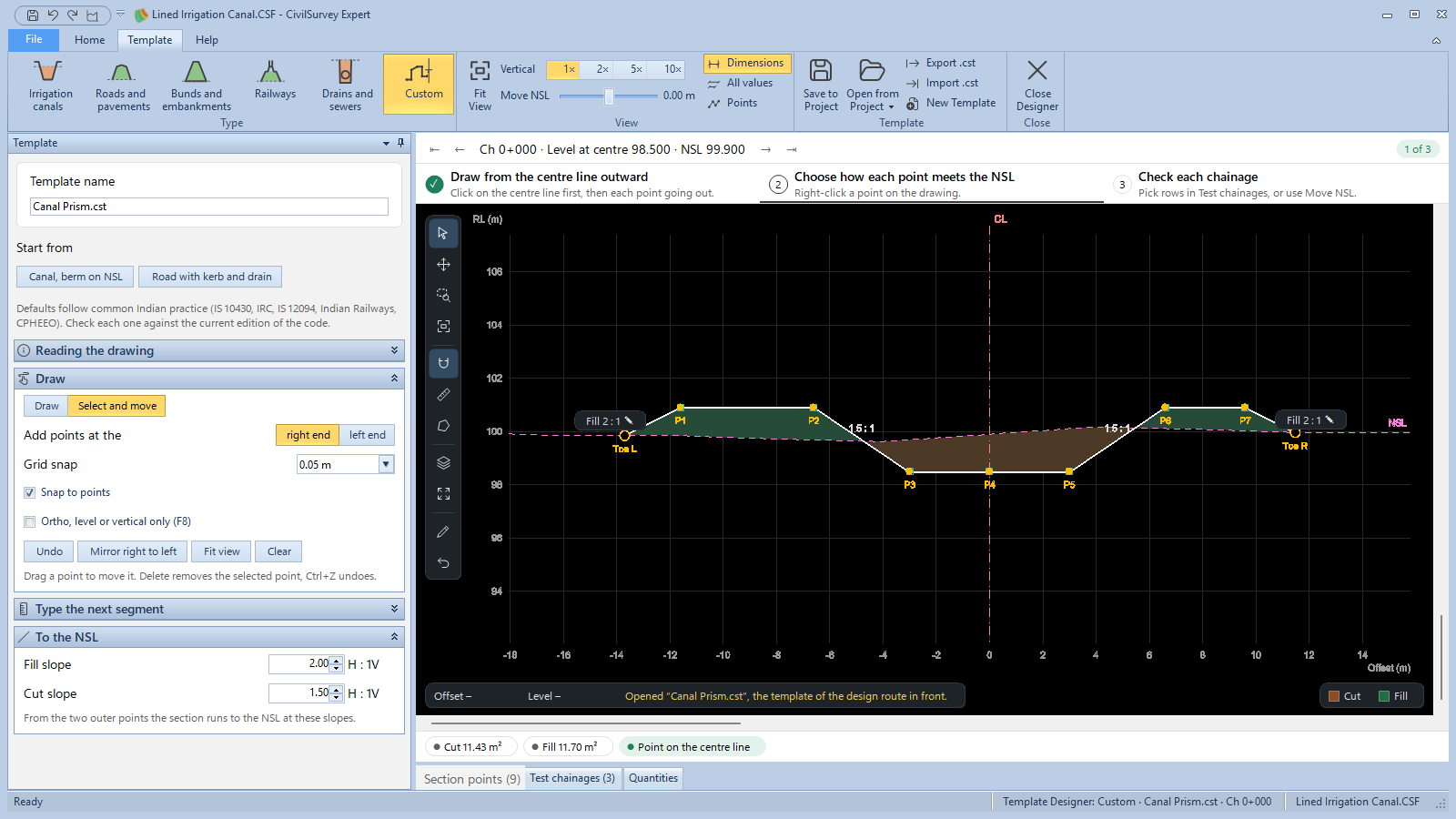
Where things are on this screen:
- The Template panel (left) holds the Template name, the presets under Start from, and the template's values in sections that fold away. Click a section's arrow to open it.
- The drawing shows the template at one test chainage, on the natural surface (NSL), with the cut and fill shaded. The bar over the drawing moves between the test chainages and shows the chainage, its level and its NSL.
- Under the drawing, the checks, as a strip of short notes; then the tables Section points, Test chainages and Quantities. Click a tab to open one.
- The toolbar on the drawing has Select, Pan, Zoom to a window, Fit, Snap to points, measuring tools, Layers and Full screen (F11; Esc puts it back).
2. Choose the type
- Click Template › Type › Irrigation canals.
The other types are Roads and pavements, Bunds and embankments, Railways, Drains and sewers and Custom. Point at a button to see what it holds.
The canal starts from the Distributary preset. The others under Start from are Field channel, Minor and Branch canal; click one to start again from its values. The defaults follow common Indian practice (IS 10430 for canals): check each one against the current edition of the code.
Level 0 of a canal template is the bed level at the centre. All heights are measured from the bed.
Each type keeps its own template while the designer is open. Click Custom to see Canal Prism.cst again, unchanged; click Irrigation canals to come back.
3. Set the dimensions
Make it like the sample's canal: bed 6.0 m, FSD 1.8 m, 100 mm lining, banks 2.4 m above the bed (0.6 m free board), a 5.0 m left bank for the inspection road and a 3.0 m right bank.
- In Template name, type Distributary 6 m bed. (Choosing a preset gives the template the preset's name, so type yours after.)
- Under Channel:
- Design discharge: 18 cumec
- Bed width: 6.00 m
- Full supply depth (FSD): 1.80 m
- CC lining (0 = unlined): 100 mm (already)
- Open Left bank (inspection road):
- Berm width (0 = none): 0
- Bank top above bed: 2.40 m
- Bank top width: 5.00 m (already)
- Side slope from bed stays 1.5 (H : 1V).
- Open Right bank and set Berm width (0 = none) 0, Bank top above bed 2.40 and Bank top width 3.00.
When both banks are the same, tick Right bank same as left instead: the two sections become one, Each bank. 5. Open To the NSL: Bank, outer slope stays 2; set Cutting slope to 1.5.
The drawing follows each value you change. You can also work on the drawing itself: click a blue value to type it, or drag a ◇ handle; the panel opens at the same value. Click a Fill or Cut label on the drawing to change that slope.
Ctrl+Z undoes a change and Ctrl+Y puts it back.
Look at the checks under the drawing. Here it says Freeboard 0.60 m (needs 0.60 m): the free board IS 10430 asks for this discharge.
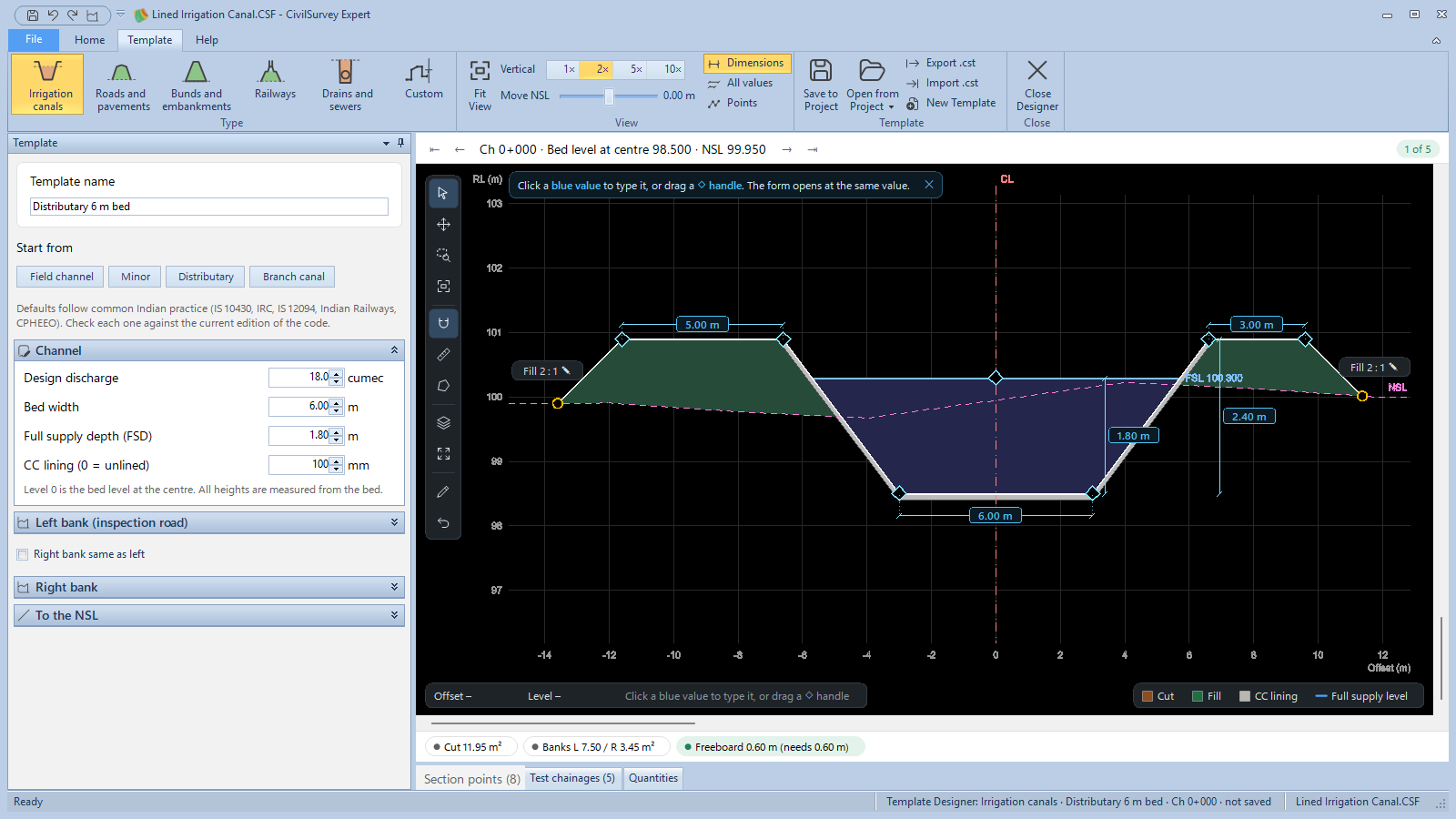
4. Try it on the surveyed ground
The template is tried at a few test chainages. To start with they are sample chainages whose ground is a straight line. Try it on the sample's real ground instead.
- Click the Test chainages tab under the drawing.
- Click From the project…. In Test chainages from a field book, choose Field book NSL, the first chainage in From chainage and the last in To chainage, then click Use these chainages.
The template is hung as far below the ground at every chainage as it was on the chainage on screen. 3. Where you know the bed level, type it in the Bed level at centre (RL) column. 4. Click a row, or use the arrows on the bar over the drawing, to see each chainage. Watch the cut, the banks' fill and the checks change.
The other columns: NSL at centre and NSL cross fall (%) (for a sample chainage), Bed width (m) and FSD (m), then Cut (m²) and Banks fill (m²). Grey values come from the template; type over them where the section changes at that chainage. + Add chainage adds a row.
The Quantities tab adds up excavation, each bank and the lining between the test chainages, by the average end area method, in m³.
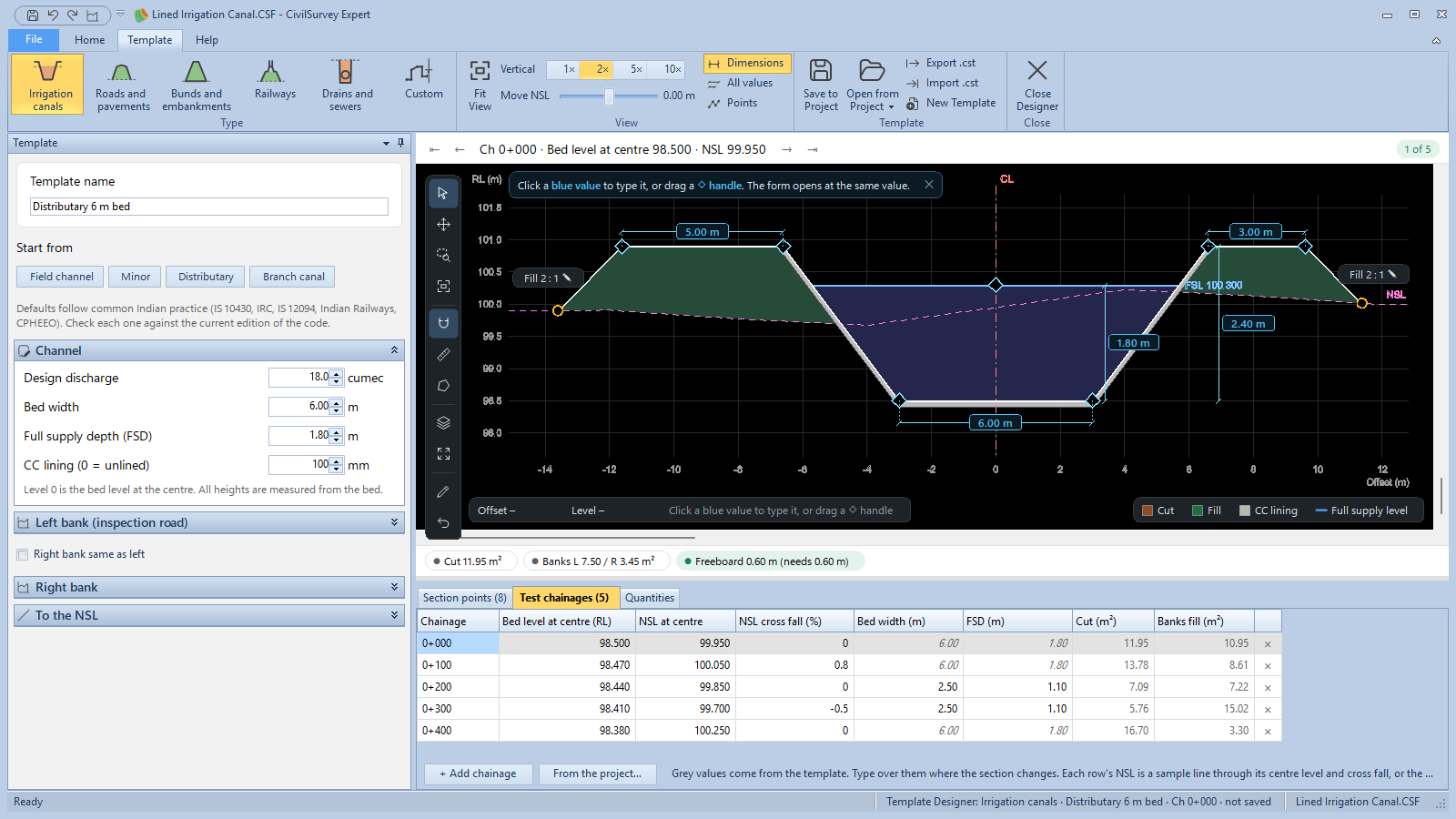
5. Change the view
On the Template tab, under View:
- Fit View fits the drawing to the window. It stays fitted as the template changes, until you zoom or pan.
- Vertical 1×, 2×, 5× or 10× draws the levels that many times their scale across. A canal opens at 2×, so its banks read clearly.
- Move NSL moves the ground of every test chainage up or down, up to 3 m, to see the template on other ground. The bar over the drawing then says (moved).
- Dimensions shows the values you can click and the handles you can drag. All values adds the slopes, berms and lining. Points shows the point numbers and every slope. The Layers button on the drawing's toolbar has the same three switches.
6. Save it in the project
- Click Template › Save to Project.
The program says Saved “Distributary 6 m bed” to the project (… section points). It is listed under Templates on Design routes. If the project already has a template of that name, it asks before replacing it and says how many design rows use it.
Tip: give your template its own name. If you save over a point list such as Canal Prism.cst, the sections that use it then meet the ground by this template's own side slopes, not by the side slopes in Section Settings.
The other commands of the Template group:
- Open from Project lists the project's templates, each with its kind (Irrigation canals, Point list…). Click one to open it. Delete from Project… at the foot of the list removes one.
- Export .cst writes the template to a file for other projects. Import .cst opens a template file from another project or a colleague; it goes into the project and opens in the designer.
- New Template starts every type again from its preset. It asks to save your changes first.
7. Draw a template point by point
For a shape none of the types has, use Custom.
- Click Template › Type › Custom. Its presets are Canal, berm on NSL and Road with kerb and drain.
- In the Draw section, click Draw. Click on the centre line first, then each point going out. Right-click, double-click or press Esc to stop.
- Right-click a point (P1, P2…) to choose how it is placed: As drawn, Follows the point before, Runs at its slope to NSL, Drops or rises to NSL or Runs at its slope to its drawn level.
- Under To the NSL, set the Fill slope and Cut slope: from the two outer points the section runs to the NSL at these slopes.
Also in Draw: Select and move (drag a point; Delete removes the selected one), Add points at the right end or left end, Grid snap, Snap to points, Ortho, level or vertical only (F8), and the buttons Undo, Mirror right to left, Fit view and Clear.
For an exact value the drawing alone can't give, such as a 1 in 40 camber, open Type the next segment: enter the Width, then a slope (1 in, rising or falling) or a height, and click Add at the right end.
The strip over the drawing ticks off the three steps: draw from the centre line outward, choose how each point meets the NSL, check each chainage.
8. Close the designer
Click Template › Close Designer. You go back to the screen you were on. If a template has changes not saved, it asks first.
What next
- Lay it along the route: a Design route places a template at a level at each chainage. See Lay a template along the route.
- Road and rail layers: a road template has its pavement layers (BC / PC, DBM, WMM / WBM, GSB, subgrade), a railway its blanket and ballast. See Add layers.
- Send it to a colleague: see Share a template.
If something looks wrong
| You see | Do this |
|---|---|
| Open or create a project first: templates are kept in a project. | Open a project, or a sample from the Start page, then open the designer. |
| Give the template a name. when you save | Type a name in Template name (up to 50 characters). |
| The section turns back at … | Move that point: a template that turns back on itself can't be saved. |
| FSD is at or above the bank top | Raise Bank top above bed, or lower the Full supply depth (FSD). |
| A side slope does not reach the NSL | At that chainage the slope doesn't meet the ground. Check the NSL there in Test chainages, or change the slope. |
| Draw and Select are for Custom templates… | Only a Custom template is drawn point by point. Set the other types in the Template panel. |
| The Template panel has gone | You are in full screen: press Esc. |
| You changed the sample and want it back | Close the project, delete your copy from Documents › CivilSurvey Expert › Samples, and open the sample again from the Start page. |