Lay a template along the route
What you get: a design route that puts a template at a set level at every chainage of a field book, and the cross sections drawn with it. You make the Flood Protection Bund's design again from an empty sheet, so you can check your sections against the sample's.
You need: CivilSurvey Expert installed and activated. The Flood Protection Bund sample. About 10 minutes.
1. Open the sample
- On the Start page, under Open a sample project, click Flood Protection Bund. (Once you have projects of your own, it is under the Sample projects button.)
The bund runs from Ch 2+000 to 2+500 with the river on the left: 21 chainages, 25 m apart. Its top is 5.0 m wide, at HFL 104.20 + 1.50 m free board, and falls 1 in 2000 with the river. The side slopes are 3:1 on the river side and 2:1 on the country side.
Don't open the cross sections yet: you will build them once your design is in.
2. Look at a design route
At the foot of the Input screen, click the Bund tab.
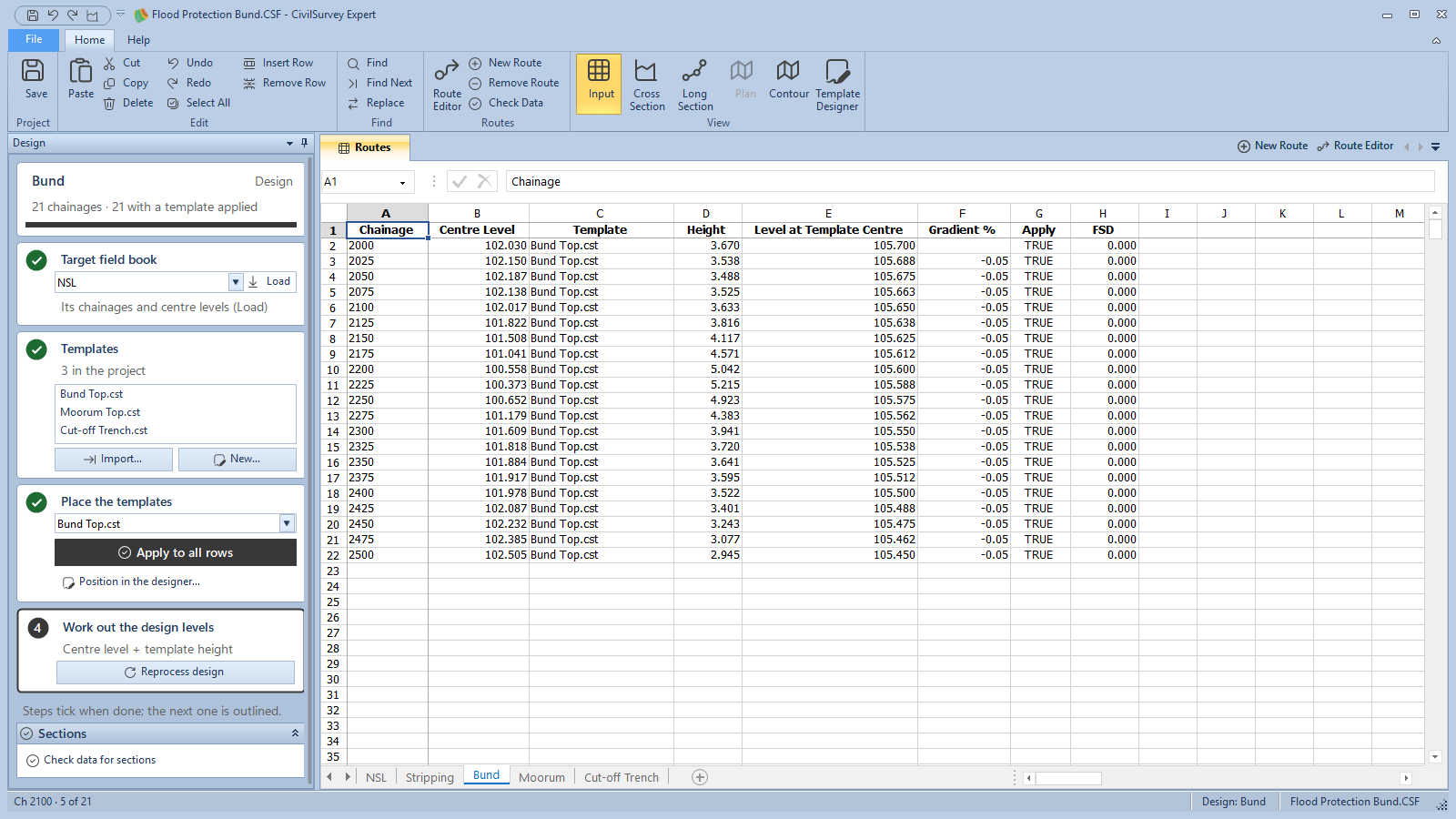
A design route is a sheet with one row for each chainage of its field book:
| Column | What it holds |
|---|---|
| Chainage | The chainage, from the target field book. |
| Centre Level | The ground level at the centre line (offset 0) at that chainage, from the field book. |
| Template | The template placed at that chainage. Pick it from the list in the cell, or type its name. |
| Height | Level at Template Centre minus Centre Level. It works itself out; red means the template is below the ground (cutting). |
| Level at Template Centre | The design level at the template's centre: here the top of the bund. A number, or a formula as in Excel. |
| Gradient % | The fall or rise from the row before. It works itself out. Here it is -0.05 (1 in 2000). |
| Apply | TRUE once a template has been placed on the row with Position in the designer…. |
| FSD | The full supply depth, for a canal. A bund leaves it empty. |
The Design panel on the left goes with the design sheet in front. At the top, the route's name and how many of its chainages have a template applied; then four steps, each ticked when done, with the next one outlined:
- Target field book: the field book whose chainages and centre levels start the sheet, with its Load button. Load fills the sheet again from the field book: the templates and levels on it go (Ctrl+Z brings them back).
- Templates: the project's templates. Import… brings in a template file (.cst); New… opens the Template Designer.
- Place the templates: a template box, Apply to all rows, and Position in the designer….
- Work out the design levels: Reprocess design.
3. Add a design route
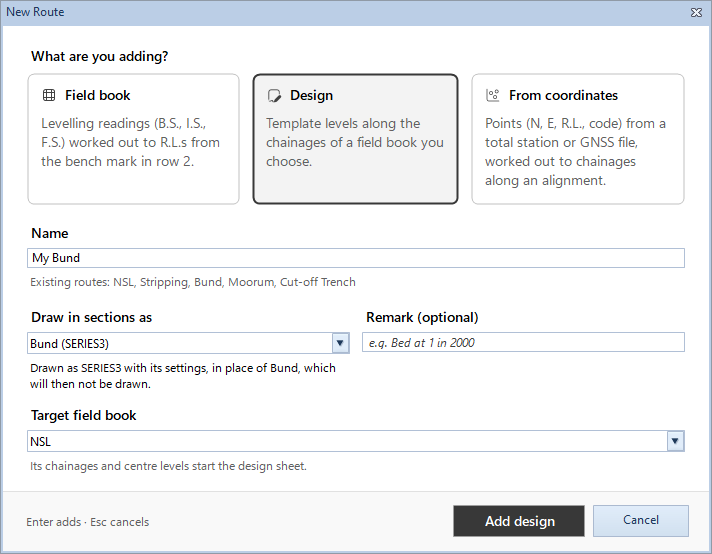
- Click Home › Routes › New Route.
- Under What are you adding?, click Design (Template levels along the chainages of a field book you choose).
- Name: type My Bund.
- Draw in sections as: choose Bund (SERIES3). Your design is then drawn in place of the sample's Bund route, with that series' settings (its colour and side slopes). The sample's route stays in the workbook but is no longer drawn.
For a design of your own in a new project, keep the first choice, a new series. 5. Target field book: NSL (already chosen). Its chainages and centre levels start the design sheet. 6. Click Add design.
The My Bund sheet opens with the 21 chainages and their centre levels. The Template and Level at Template Centre columns are empty.
4. Place the template
- In the Design panel, step 3, choose Bund Top.cst in the template box.
- Click Position in the designer…. Template and Position opens.
- Under 1 Template, Bund Top.cst is chosen. It is a point list: a 5.0 m top with a 2.5% camber.
- Under 2 Chainages, click Whole route (2000 to 2500).
- Under 3 Level at the template centre, click Gradient, then Start and end level. Type Start level 105.700 and End level 105.450.
The long section under it follows what you type. 6. Click Apply to 21 chainages.
The sheet fills in: Bund Top.cst in Template, the levels in Level at Template Centre, the heights and gradients worked out, and Apply TRUE on every row.
Other ways to set the level, under 3 Level at the template centre:
- Height: the same height above the centre level at every chainage. Use it when the design follows the ground.
- Gradient by Percent or 1 in N from the start level.
- Level: one level at every chainage.
Pick a From and To chainage to place a template on part of the route only, for example a different template over a culvert. Apply to all rows puts the template in the box on every row without touching the levels, for when you type the levels yourself.
Tip: a template from the Template Designer goes in the same way. It meets the ground by its own side slopes, not by the side slopes in Section Settings.
5. Save and check
- Press Ctrl+S. Every route that changed is saved.
- Click Home › Routes › Check Data. It finds a design row without a template, a point without a level or a chainage without ground, and takes you to its row. When all is well it says The route data is ready for sections.
6. See it in the cross sections
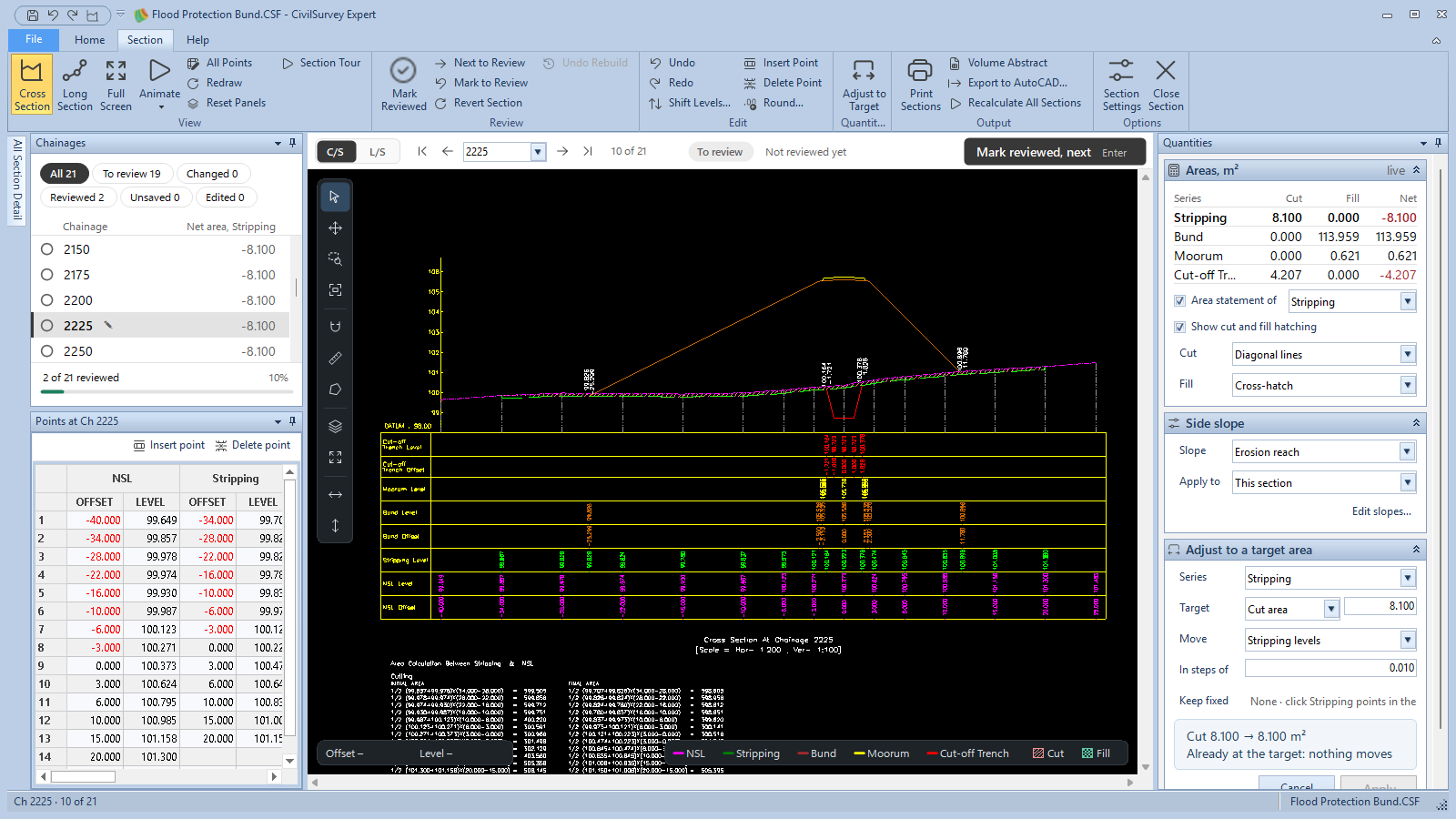
- Click Home › View › Cross Section (or press F6).
- The program asks how to open them. Click Rebuild from routes…: it builds every section again from the field books and designs, and keeps a copy of them first (Undo Rebuild).
Your bund is drawn on each section where the sample's was, with the moorum over it. Go to Ch 2+225, the old channel crossing: the highest bank, with the flatter 4:1 river-side slope of the erosion reach.
When the ground changes
Reprocess design reads the centre levels again from the target field book and keeps each row's Height, so each level moves with the ground. Use it when the levels are a height above the ground. When the levels are fixed, as a bund top at HFL plus free board, place them again with Position in the designer… instead.
What next
- Review the sections: see Review the cross sections.
- The quantities: see Volume abstract.
- A template of your own: see Design a template.
- Before drawing from your own data: see Check the data before drawing.
If something looks wrong
| You see | Do this |
|---|---|
| Add design stays grey | Type a name. If it says A route named … already exists, choose another name. |
| The target says No field book is drawn yet | Add the design anyway, and choose the target later in the Design panel, once a field book is drawn as a series. |
| The design route has no chainages. Load the target field book first. | In the Design panel, step 1, choose the field book and click Load. |
| Chainage … has no centre level. Load the target field book first. | That chainage has no reading at offset 0 in the field book. Add it there, then click Reprocess design to read the centre levels again. |
| Height is red | The template is below the ground there: that row is in cutting. |
| The levels moved after Reprocess design | Press Ctrl+Z, then place the levels again with Position in the designer…. |
| The sections still show the old design | The cross sections were open when you changed the route. Save, close the project, open it again, then F6 and Rebuild from routes…. |
| You changed the sample and want it back | Close the project, delete your copy from Documents › CivilSurvey Expert › Samples, and open the sample again from the Start page. |