Review the cross sections
What you get: every cross section of a route looked at and marked reviewed, so you, your checker and the volume abstract all know which sections are checked. You also see which sections were changed after they were checked, and why.
You need: the Two-Lane Highway sample (Ch 45+000 to 45+500, 21 sections, the first four already reviewed). About 10 minutes. The Quick Start shows the Cross Section screen for the first time; this page goes further.
1. Open the sections
- On the Start page, open the Two-Lane Highway sample.
- Click Home › View › Cross Section (or press F6). The Open the sections box asks how to open them:
- Open saved sections: the sections as they were last saved, with your edits and reviews. Use this almost every time.
- Rebuild from routes…: builds every section again from the field books and design. Use it only when you have changed a route since the sections were made.
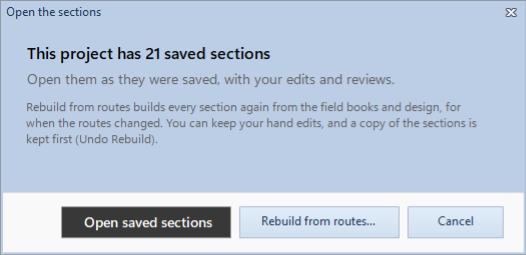
- Click Open saved sections.
If you choose Rebuild from routes… and some sections were edited by hand, the program asks what to do with those edits:
- Keep my edits (recommended): each hand edit is put back on the rebuilt section.
- Rebuild them too: every section comes from the routes; the edits stay in the history only.
- Let me choose: tick the sections that keep their edits.
A copy of the sections is kept before a rebuild. If the rebuild was a mistake, click Section › Review › Undo Rebuild: every section goes back as it was before it, hand edits and all.
2. Read the chainage list
The Chainages panel (top left) lists every section of the route. Each row has a mark at the left, the chainage, and at the right the net area of one series (the heading says which, for example Net area, Subgrade).
| Mark | It means |
|---|---|
| Green tick | Reviewed. |
| Amber dot | Changed after review: it was reviewed, then edited. Review it again. |
| Ring | Still to review. |
| Small amber dot after the chainage | Changes not saved yet (points or a review). |
| edited after the chainage | Its points differ from how they were built from the routes. This stays after you save. |
| ✎ after the chainage | The section has a note. |
When the area has changed, the old figure is shown before it, in amber: was 11.980 +0.641 for a change not saved yet, orig 11.980 +0.641 for a section edited since it was built.
Under the list, 4 of 21 reviewed counts your progress.
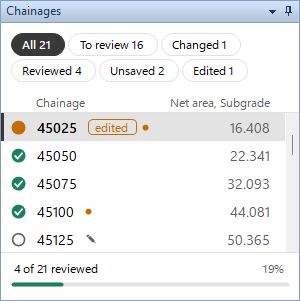
Click a chainage to open it. Once the list has the focus, the ↑ and ↓ keys, Page Up, Page Down, Home and End move through it.
Show only some sections
The buttons above the list show part of it. Each has its count.
- All: every section.
- To review: the ones with a ring.
- Changed: the ones with an amber dot (edited after review).
- Reviewed: the ones with a green tick.
- Unsaved: the ones with changes not saved yet.
- Edited: the ones whose points differ from how they were built from the routes.
Click All to see the whole list again.
3. Review section by section
- In the bar over the drawing, after the chainage box, you see the section's review: To review, Reviewed or Changed after review. Beside it, where there is room, a line says more: Not reviewed yet, Reviewed with the date and time, or Changed after it was reviewed: review it again.
- Look at the section: the ground, the design, the side slopes, and the areas in the Quantities panel. If something is wrong, fix it (see Edit a section).
- When it is right, click Mark reviewed, next at the right of the bar, or press Enter with the drawing or the chainage list in focus.

The section gets a green tick and the next section still to review opens. It skips the reviewed ones, and goes round to the start of the list at the end. 4. Go on until every section is reviewed. The status bar then says All 21 sections are reviewed.
The same commands are on the ribbon, in Section › Review:
- Mark Reviewed: the same as Mark reviewed, next.
- Next to Review: goes to the next section not reviewed, without marking the one on screen.
- Mark to Review: takes the review off the section on screen.
To mark a section without opening it, right-click its chainage in the list and click Mark reviewed (or Mark to review).
Tip: In Full Screen (F11) the drawing fills the screen and a small bar floats over it with previous, next, the chainage and Mark reviewed, next. Esc brings the panels back.
4. When a reviewed section changes
If you edit a reviewed section, its green tick turns into an amber dot: Changed after review. Undo the edit (Ctrl+Z) and the tick comes back. Otherwise, check the section again and mark it reviewed.
To put a section back:
- Section › Review › Revert Section: the section on screen as it was last saved. Undo brings your changes back.
- Right-click its chainage › Revert to saved: the same, for any section in the list with changes not saved.
- Right-click its chainage › Revert to original…: the points as they were built from the routes, before any hand edit. The program asks first. Save to keep it; Ctrl+Z brings the edits back.
5. See what changed, and why
Rest the mouse on a chainage that is changed, edited or has a note. A card opens with:
- Not saved yet: what changed since the last save, point by point.
- Note: the section's note.
- History: the last saves of this section: when, by whom, where the change was made (C/S, L/S, Adjust or Revert) and the reason.
Right-click a chainage for more:
- Show what changed: opens the section. Until you save, the drawing shows the section as saved as a dashed line, with a ring at each point that moved.
- Add a note… (or Edit the note…): why the section is as it is, up to 255 characters. Click Keep note, or Remove note to take it off. A note is kept at once; it does not wait for Save.
- Show history: the card above.
- Open in L/S, Print this section… and Copy areas.
In the Two-Lane Highway, Ch 45125, 45200, 45250 and 45425 have notes.
6. Save the reviews
Reviews are kept with the project when you save. Until then the chainage has the small amber dot, and the status bar counts the sections not saved (3 sections not saved · Ctrl+S).
- Press Ctrl+S.
- If the points of a section changed since the last save, Save sections lists each change and asks why: Survey correction, Design change, Site instruction, Client instruction or Other. Add a note if you like (What was changed, and on whose instruction).
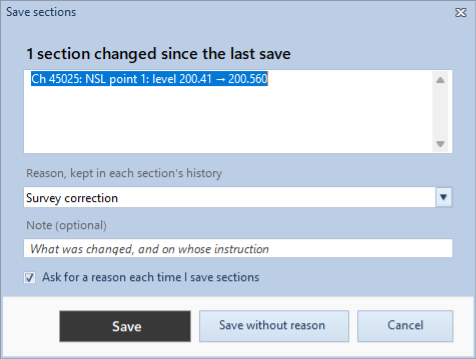
- Click Save, or Save without reason. Cancel saves nothing.
The reason goes into each section's history, with your name and the time. To stop being asked, untick Ask for a reason each time I save sections.
What next
- Fix a section: Edit a section: drag points, the points table, Shift Levels… and Round….
- Make an area match a figure: Reach a target area.
- Print the reviewed sections: Print sections. The reviewed ones are ticked to start.
- Volumes: Volume abstract. Its Checks card lists the sections not reviewed yet.
If something looks wrong
| You see | Do this |
|---|---|
| Enter does not mark the section | Click in the drawing or the chainage list first. Enter in the points table does not mark it. |
| The list shows only some sections | A button above the list is on. Click All. |
| A green tick turned into an amber dot | The section was edited after review. Check it and mark it reviewed again, or Ctrl+Z the edit. |
| Reviews are gone after you reopen the project | They were not saved. Mark them again and press Ctrl+S. |
| You rebuilt the sections by mistake | Section › Review › Undo Rebuild. |
| No sections yet | No route has readings yet. Enter a field book in the Routes workbook, save, and open the sections again. |
| The panels are out of place | Section › View › Reset Panels. |