Reach a target area
What you get: a section's fill or cut brought to the figure you need, such as the area in an approved drawing. You give the area; the program moves a series' levels in small equal steps until the area reaches it. You see the result on the drawing before anything changes.
You need: the Flood Protection Bund sample (Ch 2+000 to 2+500, 21 sections: stripping, the bund, a moorum top and a cut-off trench). About 5 minutes. It helps to have seen Edit a section.
1. Open a section
- On the Start page, open the Flood Protection Bund sample.
- Click Home › View › Cross Section (or press F6), then Open saved sections.
- In the chainage box over the drawing, type 2100 and press Enter.
The section shows the ground (NSL), the stripping under the bund, the bund with its side slopes, the moorum on top and the cut-off trench. The Quantities panel on the right has the areas of each series under Areas, m².
2. Open Adjust to a target area
Click Section › Quantities › Adjust to Target.
The Adjust to a target area part of the Quantities panel opens. (Clicking its heading in the panel does the same.) The Side slope part is put away while you adjust, to make room; the areas stay, so you can watch them.
3. Say what to reach
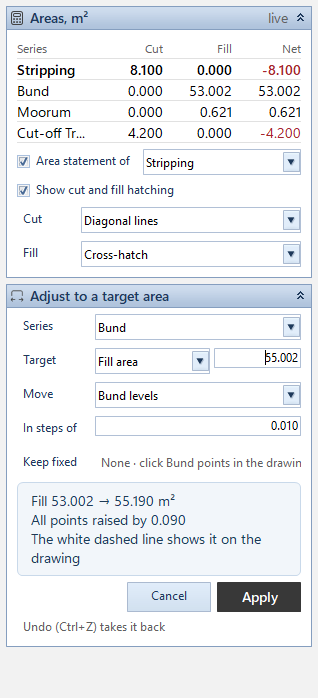
- Series: choose Bund. Only series whose area is measured against another series are listed. The bund's fill is measured against the stripping under it.
- Target: choose Fill area or Cut area, and type the area you need, in m². The box starts with the area as it is now.
For practice, at Ch 2100 the box shows 53.002: type 55.002. 3. Move: which levels move. - Bund levels: the bund's own points go up or down. - Stripping levels (measured against): the line the bund is measured against moves instead. 4. In steps of: how far the levels move at each step. 0.010 to start. 5. Keep fixed: None to start. To keep some points where they are, click them on the drawing (points of the series that moves). Each one shows as a button (Pt 2 ✕); click the button to let that point move again. With none kept, every point of the series moves.
4. Look at the preview
As you type, the panel works it out and tells you what it would do:
- the area it reaches: here Fill 53.002 → 55.190 m²;
- which points move and how far: here All points raised by 0.090 (with some points kept fixed it names the others, such as Points 2–4 raised by …);
- The white dashed line shows it on the drawing.
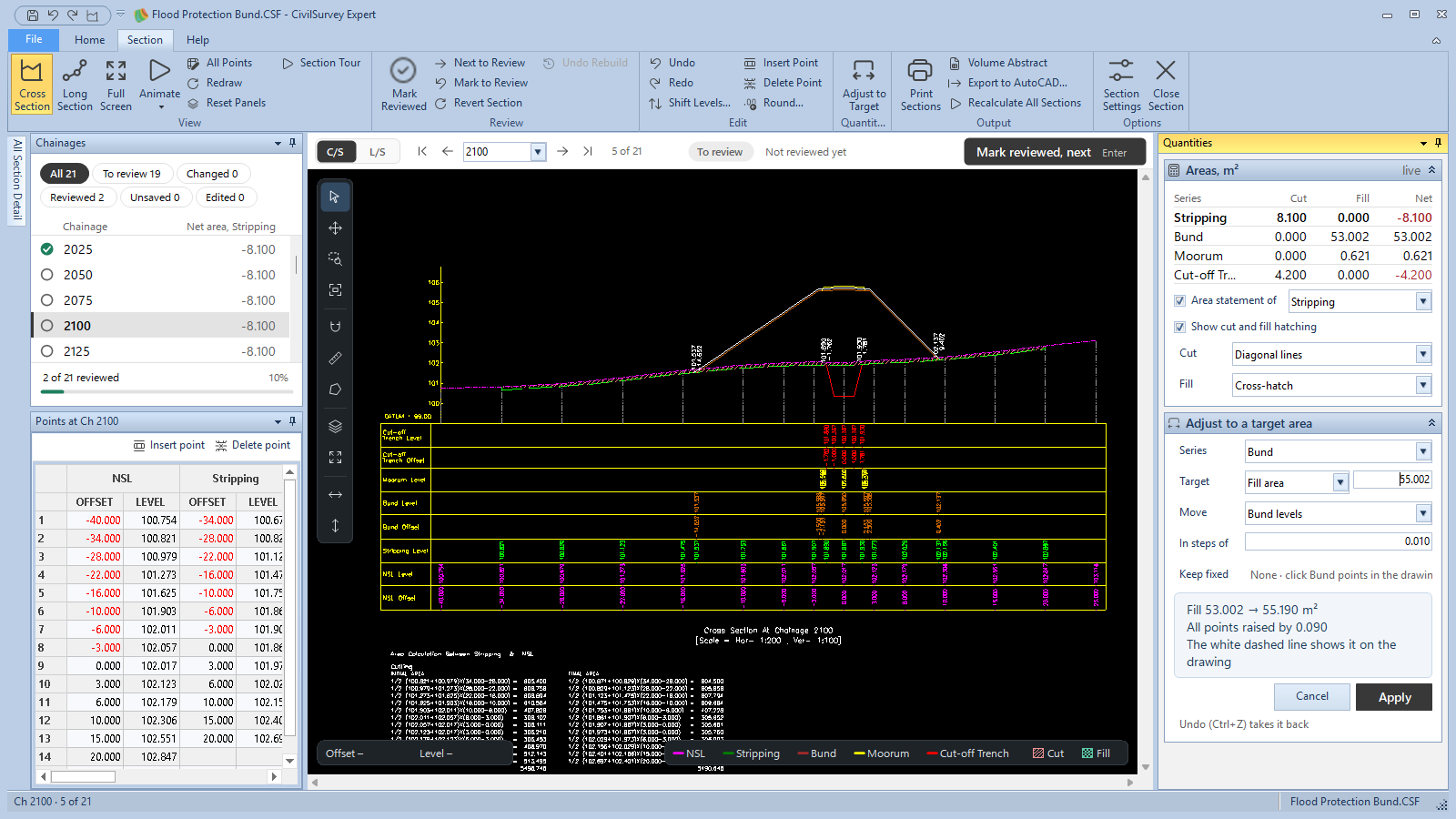
The levels move in whole steps, so the area lands on the target or just past it, by less than one step's worth. A smaller step gets closer.
When you move the series it is measured against, the panel also says which other series change with it: Also changes Cut-off Trench (measured against Stripping), here.
Nothing has changed yet. Change any box and the preview follows.
5. Apply
- Click Apply (or press Enter in the target box).
- The new levels go into the points table as one change, and the section is drawn again. The status bar says what was done, such as Adjusted Bund: fill 53.002 → 55.190 m² · Ctrl+Z undoes.
Ctrl+Z takes it back. To leave without changing anything, click Cancel, or click the heading Adjust to a target area to fold it.
If you go to another section while the panel is open, it works the same target out for that section, with no points kept fixed.
6. Check and save
- Look at the section and the areas in Areas, m². The side slopes follow the moved points, so the toes move too.
- In the Chainages list, the section shows a small amber dot (not saved) and, where the list shows this series' area, the area it was (was …).
- Press Ctrl+S. When asked why, choose a reason (Design change, say). The history records the change as made by Adjust.
If the section was reviewed, it now shows an amber dot: changed after review. Check it and mark it reviewed again (see Review the cross sections).
What next
- The volumes with the new areas: Volume abstract.
- Change points by hand: Edit a section.
- Print the section: Print sections.
If something looks wrong
| You see | Do this |
|---|---|
| No series here is measured against another, so none can be adjusted. | Only the ground is drawn here, or no series has its area set against another. Set that up in Section › Options › Section Settings (see Change how sections are drawn). |
| Out of reach in 5000 steps: try a larger step or fewer points kept fixed | The target is too far for that step. Make In steps of larger, or let some points move again. |
| Every point is kept fixed: nothing can move | Click some of the Pt buttons to let those points move. |
| The step must be more than 0. | Type a step such as 0.010 in In steps of. |
| Already at the target: nothing moves, and Apply is grey | The area is already the one you typed. Check the figure and Fill area or Cut area. |
| Open a cross section first | Adjust to Target works on a cross section, not on the long section. Click C/S in the bar over the drawing. |
| The area is a little past the target | It moves in whole steps. Make In steps of smaller (0.001) and try again. |
| You want the old levels back | Ctrl+Z, or Section › Review › Revert Section for the section as last saved. |