Print sections to paper, PDF or AutoCAD
What you get: the cross sections (or the long section) laid out on sheets with the title block, then printed, saved as a PDF, or drawn on one drawing for AutoCAD. You also learn to send just the section on screen to AutoCAD.
You need: the Two-Lane Highway sample (see the Quick Start, which prints it to PDF in four clicks). About 10 minutes.
1. Open the wizard
- Open the Two-Lane Highway sample from the Start page.
- Click Home › View › Cross Section (or press F6), then Open saved sections.
- Click Section › Output › Print Sections.
The wizard has four steps, listed on its left: Chainages, What to print, Paper and layout and Title block. Click a step to go to it, or use Back and Next. Generate works from any step. The line at the foot says what you will get, for example 21 sections · 11 sheets · a while to lay out · one PDF.
Your choices are kept for next time.
Other ways in:
- Right-click the drawing, or a chainage in the Chainages list, and click Print this section…. The wizard opens with that section alone ticked.
- From the Long Section (F7), Print Sections opens with Long section chosen and every chainage ticked.
2. Chainages: which sections
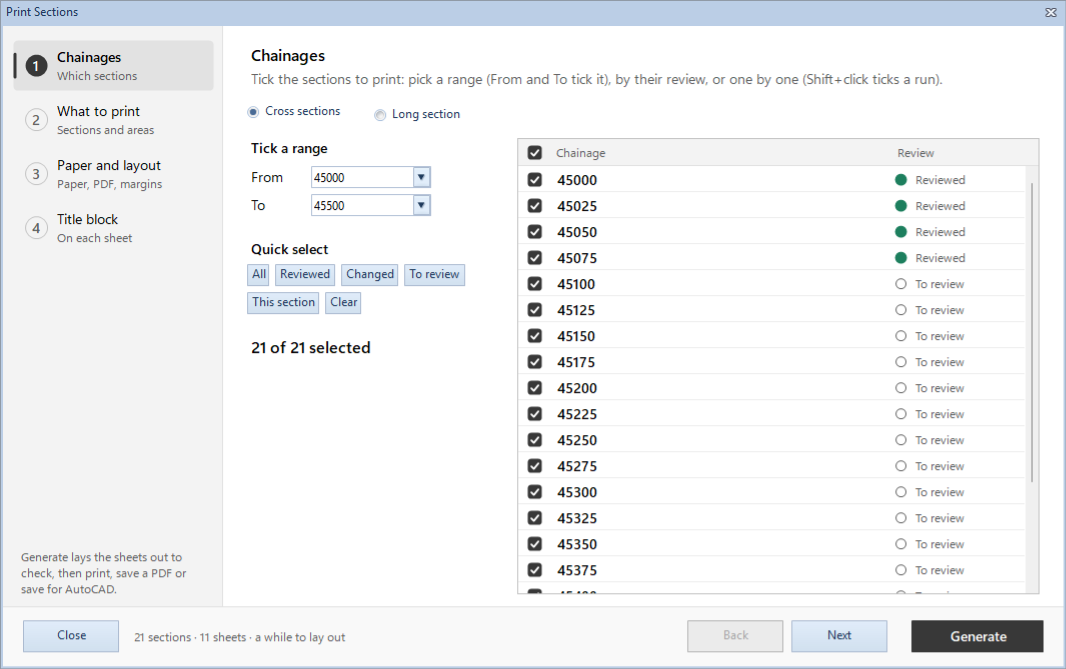
- At the top, choose Cross sections or Long section.
- Tick the sections to print. The reviewed ones are ticked to start with (here the first four). Three ways to change that:
- Tick a range: pick From and To. The sections between them are ticked at once.
- Quick select: All, Reviewed, Changed, To review, This section (the one on screen) or Clear.
- One by one in the list on the right. Shift+click ticks a run.
- The count under the buttons says how many are ticked: here click All and it says 21 of 21 selected.
Note: if some sections have changes you have not saved, a note here says so. Printing uses the changes; Ctrl+S keeps them.
For a Long section, the ticked chainages are the ones the profile is drawn through.
3. What to print
Choose what goes on each sheet:
- Print sections only: two sections on each sheet, one above the other.
- Print area details only: the area calculations of one series, two sections on each sheet. Pick the series in Area to print.
- Print section with area details: one section on each sheet, with the area calculation of each series you tick.
- Under Areas to print, tick one or more series, for example Subgrade and GSB. Their calculations go one after another, and carry on in a second column when the sheet is full.
-
Under Where the area calculations go, choose Under the section or Beside the section. Beside puts them in a column down the right of the sheet; set its Column width as a % of the sheet's width (20 to 50).
Choosing Under sets the paper to portrait, Beside to landscape. You can change it after, in Paper and layout.
Table rows lists the series whose level and offset rows are drawn in the table under each section. Untick one to leave its rows out. This is saved to the project when you click Generate, and the Cross Section screen's table follows.
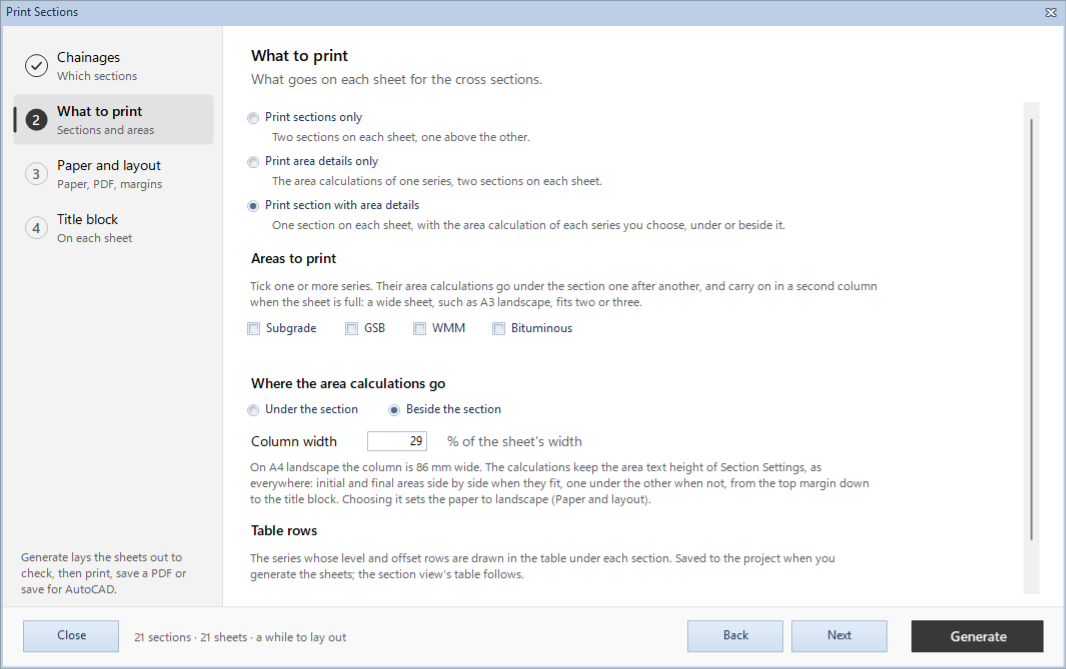
These choices are for cross sections. With Long section chosen they are greyed out.
4. Paper and layout
Print type
Choose one:
- Paper: sheets of the paper below, each with the title block, to print.
- PDF file: the same sheets, saved as a PDF to send or submit.
- AutoCAD drawing: the sections laid out in columns on one drawing, to save as a DWG and open in AutoCAD. It has no title block, and the Paper settings are greyed out.
The PDF file
With PDF file chosen, its settings show under the print types:
- Folder: the project's folder to start with. Type another, or click Browse…. A folder chosen here is for this print only: next time it starts from the project's folder again.
- File name: made from fields: {project}, {first} and {last} (the first and last chainage) and {date}. The standard name is {project} sections {first} to {last}. The line at the bottom shows the name it will save, for example Saves Two-Lane Highway sections 45000 to 45500.pdf.
- One file, or A file for each sheet (each named from the chainages on it).
- In colour (otherwise black lines, as printed).
- Show the sheets before saving: you see the sheets first and click Save PDF. Untick it and Generate saves the PDF straight away.
- Open the PDF when it is saved.
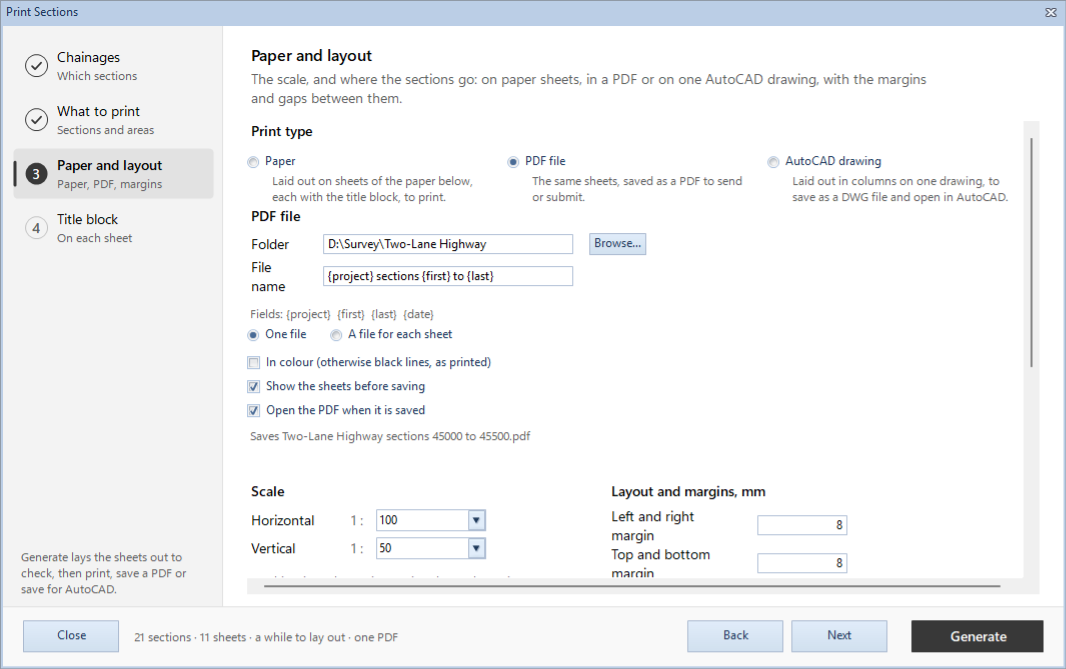
Scale, paper and margins
- Scale: Horizontal and Vertical, as 1 : 100 and so on. They start from the project's scale and are for this print only: Section Settings keeps the project's.
- Paper: Size (A0 to A5, or Letter) and Orientation (Portrait or Landscape).
- Layout and margins, mm:
- Left and right margin and Top and bottom margin, from the sheet's edges.
- Row gap: between a section and what is under it.
- Column gap: between a section and the areas beside it, and between the columns of an AutoCAD drawing.
- Gap between areas: between one series' area calculation and the next.
The picture of the sheet shows the layout. Drag its dashed lines, or the edge of the area column, to set them. Reset to standard puts back 8, 8, 15, 6 and 5 mm (a column gap of 15 mm for an AutoCAD drawing).
5. Title block
- Print a title block on each sheet is on to start with. Turn it off for plain sheets.
- The picture shows the title block, and the line under it says which file it is: the standard one, or this project's own copy.
- To change it: Edit title block… (opens it in a drawing window, to change its text and lines and save), Open in AutoCAD, Use another file… (a DWG), or Back to standard. Editing makes the project's own copy beside the project file; the standard one stays as installed.
- Under Placing on the sheet: Insert at, across (X), Insert at, down (Y) and Scale.
Portrait and landscape sheets each have their own title block. This step shows the one for the orientation chosen in Paper and layout. See Set up the title block.
6. Generate, then print or save
- Click Generate. The sheets are laid out, with a bar that shows how far it has got. Cancel stops it and keeps the sheets laid out so far.
If something is missing, Generate takes you to the step that needs it and says what to do.
- The Section Print Viewer opens with the sheets. Its toolbar:
- Next and Previous, and the list of sheets (Page - 1, Page - 2…) to go to one.
- Printer Setup: choose the printer and its paper.
- Print All: prints every sheet.
- Save PDF: saves the sheets as a PDF.
- Close.
The status bar at the foot gives the page count.
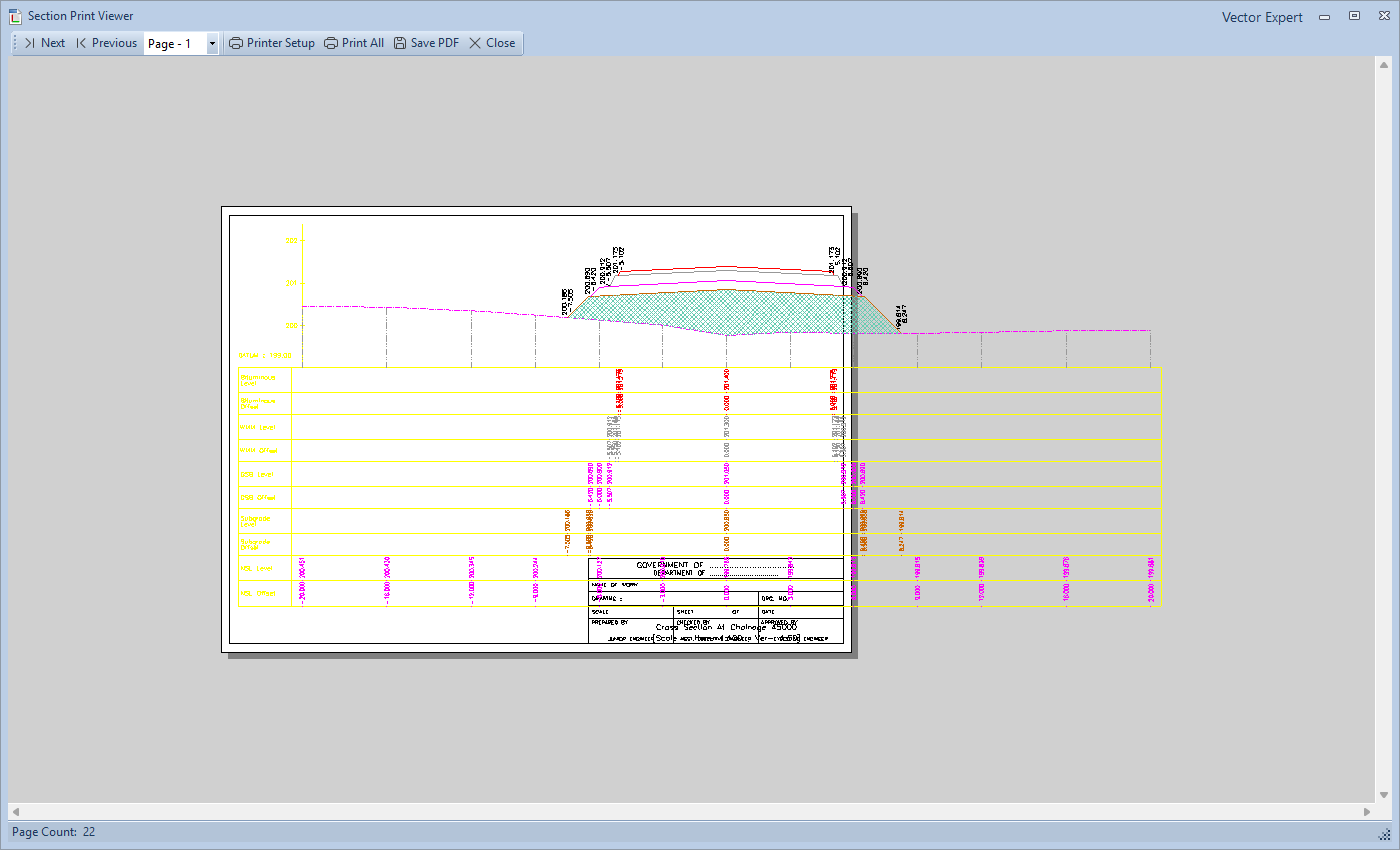
- With PDF file as the print type, Save PDF saves to the folder and name from step 4, and opens it if you asked for that. If the file is already there, it asks before replacing it.
With Paper as the print type, Save PDF asks where to save it, as one file in black lines.
With AutoCAD drawing as the print type, the viewer shows the one drawing and its toolbar has Export to AutoCAD… in place of the print buttons:
- Click Export to AutoCAD…. It offers the project's name and sections as the file name.
- Choose a DWG or a DXF in the file type box, and save.
- It asks whether to open it in AutoCAD now: Open in AutoCAD or Not now.
7. Just the section on screen, to AutoCAD
You do not need the wizard to send one section to AutoCAD:
- In the Cross Section screen, go to the section.
- Click Section › Output › Export to AutoCAD… (or press Ctrl+E, or right-click the drawing and click Export to AutoCAD…).
- The file name offered is the project's name and the chainage. Choose DWG or DXF and save.
The status bar says where it was saved. On the Long Section, the same command saves the long section.
What next
- The volumes: Volume abstract, and print it with the same title block.
- Your own title block: Set up the title block.
- Back to the start: Quick Start.
If something looks wrong
| You see | Do this |
|---|---|
| Tick at least one chainage. | Go to Chainages and tick some, or click All. |
| Tick at least one series. | With Print section with area details, tick a series under Areas to print. |
| Type each scale as a whole number, such as 100 for 1 : 100. | Fix Horizontal or Vertical under Scale. |
| Choose the folder to save the PDF in., or There is no drive or share … on this computer. | Type the folder's full path, or click Browse…. |
| The PDF could not be saved. If it is open in a PDF reader, close it there and save again. | Close the PDF in the reader, then click Save PDF again. |
| A section runs past the edge of the sheet | The section is wider than the paper at this scale: use a smaller Horizontal scale (1 : 200 for a 40 m wide road section on A4), or larger paper. |
| The status bar says the section reaches under the area column | Use a smaller horizontal scale, or a narrower Column width. |
| The status bar says the area calculations do not fit | A smaller Gap between areas, a wider column, larger paper, or a smaller area text height in Section Settings. |
| The title block file is missing | On the Title block step, click Use another file…, or Back to standard. |
| The title block is not the one you edited | Portrait and landscape have their own. Choose the other orientation in Paper and layout and look again. |
| The What to print choices are greyed out | Long section is chosen on the Chainages step. They are for cross sections. |
| No title block on the AutoCAD drawing | That is how it works: the title block is for paper sheets and PDFs. |