Contours from a point survey
What you get: a contour plan from a total station or GNSS point survey. You look round a finished contour job, change its contour interval, then make a job of your own from a point file, with breaklines and a boundary.
You need: CivilSurvey Expert installed and activated. About 15 minutes. The Quick Start shows the Start page and the ribbon, if you have not used them.
1. Open the sample
- Start CivilSurvey Expert. The Start page opens.
- Under Open a sample project, click Site Levelling and Contour Survey. (Once you have projects of your own, it is under the Sample projects button.)
The sample opens straight in the Contour screen, not in Input, and a Contour tab comes up on the ribbon. You can also open this screen in any project from Home › View › Contour.
The project holds three contour jobs. Each job is one survey, with its own points, settings and results:
- Plot 14, site levelling: a plot surveyed by total station, with a kutcha drain (code DR) and a road edge (EP) as breaklines and the boundary pillars coded BND. Two volumes.
- Sector 7 layout, contour plan: a DGPS survey for a layout permission, with a nala (NALA) and a cart track (TRK) as breaklines. Contours only, no volume.
- Village tank, desilting: a tank's bund, toes and inlet as breaklines, desilted to a bed level. One volume.
Plot 14 opens first. The first time you open this screen a one-minute tour shows its parts. Replay it from Help › Contour Tour.
2. Find your way round
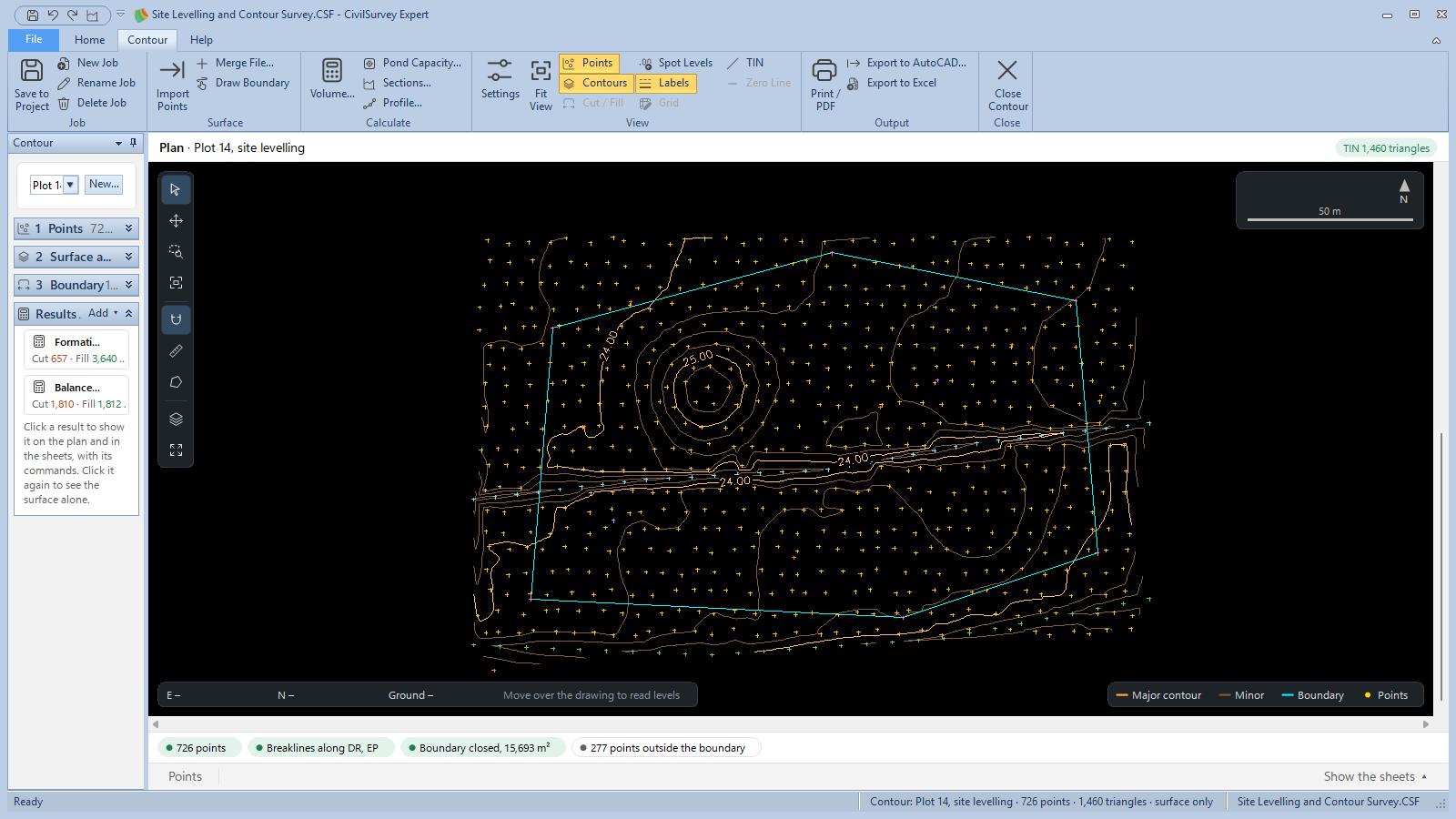
- The panel on the left is the job. At the top, Job lists the project's jobs; pick one to open it. New Job… beside it starts another. Under it are four folds, in the order you work: 1 Points, 2 Surface and contours, 3 Boundary and Results. A folded one still shows a one-line summary, such as the number of points or the boundary's area. Click its heading to open it.
- The plan fills the middle. Turn the wheel to zoom and drag to pan. Move the pointer over it and the readout gives E, N and the ground level there. Right-click for more, such as Zoom to the whole survey.
- The bar over the plan names the job, and at its right the number of triangles in the TIN.
- The checks strip under the plan says what to look at: the points, the breaklines, whether the boundary is closed.
- The sheets are folded at the foot. Click Show the sheets to open them (see step 6).
3. The points, the surface and the contours
- Open 1 Points. It shows the file the points came from, how many there are, the range of levels, and each code with its count.
- Import Points… reads a CSV, TXT, XYZ, PTS or ASC file in place of the job's points.
- Merge File… adds another file's points to them.
- Points under 5 cm from another are merged into one. The panel says how many, with Show them.
- Open 2 Surface and contours. You do not make the surface: the TIN and the contours are made from the points at once, and made again whenever the points change. The lines here say how many triangles there are, which codes are breaklines ("Breaklines along DR, EP."), and the contours drawn.
A breakline is a line the triangles may not cross: the points of one code (a drain's bed, a road edge, a bund's top) joined in the order they were surveyed. The contours then bend sharply along the drain instead of cutting across it.
4. Contour Settings
How the surface is made and how everything is drawn are in Contour Settings. Open it from Contour › View › Settings (or F8, which opens the page you used last), or Settings… in 2 Surface and contours (which opens the Surface page).
Its pages are down the left; a preview of the plan on the right follows every change.
| Page | What you set |
|---|---|
| Surface | The codes to join as breaklines (Join the points coded), and the Longest triangle side: longer triangles at the edges of the survey are left out. |
| Contours | Interval, Major contour every, Only inside the boundary, Smooth the lines, Also draw these levels, and the colours and line weights. |
| Labels | Which contours are labelled, Where (along the line, at the middle or at both ends), and the text height and decimals. |
| Points | Show points, coloured by code, Point names, and the spot levels' decimals and text height. |
| Cut and fill | How a result is shown: the shading, the zero line and what the grid shows. See Cut and fill to level a site. |
Try it:
- Press F8 and click Contours.
- Set Interval to 0.50 m. The preview thins out.
- Click OK. The plan is drawn with half the contours.
- Press F8 again, set the interval back to 0.25, and click OK.
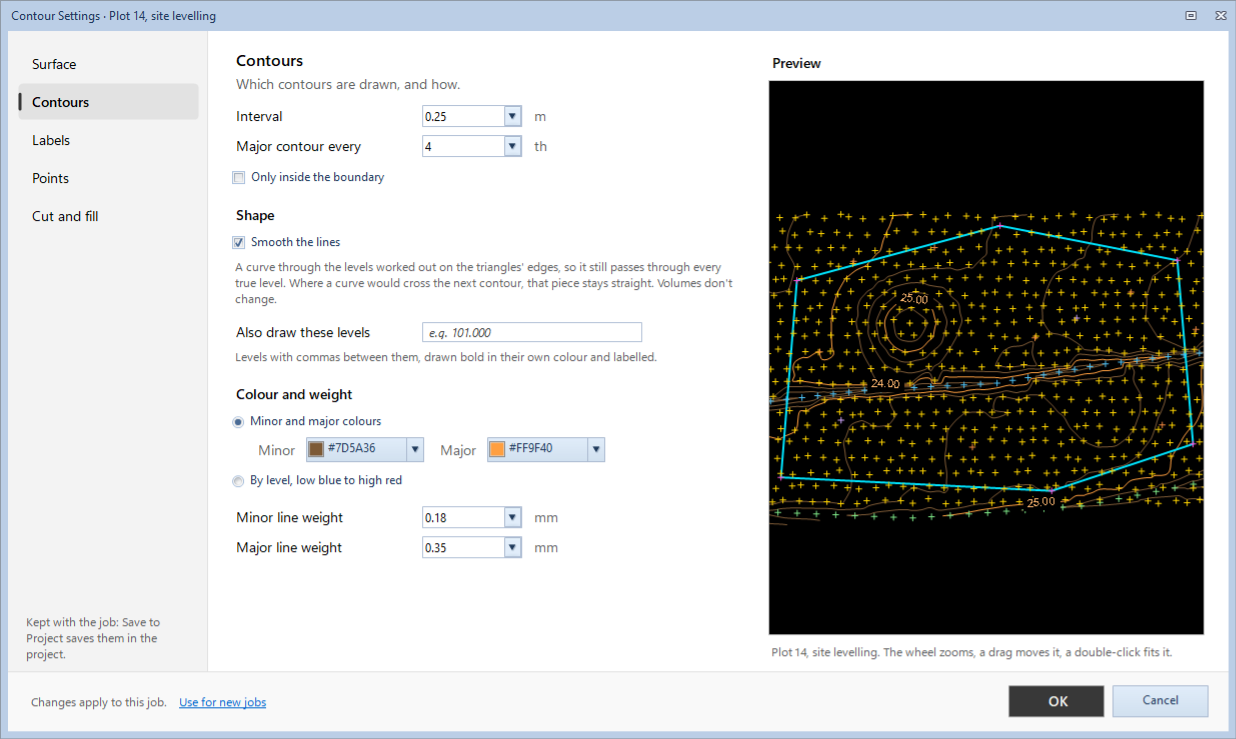
OK changes this job only. Use for new jobs at the foot keeps these settings for every job you make after. Only the Surface page changes the surface itself, so only it puts the job's results out of date. Smoothing changes the drawing, not the volumes.
5. Show and hide what is drawn
The View group on the Contour tab:
- Settings opens Contour Settings; Fit View puts the whole survey in view.
- Points, Contours, Spot Levels, Labels and TIN show or hide each layer. Spot levels and point names show only when you are zoomed in; on the printed sheet they always show.
- Cut / Fill, Grid and Zero Line belong to a volume, and work only while one is shown (see Cut and fill to level a site).
The same switches are on the plan's Layers card. F11 gives the plan the whole screen; Esc brings the panels back.
6. The sheets
- Click Show the sheets at the foot of the plan. The Points sheet opens: Point, Easting, Northing, R.L., Remark (the point's code) and In boundary.
- Click a row: the plan goes to that point. Click a point on the plan: its row opens.
- To correct a level, type over it. The TIN and the contours follow at once, and any result built on them is marked out of date. Ctrl+Z undoes the edit.
Only Easting, Northing, R.L. and Remark can be typed in; the rest is worked out. With a result shown, its own sheets join the Points sheet. Fold the sheets puts them away.
7. Make a job of your own
The sample's point files are copied beside your copy of it, in Documents › CivilSurvey Expert › Samples. Make a job from the Sector 7 file:
- Click Contour › Job › New Job. Type a name, such as Sector 7, practice, and click Make Job. The new job opens with no points.
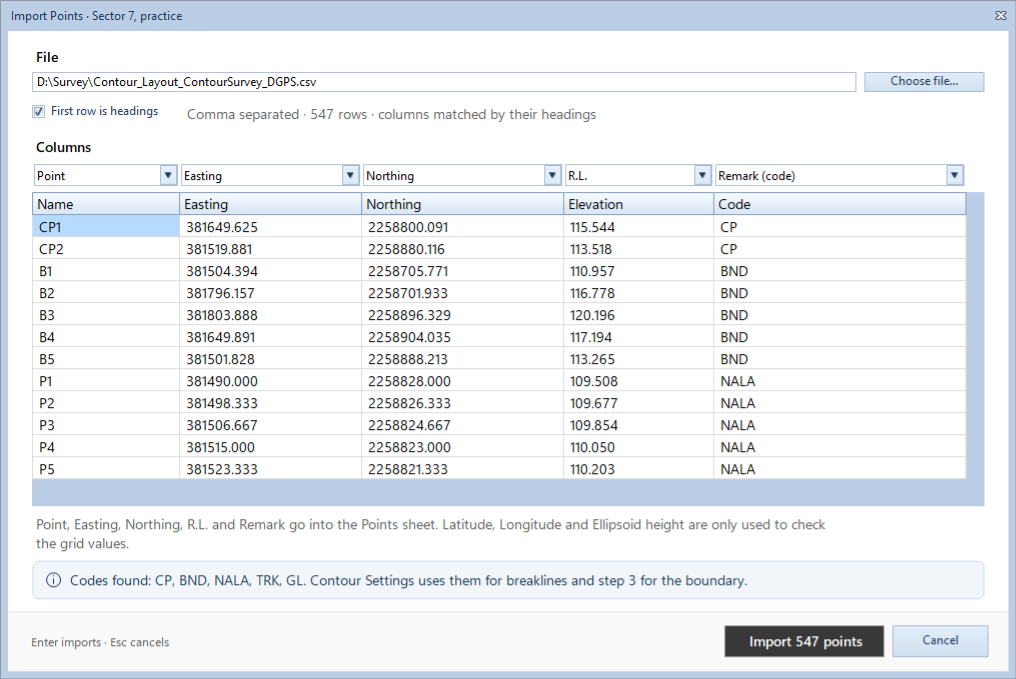
- Click Contour › Surface › Import Points. Import Points · Sector 7, practice opens.
- Click Choose file… and open Contour_Layout_ContourSurvey_DGPS.csv. With First row is headings ticked, the columns are taken from the file's headings; check them in the preview. The banner lists the codes found.
- Click Import 547 points. The surface and the contours are drawn at once.
- Press F8. On the Surface page, under Join the points coded, tick NALA and TRK. Click OK. The contours now follow the nala and the cart track.
- Open 3 Boundary. Points coded is chosen, with BND in Code: the five points coded BND are joined in the order they were surveyed. Area, Perimeter and Points inside are shown under it.
Outline runs the boundary round the outside of all the points instead. Drawn (or Contour › Surface › Draw Boundary) lets you click the corners on the plan, then the first corner again to close it. More on the boundary in Cut and fill to level a site.
- Click Contour › Job › Save to Project. The job, its settings and its results are saved in the project file.
Rename Job renames the open job. Delete Job removes it and its results from the project; it asks first.
8. Print, export and close
The Output group works on the open job, and on its result if one is shown:
- Print / PDF: the plan on an A3, A2 or A1 sheet with the project's title block.
- Export to AutoCAD…: a DXF or DWG file, with the contours, boundary and points each on its own layer.
- Export to Excel: the Points sheet, and the shown result's sheets.
See Print and export a contour plan. Close Contour goes back to the screen you were on; it asks to save first if the job has changes.
What next
- Cut and fill to level a site: a volume inside the boundary against a formation level. See Cut and fill to level a site.
- Tank and pond capacity: see Tank and pond capacity.
- Sections and a profile from the surface: see Sections and a profile.
- Print and export: see Print and export a contour plan.
If something looks wrong
| You see | Do this |
|---|---|
| "No triangles: there are fewer than three points that are not in a line." | The file's columns were taken wrongly. Import the points again and check the columns in the preview. |
| Contours cut across a drain or a bund | Tick its code under Join the points coded on the Surface page of Contour Settings (F8). |
| Long thin triangles at the edges of the survey | Lower the Longest triangle side on the Surface page. |
| "Fewer than three points have this code." under the boundary | Type the code your boundary points have in Code, or choose Outline or Drawn. |
| "The boundary crosses itself between corners…" | The boundary points were not surveyed in order round the site. Choose Drawn and click the corners in order. |
| Points or spot levels are missing on the plan | Zoom in: they show only when there is room for them. |
| A result says it is out of date | The points or the surface settings changed. Click Recalculate on it. |