Edit a section
What you get: a cross section corrected by hand: points dragged on the drawing or typed in the points table, points added or taken out, levels shifted or rounded. The areas change as you edit, and every change can be undone.
You need: the Two-Lane Highway sample. About 10 minutes. The Quick Start shows where things are on the Cross Section screen.
1. Open a section
- On the Start page, open the Two-Lane Highway sample.
- Click Home › View › Cross Section (or press F6), then Open saved sections.
- In the chainage box over the drawing, type 45100 and press Enter (Ctrl+G puts you in the box).
The section is drawn with the ground (NSL) and the four layers. Its points are in the Points at Ch 45100 panel (bottom left), and its areas in the Quantities panel (right).
An edit applies at once: the section is drawn again and its areas worked out again. There is no Update button to press.
2. Drag points on the drawing
- Click a line, the ground line say. Small squares show on its points.
- Drag a square to where the point should be. The offset and level show in the readout at the bottom left of the drawing as you drag.
- Let go. The section is drawn again, and the points table and the areas follow.
To move a point one way only:
- Hold Shift while you drag: the offset moves, the level stays.
- Hold Ctrl while you drag: the level moves, the offset stays.
The last two buttons of the drawing's toolbar do the same until you turn them off: Move offsets only and Move levels only.
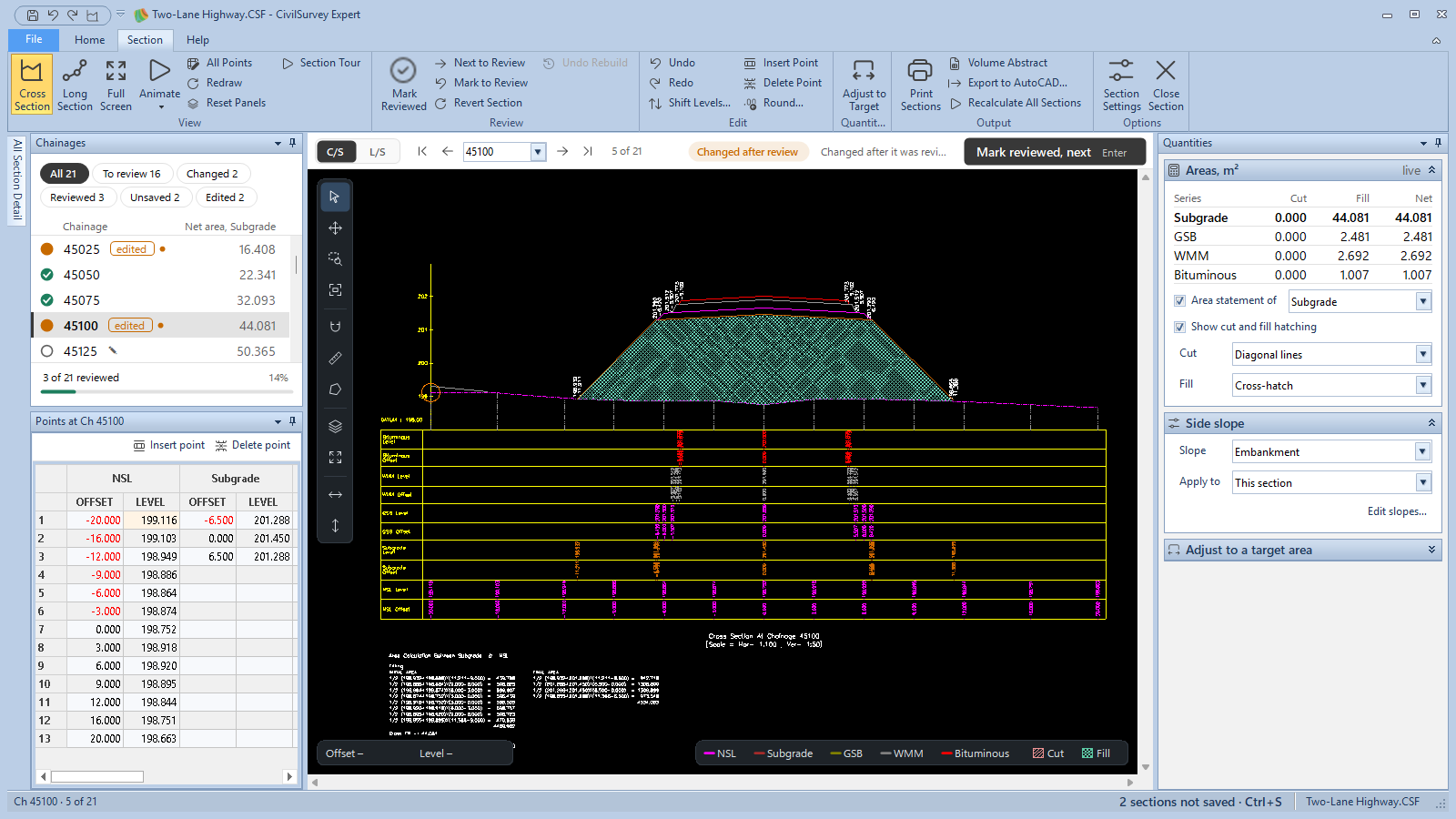
Until you save, the drawing shows the section as it was saved as a dashed line, with a ring at each point you moved. That way you see what you changed.
A toe (where a side slope meets the ground) is not a point of the table and cannot be dragged. It is worked out from the side slope: change the slope, or the points beside it.
Right-click a point for its menu: Show in the points table, Insert a point after this one, Delete this point, Copy offset and level and Revert this point.
3. Type in the points table
The Points at Ch 45100 panel holds the section's points. Each series has two columns: the offset and the level. The points of a series are listed from the top, left to right.
- Click a cell and type the new value.
- Press Enter or move to another cell. The drawing follows at once.
A cell you change is highlighted until you save. The line over the table reminds you: Edits apply at once and redraw · changed cells are highlighted · Ctrl+Z undoes.
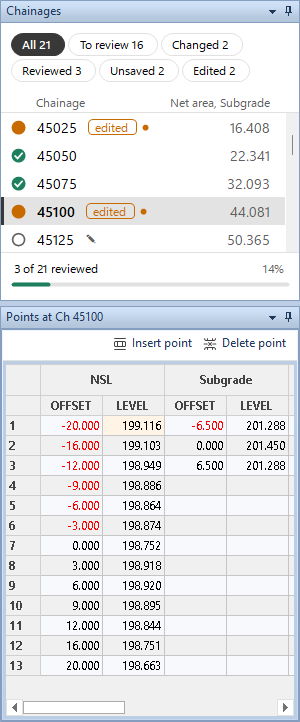
Right-click a cell for Revert this point, Insert point, Delete point, Shift levels…, Round…, Copy, Paste, Undo and Redo.
4. Add or take out a point
- In the points table, click a cell of the point.
- Click Insert point over the table (or Section › Edit › Insert Point). A new point goes in after it, half way to the next point. After the last point it goes 1 m further out, at the same level.
- Change the new point's offset and level as you need.
To take a point out, click a cell of it and click Delete point (or Section › Edit › Delete Point). The point leaves its series; the other series are not touched.
5. Shift or round levels
Shift Levels… raises or lowers levels by an amount: to correct a reading from a wrong bench mark, say.
- In the points table, select the levels to shift. Drag across cells to select several. If you select offsets as well, only the levels move.
- Click Section › Edit › Shift Levels….
- Type the amount (a minus amount lowers them), such as 0.150 or -0.150, and click OK.
Round… rounds the selected values, offsets and levels, to a number of decimals.
- Select the values in the points table.
- Click Section › Edit › Round….
- Type how many decimals, from 0 to 4 (2 to start), and click OK.
Each of these is one change: one Ctrl+Z takes it all back. If nothing is selected, the point of the current cell is used.
6. Undo, redo and revert
- Ctrl+Z (or Section › Edit › Undo) takes back the last change to this section. Ctrl+Y (or Redo) makes it again. Each section keeps its own list, so moving to another section and back does not lose it.
- Section › Review › Revert Section puts the whole section back as it was last saved. Ctrl+Z brings your changes back.
- Right-click a point › Revert this point puts just that point back as saved. It is greyed out once points were added to or taken out of its series.
If the section was reviewed, an edit turns its green tick into an amber dot (changed after review). Undo the edit and the tick comes back. See Review the cross sections.
7. The drawing's tools
The toolbar floats over the top left of the drawing. Rest the mouse on a button to see its name.
| Button | What it does |
|---|---|
| Select and drag points | The normal tool, for dragging points. Esc comes back to it from any other tool. |
| Pan | Drag the drawing. Dragging with the middle mouse button pans too. |
| Zoom to a window | Drag a box round what to see. The mouse wheel zooms too. |
| Zoom to the whole sheet | The section and its table, fitted to the drawing. |
| Snap to points | The mouse takes the nearest point. |
| Measure a distance | Click points along the way, right-click to finish. The status bar gives across, up, length and slope. |
| Measure an area | Click the corners, then the first corner again to close it; right-click to finish. |
| Layers | What the drawing shows, what can be picked and what prints; the size of the point squares. |
| Full screen | The drawing over the whole screen (F11). |
| Move offsets only / Move levels only | As holding Shift or Ctrl while dragging. |
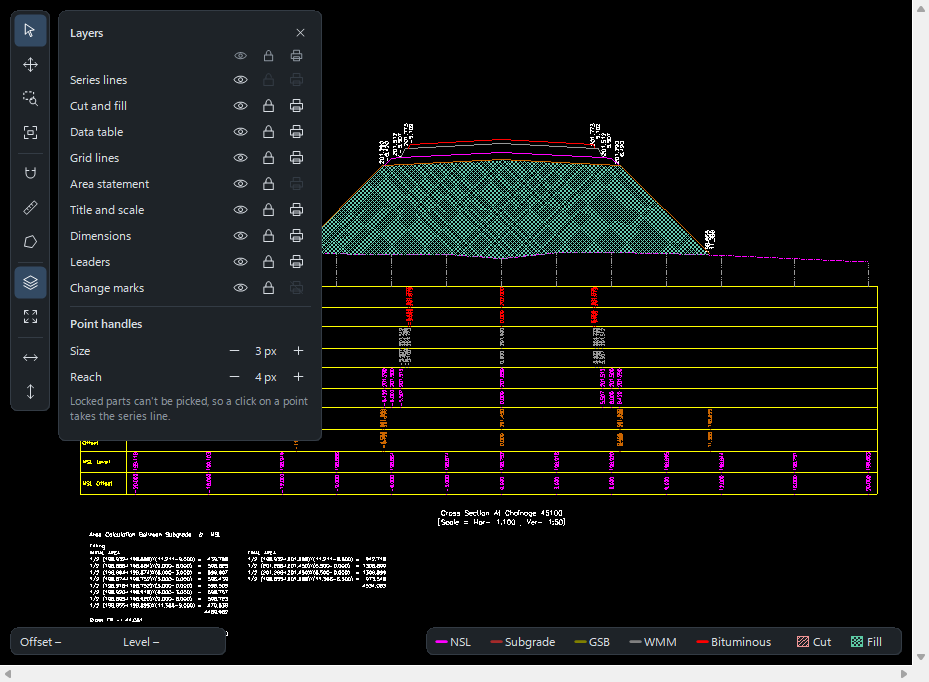
Right-click an empty part of the drawing for the same and a little more: Zoom in, Zoom out, Previous zoom, Zoom to the section, Redraw (F5) and Print this section….
Tip: If points are hard to grab, open Layers and make Size or Reach under Point handles bigger.
8. Full screen and the panels
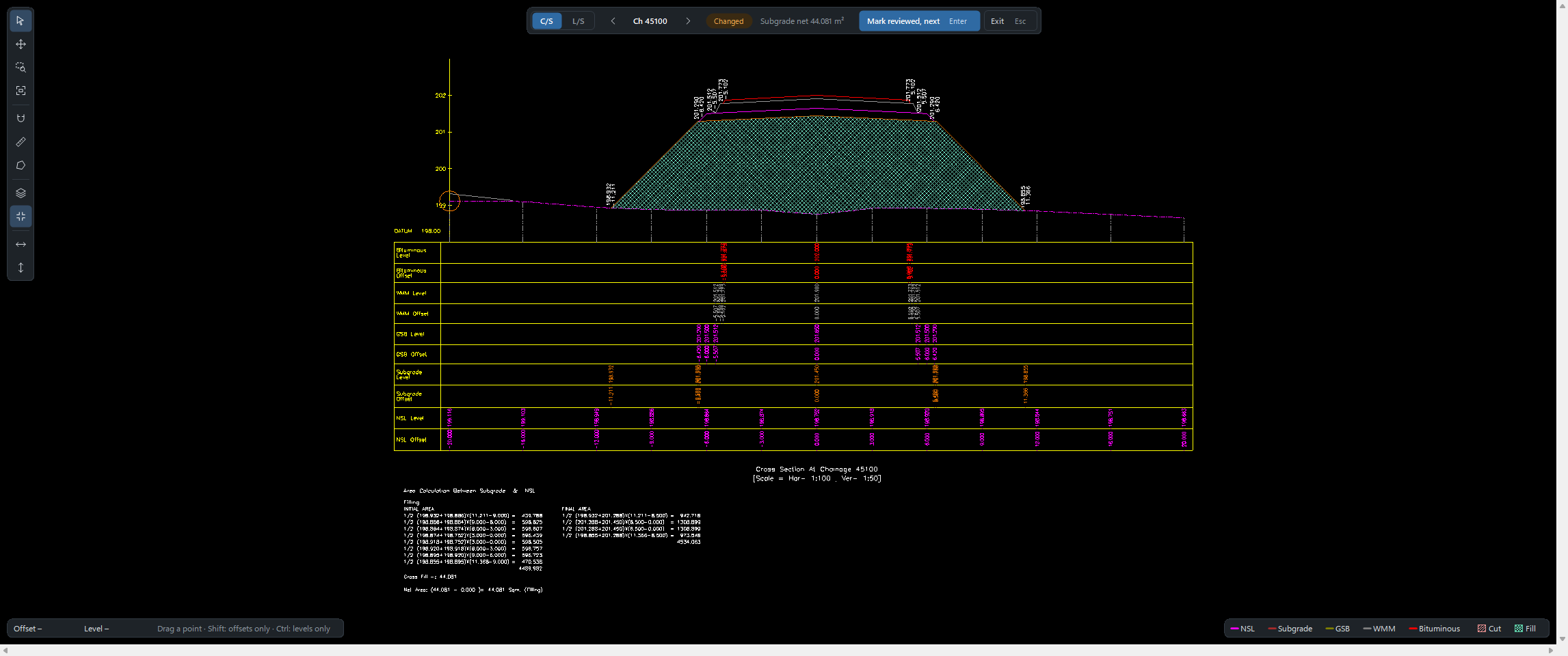
- Full Screen (F11, or Section › View › Full Screen): the drawing alone, without the ribbon and the panels. A small bar floats over it with previous, next, the chainage, Mark reviewed, next and Exit. Esc comes back.
- Drag a panel by its title to put it beside, above or below another, or out to float. The layout is kept for next time.
- Section › View › Reset Panels puts the panels back as they were first laid out.
- Section › View › All Points: every point of every section in one table. It slides out from the left edge; its pin keeps it there.
9. How the section is drawn
Scales, the table under the section, the colour and line of each series and the side slopes are set in Section › Options › Section Settings. See Change how sections are drawn.
10. Save
Press Ctrl+S. The program asks why the sections changed (Survey correction, Design change and so on) and keeps the reason in each section's history. See Review the cross sections › Save the reviews.
What next
- Check every section: Review the cross sections.
- Make an area match a figure: Reach a target area: the levels move for you until the cut or fill is what you need.
- Print the sections: Print sections.
- Volumes: Volume abstract.
If something looks wrong
| You see | Do this |
|---|---|
| A point moves up and down but not sideways (or the other way) | Move levels only or Move offsets only is on in the toolbar, or Ctrl or Shift is held. Turn it off. |
| A toe is worked out from the side slope: change the slope, or the points beside it | A toe cannot be dragged. Change the side slope in the Quantities panel, or move the points beside it. |
| Select the levels to shift in the points table | Click the level cells in the points table first, then Shift Levels… again. |
| Ctrl+Z undoes only what you are typing | You are still typing in a cell. Press Enter first; then Ctrl+Z undoes the last change to the section. |
| A click picks a label or a mark instead of the line | In Layers, lock that part. A locked part can't be picked, so the click takes the series line. |
| Points are hard to grab | In Layers, make Size or Reach under Point handles bigger. |
| The drawing is off to one side or too small | Click Zoom to the whole sheet in the toolbar. |
| The panels are out of place | Section › View › Reset Panels. |