Sections and a profile from the surface
What you get: cross sections across a line every so many metres, and a profile (long section) along a line, with every level taken from a contour job's surface. The sections go out as a CSV, or become a route whose cross sections open in the Cross Section screen. The profile prints under the plan, with its level table, as a long section does.
You need: CivilSurvey Expert installed and activated. About 15 minutes. It helps to have read Contours from a point survey first.
1. Open the tank
- On the Start page, open the Site Levelling and Contour Survey sample (under Open a sample project, or the Sample projects button). It opens in the Contour screen.
- In the Job list at the top of the panel, pick Village tank, desilting.
The top of the tank's bund was surveyed all the way round, coded TOB. You take sections across the bund along it, then a profile across the tank.
The levels come from the surface (the TIN), not from the nearest point: each is worked out on the triangle it falls in. A place outside the surveyed area has no level, and none is guessed.
2. Sections across the bund
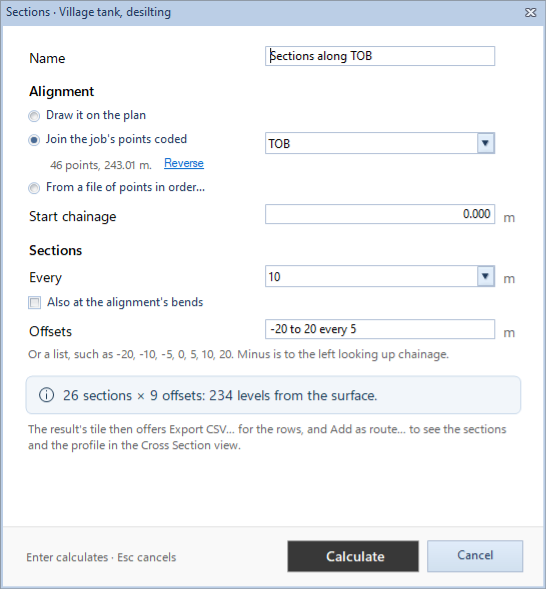
- In Results, click Add ▾ and choose Sections…. (Or Contour › Calculate › Sections….) Sections · Village tank, desilting opens.
- Under Alignment, choose how the line is given:
- Draw it on the plan: click its points on the plan (see step 4).
- Join the job's points coded: the job's points with one code, joined in the order they were surveyed.
- From a file of points in order…: a point file read as Import Points reads it. The points are joined in the file's order; their levels are not used.
- Choose Join the job's points coded and pick TOB in the list beside it. The line under it gives the number of points and the length. Name follows it: Sections along TOB. Reverse runs the chainage from the other end.
- Start chainage is 0.000. Type another if the line has its own chainages.
- Under Sections:
- Every: 5, 10, 20 or 25 m. Keep 10.
- Also at the alignment's bends: a section at each bend too. The bund's top was walked round in 46 points, so every point is a bend: untick it to keep to every 10 m.
- Offsets: -20 to 20 every 5 to start: points every 5 m from 20 m left to 20 m right. You can type a list instead, such as -20, -10, -5, 0, 5, 10, 20. Minus is to the left looking up chainage.
- The banner gives the sections, the offsets and the levels found, and how many points are off the surface, if any.
- Click Calculate (or press Enter).
The new tile, Sections along TOB, is added and shown. Its line gives the sections, the interval, the offsets and the levels. On the plan:
- the alignment, and a line across it at each section, with its chainage at the end;
- a mark at each point with a level, and another colour for any point off the surface.
The bar over the plan gives Every and the interval. To change anything, click Edit… under the tile.
3. The Sections sheet
- Click Show the sheets at the foot of the plan. The tabs are Points, Sections and Summary; it opens on Sections.
- Sections has a row for each point: Section, Chainage, Offset, Point (named S1, S2, and on), Northing, Easting and R.L. A point off the surface has no R.L.
- Click a row: the plan goes to that point.
- Summary gives the alignment, the sections, the offsets, the levels and the points off the surface.
4. Draw the line yourself
For a drain, a road or a line across the site that was not surveyed as points:
- Choose Draw it on the plan (or click Draw it under it). The dialog steps aside.
- The status bar says "Line: click its points in order; Enter, right-click or a double-click finishes; Esc goes back".
- Click the line's points in order, at least two. Snap to points on the plan's toolbar puts them on surveyed points.
- Press Enter. The dialog comes back with the number of points and the length. Draw again draws it again. Esc goes back to the dialog with the line as it was.
The line is never closed: clicking its first point again adds a point there.
5. Out as a CSV
- Show the Sections tile. Under it, click Export CSV….
- A Save dialog opens in the project's folder, with the job's and the result's name.
- Click Save. The status bar says how many points were written.
The CSV's columns are Point, Northing, Easting, R.L., Code, Chainage and Offset. Points off the surface are left out, as they have no level. Use it to mark the sections out on site, or in another program.
6. Add as a route
The sections can become a route of the project, so you see them as cross sections, design on them and take them into a volume abstract:
- Show the Sections tile. Under it, click Add as route…. Add as route · and the result's name opens.
- Name: the result's name to start. Change it if you like; the line under it says whether the name is free.
- Draw in sections as: the series the levels are drawn as. When the project's ground has no levels yet, NSL is chosen, and the note says "All the levels go into NSL, the ground." Keep it.
- Remark (optional): "Levels from" and the job's name.
- The banner says how many sections and levels go into the route.
- Keep Open it in the Cross Section view ticked, and click Add route.
The status bar says the route was added. The Cross Section screen opens, built again from the routes, at the route's first section. The route is a From coordinates route: its rows are in the Routes workbook like any other (see Sections from total station or GNSS points).
A section needs two levels; a section with only one is left out. The route is a copy: when the job's points change, the result goes out of date, and Add as route… again replaces the route's levels. It asks first, and lists any levels you have edited by hand in the route, so you can keep them.
Click Contour › Job › Save to Project so the result keeps its link to the route.
7. A profile across the tank
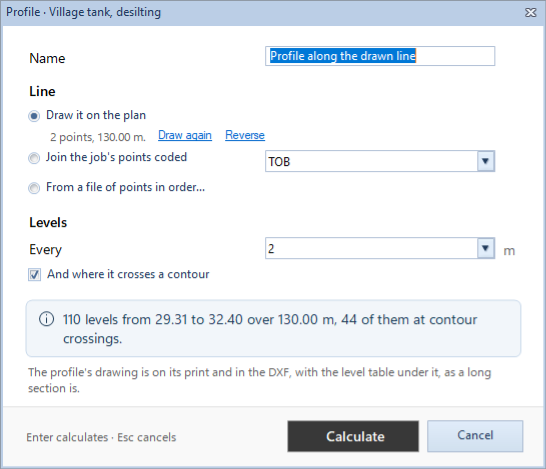
- In Results, click Add ▾ and choose Profile…. Profile · Village tank, desilting opens.
- Under Line, Draw it on the plan is chosen. Click Draw it. The dialog steps aside.
- Click a point outside the bund on one side of the tank, then a point outside the bund on the far side. Press Enter. The dialog comes back; Name reads Profile along the drawn line. (The line can also join the job's points of one code, or come from a file, as the sections' alignment does.)
- Under Levels:
- Every: 1, 2, 5 or 10 m. Keep 2.
- And where it crosses a contour: ticked, a level at each contour the line crosses too.
- The banner gives the number of levels, the lowest and highest, the length, and how many are at contour crossings.
- Click Calculate.
The tile is added and shown. Its line gives the length, the lowest and highest level, and the number of levels. On the plan the profile's line is drawn with its chainages along it.
Show the sheets opens on Profile: Chainage, Northing, Easting, R.L. and Note. The note says where the line crosses a contour: "crosses" and the contour's level. Click a row to find the place on the plan. Summary gives the line, the levels, the lowest and highest, and the contour interval.
8. Print them
Show the result and click Contour › Output › Print / PDF. The scale is chosen so the job's boundary and the line both fit. More in Print and export a contour plan.
- Sections: the sheet is a Sections plan. The legend has the alignment, the section lines with their chainage at the end, and the points with and without a level. A SECTIONS table gives the summary.
- Profile: the plan takes the top of the sheet and the profile is drawn under it, as a long section: the ground line on a grid, with the vertical scale ten times the horizontal, and a table of Ground level and Chainage under it, from a datum. The caption gives both scales. A PROFILE table in the strip gives the summary. When the table has no room for every level, a note says "Every level is in the Profile sheet."
Export to Excel saves the Points sheet with the result's two sheets. Export to AutoCAD… saves the alignment, section lines, points and chainages, or the profile's line and the profile drawn below the plan, each on its own layer.
What next
- Look through the route's cross sections: see Review the cross sections.
- Design on the route: see Lay a template along the route.
- The tank's capacity: see Tank and pond capacity.
- Sections on a route of your own points: see Sections every N metres with offsets.
If something looks wrong
| You see | Do this |
|---|---|
| "Fewer than two of the job's points are coded …: choose another code, or draw the alignment." | Pick another code in the list, or choose Draw it on the plan. |
| "Draw the alignment on the plan: click its points, then Enter." | Click Draw it and draw the line. |
| "Type the offsets as -20 to 20 every 5, or as a list: -20, -10, 0, 10, 20." | Type the offsets in one of those two ways. |
| "That makes about … points, and at most … are worked out: choose a longer interval or fewer offsets." | Choose a larger Every, or fewer offsets. |
| "… points are off the surface and have no level" in the checks strip | The offsets or the line reach outside the survey. Shorten the offsets, or draw the line over the surveyed area. |
| "The line is off the surface: it has no level along it. Draw it over the surface." | Draw the profile's line across the surveyed points. |
| "Click at least two points" | Click a second point before you press Enter. |
| "Not added: no section of … has two levels on the surface, and a section needs two." | Bring the offsets inside the survey, or draw the alignment over it. |
| "A route named "…" already exists. Choose another name." | Type another name in Add as route. |
| "Save the Routes workbook first" | The route has unsaved changes in the Routes workbook. Save them, then click Add as route… again. |
| The tile says it is out of date | The points or the surface changed. Click Recalculate. |