Sections every N metres with offsets
What you get: sections at a regular interval along a From coordinates route, every 20 m for example, with points at the offsets you choose (10 m and 5 m left and right, and the centre line). Each point's level is worked out from the surveyed points. The new sections sit in the route's sheet beside the surveyed ones, and the cross sections, the long section, the volume abstract and a design on the route use them like any other section. You can also export the points as a CSV for marking them out on site.
You need: a From coordinates route with its alignment drawn and at least one surveyed section in step 3 (see Sections from total station or GNSS points). The practice file on that page, road-survey-points.csv, makes one. About 10 minutes.
1. Open Chainages at an interval
- Click the route's tab at the foot of the Routes workbook. The From Coordinates panel shows on the left.
- Open the Interval sections fold, under the four steps.
- Click Chainages at an interval….
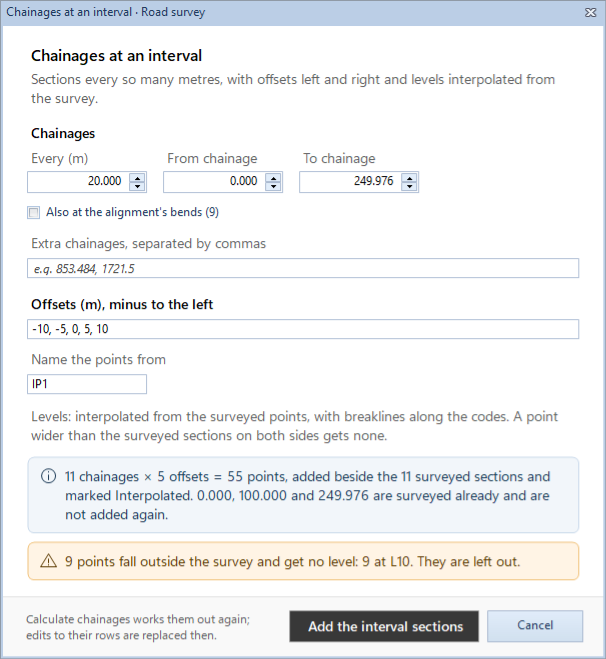
The Chainages at an interval dialog opens with the route's name in its title.
2. Choose the chainages
Under Chainages:
- Every (m): the interval. 20 to start.
- From chainage and To chainage: the alignment's start and end to start. The chainages are From, From + interval, and so on, then To itself.
- Also at the alignment's bends: a section at each bend as well (the number of bends is in brackets). Off to start.
- Extra chainages, separated by commas: any others you want, 853.484, 1721.5 for example.
A chainage that is already a surveyed section is not added again.
3. Choose the offsets and names
- Under Offsets (m), minus to the left, type the offsets, separated by commas. -10, -5, 0, 5, 10 to start: 10 m and 5 m left, the centre line, 5 m and 10 m right.
- Under Name the points from, type the first name. IP1 to start: the points are named IP1, IP2, IP3… along the chainages, and across each section from left to right.
Each point's code (its Remark) is its offset: CL for 0, L10 for 10 m left, R5 for 5 m right, L2.5 for 2.5 m left.
4. Check what will be added
The two notes in the dialog are worked out as you type:
- The first note counts the points. For the practice file: 11 chainages x 5 offsets = 55 points, added beside the 11 surveyed sections and marked Interpolated. It also names any chainage that is surveyed already (0.000, 100.000 and 249.976 are surveyed already and are not added again).
- A warning, when there is one, names the points that get no level, by offset: for the practice file, 9 points fall outside the survey and get no level: 9 at L10 (the inside of the curve). These points are left out.
How the levels are worked out: the surveyed points are joined into triangles (a TIN). Lines join the points of one code from each surveyed section to the next (the first bank top on the left to the first bank top on the left, and so on), so no triangle cuts across a bank or a drain bed. A new point takes its level from the triangle it falls in.
A point gets no level, and is left out, when:
- it falls outside the survey; or
- it is wider than the surveyed sections reach on its side, both before and after it. The centre line is never left out this way.
Then click Add the interval sections.
5. Look at the new rows
The new points go into the route's sheet, one row each, sorted in by chainage among the surveyed sections. They are shaded pale blue, and column I, Section, says Interpolated. Each row has its chainage, its offset as the Distance, the point's name, N, E, the R.L. worked out to 3 decimals, and its code.
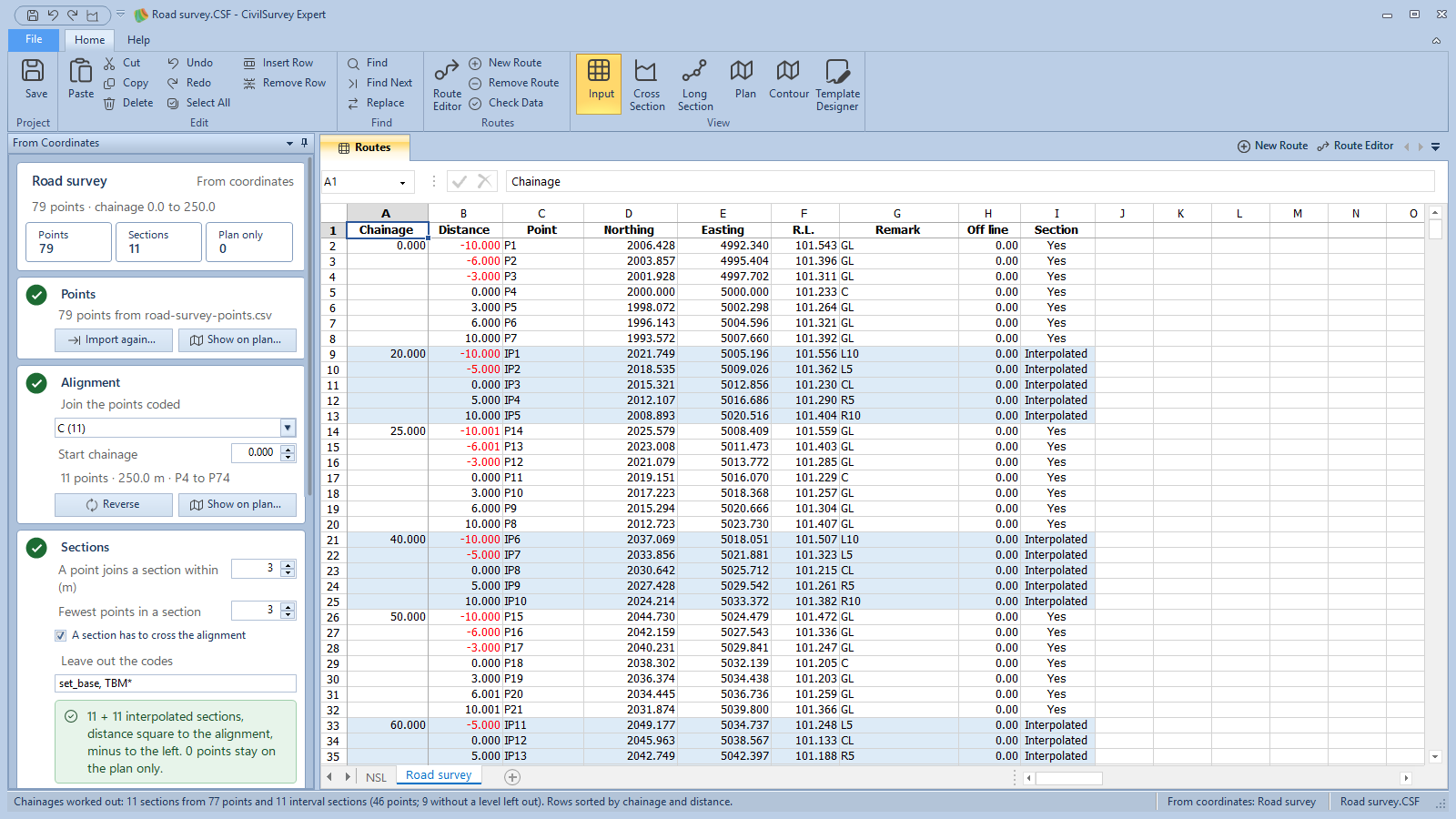
The status bar says what was made. Step 3 now counts the sections both ways: 11 + 11 interpolated sections for the practice file.
The settings are kept with the route. Calculate chainages works the interval sections out again each time, so they follow a changed survey, alignment or setting. A value you type in an Interpolated row is replaced then.
6. See them on the Plan and in the sections
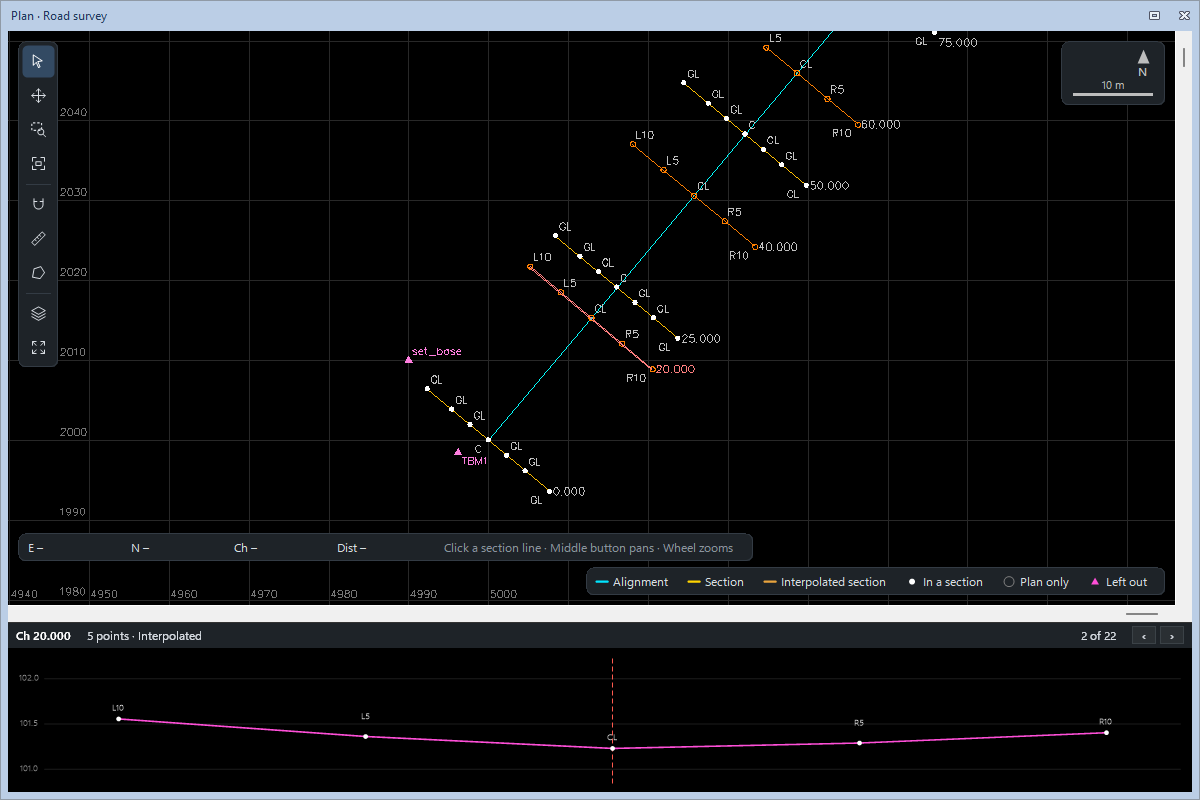
- In the Interval sections fold, click Show on plan…. The Plan opens at the first interval section. Interval sections are drawn in amber, with hollow points, and the legend adds Interpolated section. The strip under the plan names such a section Interpolated.
- Save (Ctrl+S) and open the cross sections (Home › View › Cross Section, or F6). If the project had sections already, click Rebuild from routes…. The interval sections are listed and drawn with the surveyed ones.
7. Export the points for marking
- In the Interval sections fold, click Export for marking (CSV)….
- Choose where to save it. The name starts as {route} marking.csv.
The file has one line per interval point: Point, Northing, Easting, R.L. and Code, with 3 decimals. The status bar says how many points were written.
8. Take them out again
Click Remove the interval sections in the fold. Every Interpolated row is taken out; the surveyed rows stay as they were. The dialog keeps your settings for next time. Undo (Ctrl+Z) puts the rows back.
What next
- Review the cross sections: the interval sections are in the chainage list with the surveyed ones.
- Lay a template along the route: a design on this route lists the interval chainages and their centre levels too.
- Volume abstract
- Sections from total station or GNSS points
If something looks wrong
| You see | Do this |
|---|---|
| Draw the alignment first (step 2). | Click Draw alignment in step 2, then open the dialog again. |
| No surveyed sections yet: check step 3. | Change the settings in step 3 until it makes at least one section. |
| Add the interval sections is greyed | Read the dialog's note: an interval of 0, From after To, a value that is not a number, or every chainage asked for is surveyed already. |
| These settings give about … points: at most 20,000 can be added. | Give a longer interval or fewer offsets. |
| Many points get no level | They are wider than the survey. Use smaller offsets, or survey wider sections. |
| The names clash with surveyed points' names | Name the points from another start, IP1 or A001 for example. |
| Typing Interpolated in column I is refused | Interpolated rows are made only by Chainages at an interval…. On a surveyed row type Yes, Plan only, Merged or Left out. |
| The Cross Section view doesn't show the interval sections | Save, open the cross sections again and click Rebuild from routes…. |
| There is no Interval sections fold | The route's levels came from a contour job, and it gets them from there. |