Enter a field book
What you get: a level book typed into CivilSurvey Expert, its R.L.s worked out from the bench mark, change points and all, and the arithmetic check passed. You also see how the Railway Formation sample's field book is kept, and what each command on the Field Book panel does.
You need: CivilSurvey Expert installed and activated. About 15 minutes.
1. Open the sample
- Start CivilSurvey Expert. The Start page opens.
- Under Open a sample project, click Railway Formation.
Once you have projects of your own, the samples are under the Sample projects button at the top right of the Start page.
The program makes your own copy in Documents › CivilSurvey Expert › Samples and opens it on the Input screen.
The Railway Formation is a new broad gauge line, Ch 12+000 to 12+500, with a cross section every 25 m (21 chainages) and 15 offsets at each. Its NSL sheet is a level book: B.S., I.S. and F.S. readings from a bench mark of R.L. 150.000, with change points.
2. How a field book sheet is laid out
Each route is a sheet of the Routes workbook; pick one by its tab at the foot. Click NSL.
| Column | What goes in it |
|---|---|
| Chainage | The chainage, on the first row of its readings only. The rows under it, with the chainage left empty, belong to it. |
| Distance | The offset from the centre line: minus to the left, plus to the right, 0 on the centre line. Minus values show in red. |
| B.S., I.S., F.S. | The staff readings, as booked in the field. |
| H.I. | Worked out by the program. |
| R.L. | Worked out by the program from the readings. |
| Remark | Your note for the reading. |
- Row 1 holds the headings. They are fixed.
- Row 2 is the bench mark: BM, its B.S. and its R.L. The H.I. in row 2 is worked out from them.
- Row 3 on holds the readings.
- Columns from I on are yours: type anything there. The program reads only columns A to H.
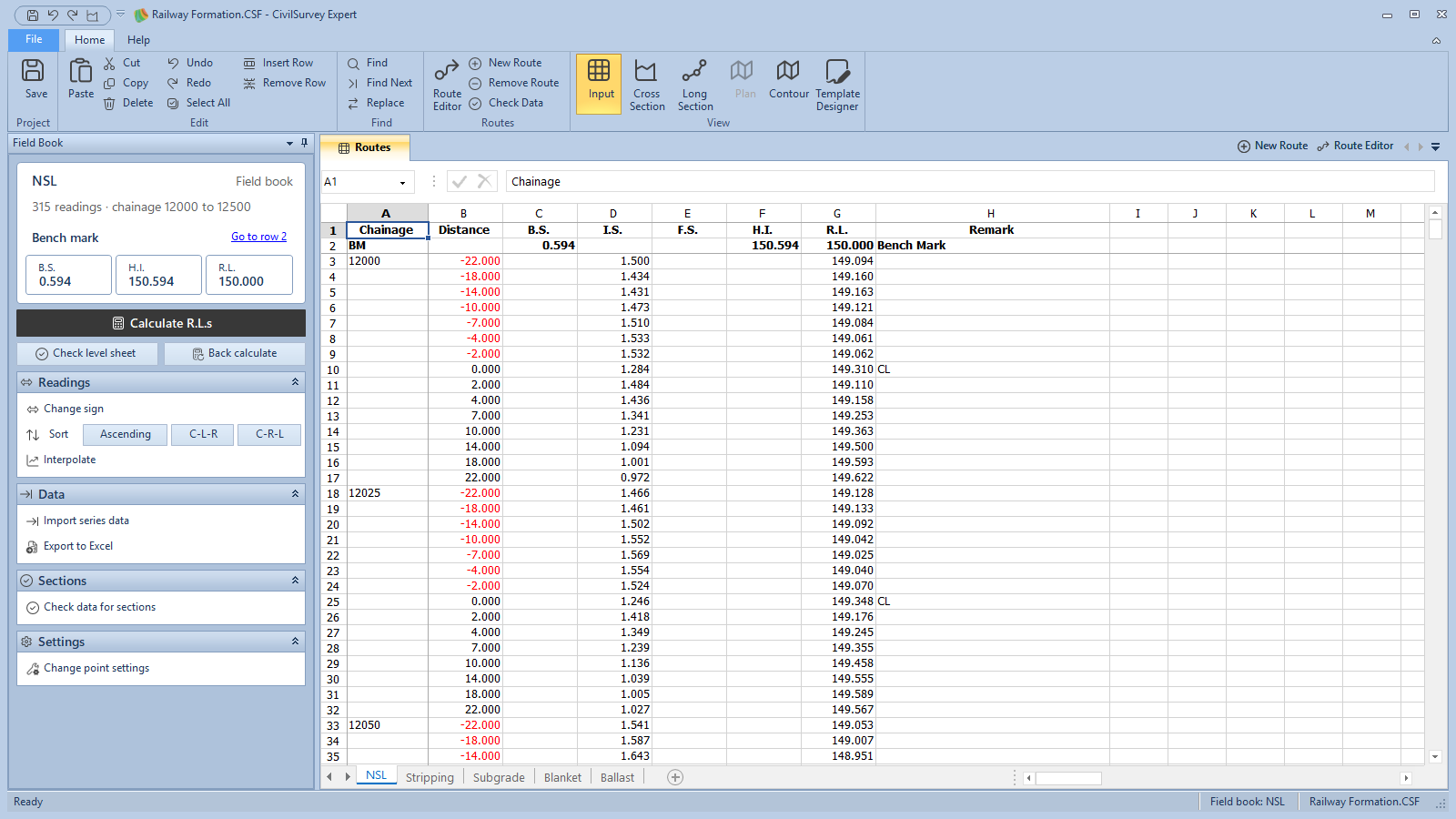
The Field Book panel on the left follows the sheet in front. At the top: the route's name, how many readings it has and its chainages ("315 readings · chainage 12000 to 12500"). Under Bench mark, its B.S., H.I. and R.L. as row 2 has them; Go to row 2 takes you there. Then the commands: Calculate R.L.s, Check level sheet, Back calculate, and the Readings, Data, Sections and Settings sections. The arrow on a section's heading folds it away.
3. Add a field book route
Now enter a short level book of your own, in a new route of the sample.
- Click Home › Routes › New Route.
- Under What are you adding?, click Field book.
- Under Name, type Check levels. The line under the box lists the routes the project has already; a name that is already used is refused.
- Under Draw in sections as, choose Not drawn, so this practice route stays out of the sample's sections.
For a real field book, leave it on the new series it offers. The series keep their order: NSL, then SERIES2, SERIES3… 5. Remark (optional) is for a note, such as where and when it was surveyed. 6. Click Add field book.
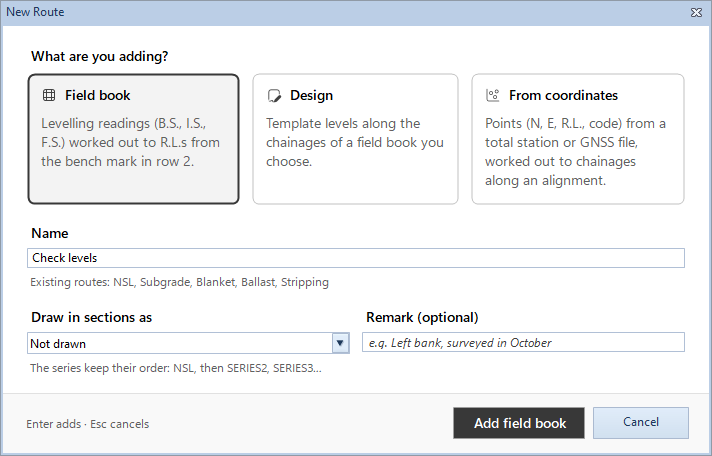
The route's sheet is added to the Routes workbook and comes to the front, empty, with the headings and the BM row.
Starting a project of your own: click File › New (Ctrl+N), fill in Project name and Location, and click Create project. The new project already has an NSL sheet: type your ground readings there. Use New Route for each further field book.
4. Enter the bench mark
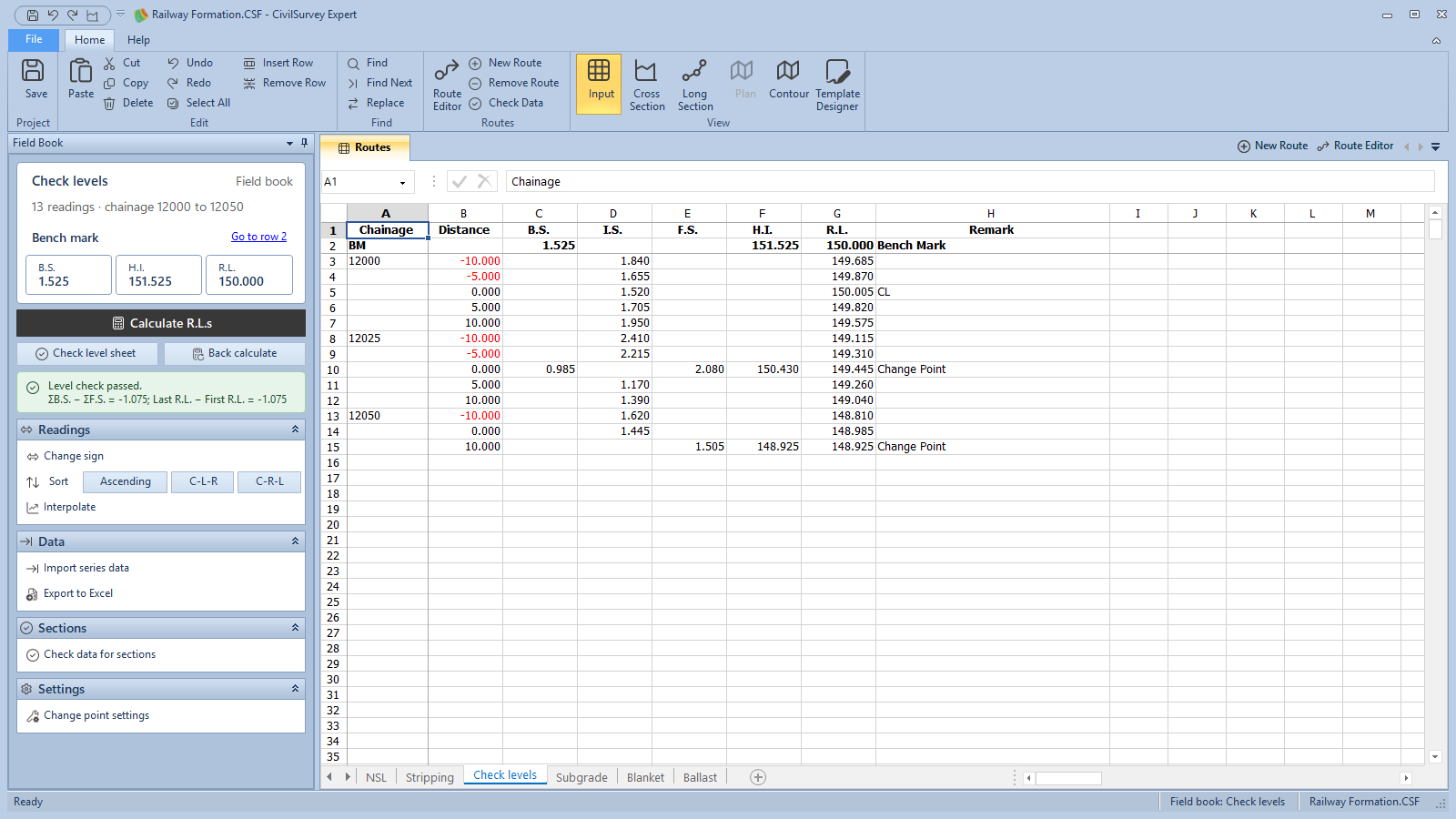
- In row 2, type 1.525 under B.S. and 150.000 under R.L.
BM and the H.I. in row 2 are fixed. The H.I. shows 151.525, and the B.S., H.I. and R.L. on the panel show the same.
5. Type the readings
- From row 3, type these readings. Leave H.I. and R.L. empty: the program works them out.
| Chainage | Distance | B.S. | I.S. | F.S. | Remark |
|---|---|---|---|---|---|
| 12000 | -10 | 1.840 | |||
| -5 | 1.655 | ||||
| 0 | 1.520 | CL | |||
| 5 | 1.705 | ||||
| 10 | 1.950 | ||||
| 12025 | -10 | 2.410 | |||
| -5 | 2.215 | ||||
| 0 | 0.985 | 2.080 | |||
| 5 | 1.170 | ||||
| 10 | 1.390 | ||||
| 12050 | -10 | 1.620 | |||
| 0 | 1.445 | ||||
| 10 | 1.505 |
Two rows need a word:
- The change point is at Ch 12025, offset 0. The level was shifted there, so the row has both readings on the staff held at that point: the F.S. from the old set-up and the B.S. from the new one.
- The last reading is an F.S. Close the level book on an F.S., as in the field; the arithmetic check needs it.
6. Calculate R.L.s
- On the panel, click Calculate R.L.s.
Each R.L. is worked out by the height of instrument method: the H.I. is the bench mark's R.L. plus its B.S.; each R.L. is the H.I. less the reading. At a change point the R.L. comes from its F.S., and the new H.I. is that R.L. plus its B.S.; the rows below are worked out from the new H.I.
You get these R.L.s: 149.685, 149.870, 150.005, 149.820, 149.575 at Ch 12000; 149.115, 149.310, 149.445, 149.260, 149.040 at Ch 12025; 148.810, 148.985, 148.925 at Ch 12050.
The change point row gets its H.I. (150.430) and the Remark Change Point. The program marks the last F.S. row as a change point too.
If you change a reading after this, a warning on the panel says The R.L.s don't match the readings from row …. Click Calculate R.L.s again.
7. Check the level sheet
- Click Check level sheet.
A green note under the buttons says Level check passed., with ΣB.S. − ΣF.S. and Last R.L. − First R.L. side by side: both -1.075 here. ΣB.S. includes the bench mark's B.S.
If they differ, the note is red: Level check failed: check the readings. Look for a reading typed in the wrong column, a change point without its B.S., or a level book that doesn't end on an F.S.
The note goes away when the readings change. Check again after each correction.
8. Find the change points in the NSL sheet
- Click the NSL tab.
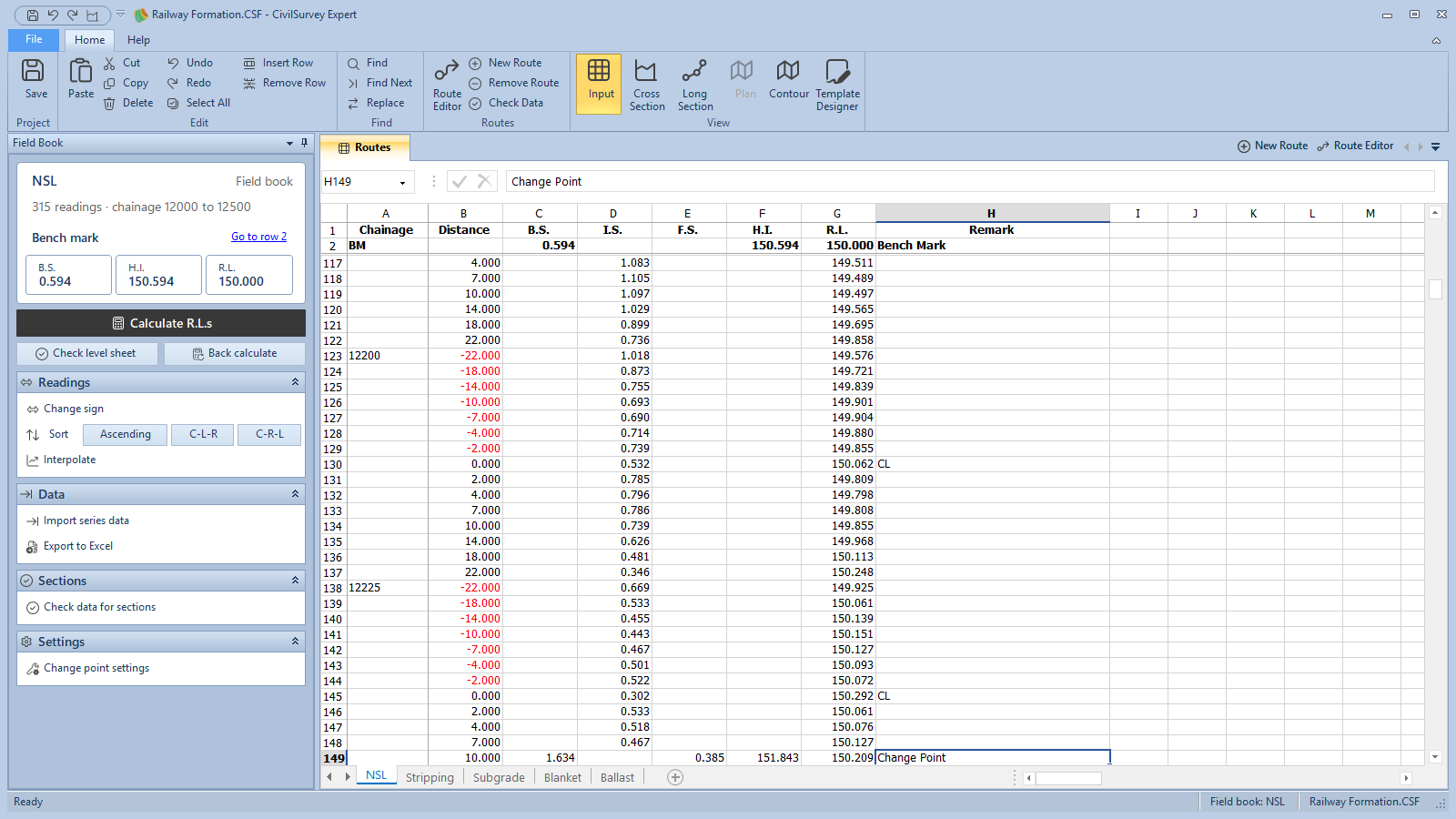
- Click Home › Find › Find and look for Change Point.
Each row it finds has an F.S. and a B.S. on the same staff position, and the new H.I. The program made a change point wherever a reading would have run off the staff, as you would in the field.
9. The other commands on the panel
Each command is one step for Home › Edit › Undo.
Readings
- Change sign: flips the sign of the offsets in the selected rows. Select cells in the Distance column first. Use it when one side was booked with the wrong sign.
- Sort: puts the chainages in order and, within each chainage, sorts the readings: Ascending by offset; C-L-R centre, then left, then right; C-R-L centre, then right, then left. Sorting a level book can move readings past a change point: the program then warns you before Calculate R.L.s changes any R.L., and Interpolate won't run. Undo the sort if that happens.
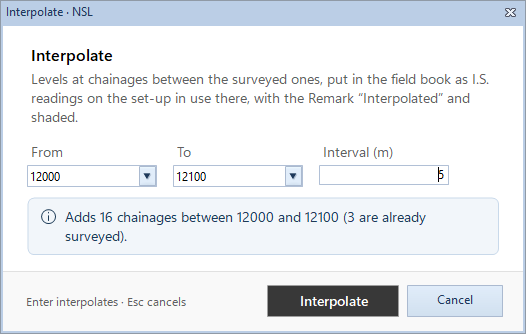
- Interpolate: levels at chainages between the surveyed ones. Choose From, To and Interval (m); the box says how many chainages it adds. Click Interpolate. The new rows go in as I.S. readings on the set-up in use there, with the Remark Interpolated, shaded. Calculate the R.L.s first.
Data
- Import series data: pick a series; its chainages, offsets and levels, as the sections have them, replace the rows of this sheet.
- Export to Excel: this sheet as an .xlsx, as it is shown. Choose where to save it; the program then offers to open it in Excel. (For the whole project, use File › Excel.)
Back calculate (beside Check level sheet) works the other way round: it keeps the R.L.s and works out the B.S., I.S. and F.S. from the bench mark. Use it for a field book of levels only, such as the sample's Stripping sheet. Where a reading would fall outside the staff, it makes a change point and asks you for its B.S.; it ends with the arithmetic check.
Sections › Check data for sections looks for anything that would draw a section wrong. See Check the data before drawing.
Settings › Change point settings sets when Back calculate makes a change point: a staff reading greater than, or less than, the values you give, or a Remark with the text you give.
10. Save
Press Ctrl+S. Every route that changed is saved.
What next
- Check the data before drawing: Check the data before drawing.
- Lay a design on the field book: Home › Routes › New Route and choose Design. See Lay a template along the route and Design a template.
- Your field book is in Excel already: see Bring in a field book from Excel.
- See the sections: see Review the cross sections, or the Quick Start.
If something looks wrong
| You see | Do this |
|---|---|
| The bench mark is not complete. | Type the bench mark's B.S. and R.L. in row 2 of the sheet. |
| The R.L.s were worked out down to row … | The next row has no B.S., I.S. or F.S. Type its reading and click Calculate R.L.s again. |
| Level check failed: check the readings. | Look for a reading in the wrong column, a change point missing its B.S., or a last reading that isn't an F.S. |
| A warning on the panel: The R.L.s don't match the readings from row … | A reading changed after the R.L.s were worked out. Click Calculate R.L.s, or Back calculate if the R.L.s are the right ones. |
| Calculate would change … R.L.s … Calculate anyway? | The rows were sorted past a change point. Click No and undo the sort. |
| Calculate R.L.s offers Back calculate | The field book has R.L.s but no staff readings. Click Yes to work out the readings, or No to leave it. |
| Select offsets first | Select cells in the Distance column, then Change sign. |
| Select a field book route's sheet first | Click the tab of a field book route at the foot of the workbook. |
| You can't type in row 1, or in row 2 | Row 1 is the fixed headings. In row 2 only the B.S., the R.L. and the Remark take typing. |
| Add field book stays grey | Type a name, and one the project doesn't have yet. |