Cut and fill to level a site
What you get: the cut and fill to bring a plot to a formation level, worked out inside its boundary, with the level that balances cut and fill. You get it as a result on the plan, three sheets you can save to Excel, and a printed cut-fill plan.
You need: CivilSurvey Expert installed and activated. About 10 minutes. It helps to have read Contours from a point survey first.
1. Open the plot
- On the Start page, open the Site Levelling and Contour Survey sample (under Open a sample project, or the Sample projects button). It opens in the Contour screen.
- If another job is open, pick Plot 14, site levelling in the Job list at the top of the panel.
Plot 14 is a plot surveyed by total station. Its boundary pillars are coded BND. It already has two volumes in Results: Formation at 24.600 and Balanced, cut = fill.
2. Look at a finished result
- In the panel, open Results. Each result is a tile: its name in bold, its kind (Volume) at the right, and a line of figures: cut and fill in m³ and the area in m².
- Click Formation at 24.600. It is shown:
- On the plan, the cut is shaded orange and the fill green, stronger where it is deeper. The zero line, dashed, is where cut meets fill: there the ground is at the formation level.
- The bar over the plan names the result, with its Formation level in blue.
- The checks strip under the plan compares the cell sheet with the TIN ("Cell sheet within …% of the TIN").
- Move the pointer over the plan. The readout now gives the Formation level there, and how deep the Cut or Fill is.
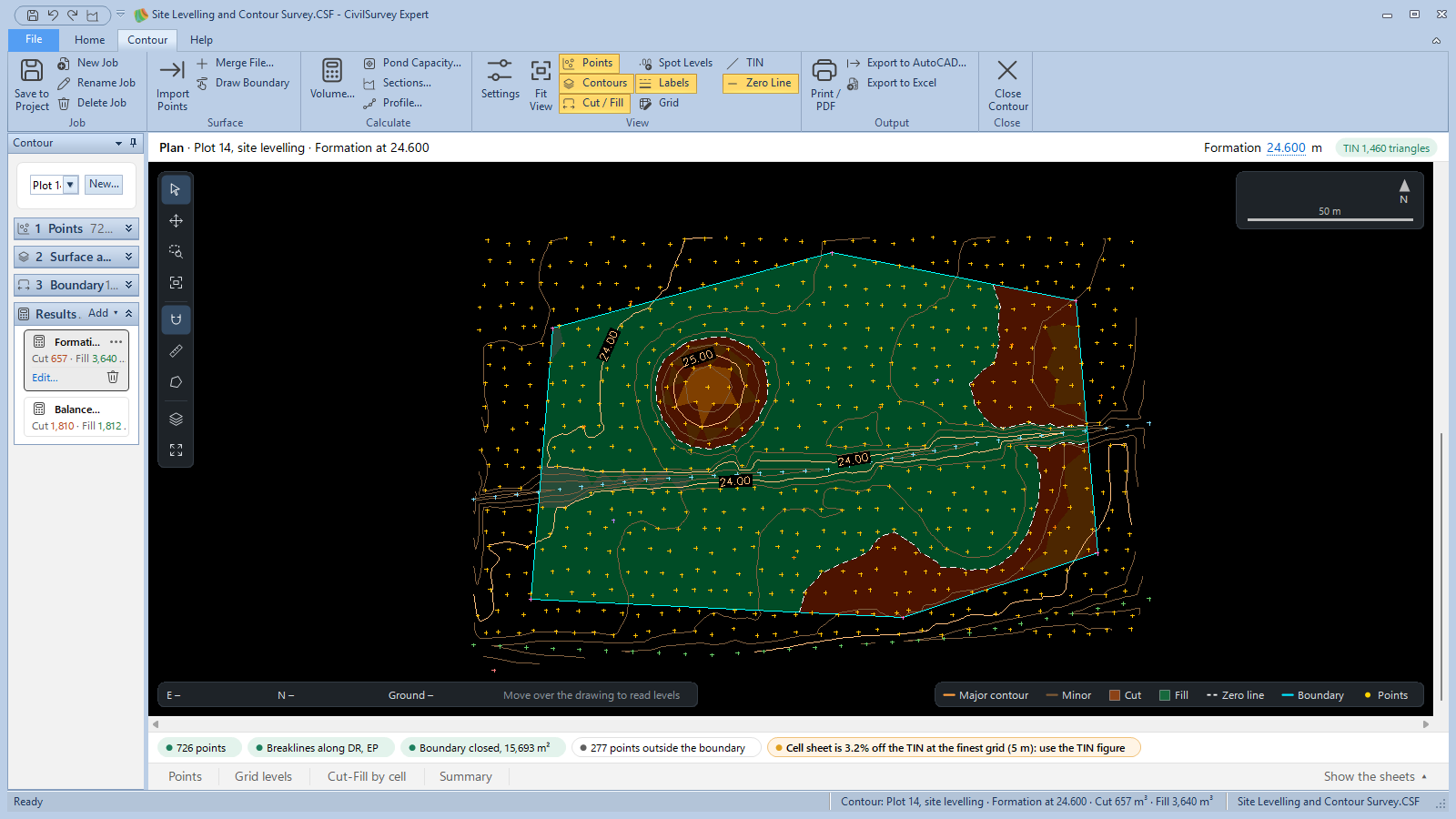
The formation, 24.600, is a little above the balancing level, so there is more fill than cut: the plot is raised, and the extra earth is brought in.
- Click Balanced, cut = fill. Here the cut and the fill are the same.
- Click the shown tile again to see the surface alone.
3. The boundary
The volume is worked out only inside a boundary. A job has one boundary, set in 3 Boundary in the panel:
- Points coded: the points with the code in Code (BND to start with) are joined in the order they were surveyed. This is Plot 14's: survey the boundary pillars in order round the site, all with one code.
- Outline: the boundary runs round the outside of all the points.
- Drawn: a boundary you draw on the plan.
To draw one:
- Click Contour › Surface › Draw Boundary (or Drawn in 3 Boundary).
- Click the corners on the plan, one after another. The readout gives the length from the last corner.
- Click the first corner again to close it, or right-click or press Enter to finish. Esc stops.
The status bar says "Boundary drawn:" with its corners and area. Area, Perimeter and Points inside show in 3 Boundary. Results made on the old boundary are now out of date. To go back to Plot 14's own boundary, click Points coded.
A result can also have a boundary of its own, drawn in the Volume dialog (step 4). The job's boundary stays as it is.
4. Work out a volume
- In Results, click Add ▾ and choose Volume…. (Or Contour › Calculate › Volume…, or right-click the plan and Volume….)
Volume · Plot 14, site levelling opens. It starts at the balancing level rounded to 0.25 m.
- In Formation level, type 24.500. As you type:
- Name follows the level: Volume at 24.500. Type a name of your own if you like.
- The banner at the foot gives the cut, fill and area at that level.
- The line under the level gives the Balancing level, where cut equals fill.
- Under Boundary, The job's boundary is chosen, with its area. To work out this result on another area, choose Draw one on the plan for this result: the dialog steps aside while you click the corners, then comes back. Redraw draws it again.
- Under Sheets, Grid for the cell sheet is 5, 10 or 20 m. It sets the grid of the cell sheet only; the volume itself is worked out on the TIN.
- Click Calculate (or press Enter).
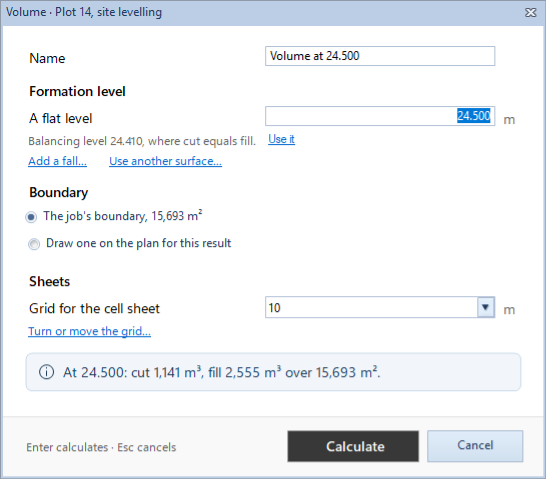
The new tile, Volume at 24.500, is added and shown, and the status bar gives its cut and fill.
The balancing level
To level the plot with no earth brought in or taken away:
- Open Volume… again.
- Click Use it beside the balancing level. The level and the name follow.
- Click Calculate. The cut and the fill are equal, as in Balanced, cut = fill.
A sloping formation, or another surface
A plot usually needs a fall so rain runs off. In the Volume dialog:
- Add a fall… shows Falls [%] towards [°]: the bearing in degrees from north, clockwise. Pick on the plan takes two clicks, a high place then a low one. The level is now the Formation level at the centre of the boundary. More… offers Fall as 1 in N, a Cross fall, and Through three levels instead (three pegs from the engineer). Remove the fall goes back to a flat level.
- Use another surface… works out the cut and fill down to another job's surface, such as the engineer's formation levels imported as their own job, or a second survey of the same site. Choose the job in Down to the surface of. Use a level instead goes back.
5. The results
- Click a tile to show it on the plan and in the sheets; click it again to hide it.
- The shown tile has its commands under it: Edit… opens its dialog again, with Recalculate in place of Calculate. Delete (at the right) removes the result at once, without asking.
- ⋯ on a tile, or a right-click, gives the same commands in a menu.
- Out of date: when the points, the surface or the boundary change, a tile says so ("Out of date: the surface or boundary has changed."), with Recalculate. The checks strip says it too.
- The Formation level in the bar over the plan: click it, type another level and press Enter. The shown result is worked out again at it.
Add ▾ also has Pond Capacity…, Sections… and Profile…. They work the same way: a dialog, then a tile.
6. The result's sheets
- Show Volume at 24.500, and click Show the sheets at the foot of the plan.
- The tabs are Points, then the result's Grid levels and Cut-Fill by cell, then Summary:
- Points gains a Cut (+) / Fill (−) column: each point's depth.
- Grid levels: each grid node's Easting, Northing, Ground R.L., Formation and Cut (+) / Fill (−). Nodes are named by column letter and row number from the south-west corner.
- Cut-Fill by cell: each cell's Area m², the depth at its four corners (SW, SE, NE, NW), and its Cut m³ and Fill m³, with the total. A cell with both cut and fill uses the four-point formula.
- Summary: the cut, fill and net from the TIN (the figure reported), the same from the grid as a check, the areas of cut and fill, the formation and balancing levels, and the boundary.
- Click a row: the plan goes to that node or cell. Turn on Grid and click a cell on the plan: its row opens.
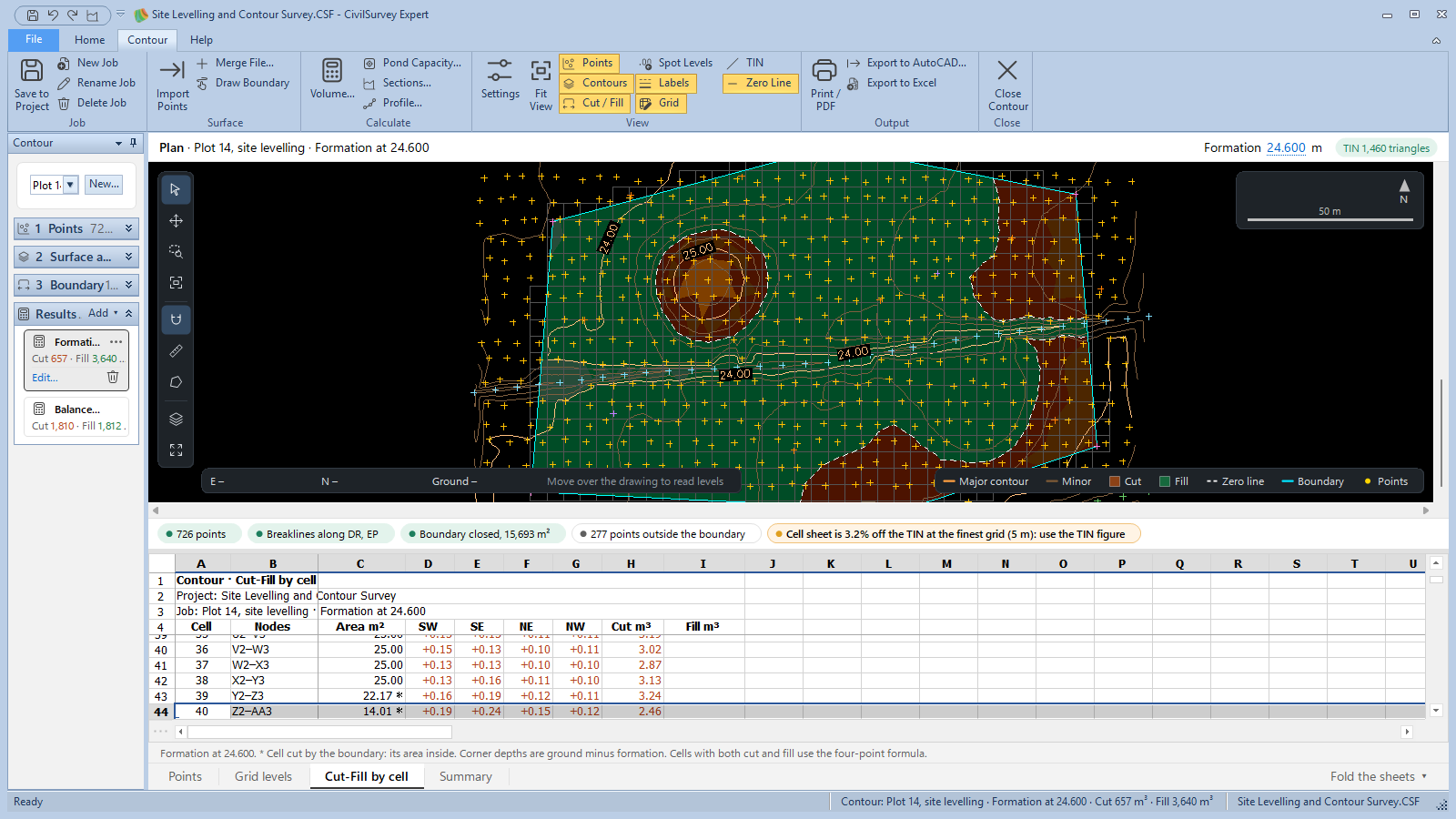
The TIN figure is exact for the surveyed surface. If the cell sheet is more than 3% off it, the checks strip says so and suggests a finer grid.
7. The zero line and the shading
With a volume shown, three switches in Contour › View work:
- Cut / Fill: the shading.
- Zero Line: where cut meets fill.
- Grid: the cells, their numbers, and each node's ground level and depth.
How they look is on the Cut and fill page of Contour Settings (F8): Shading By depth, stronger where it is deeper or Plain, the cut and fill colours and their Strength, the Zero line colour, Dashed or Solid, and what the Grid shows. These pages change only the drawing: the volumes stay as they are.
8. Print it
- Show the result you want on the sheet, such as Formation at 24.600.
- Click Contour › Output › Print / PDF. Print · Plot 14, site levelling · Formation at 24.600 opens with the sheet as it will print.
- Choose the Sheet: A3 landscape, A2 landscape or A1 landscape. The line beside it gives the scale, "chosen so the boundary fits".
- Grid with depths and Cut/fill shading are ticked; untick either to leave it off.
- Click Save PDF… (or Print…). The PDF is named after the job, ending in cut-fill plan.
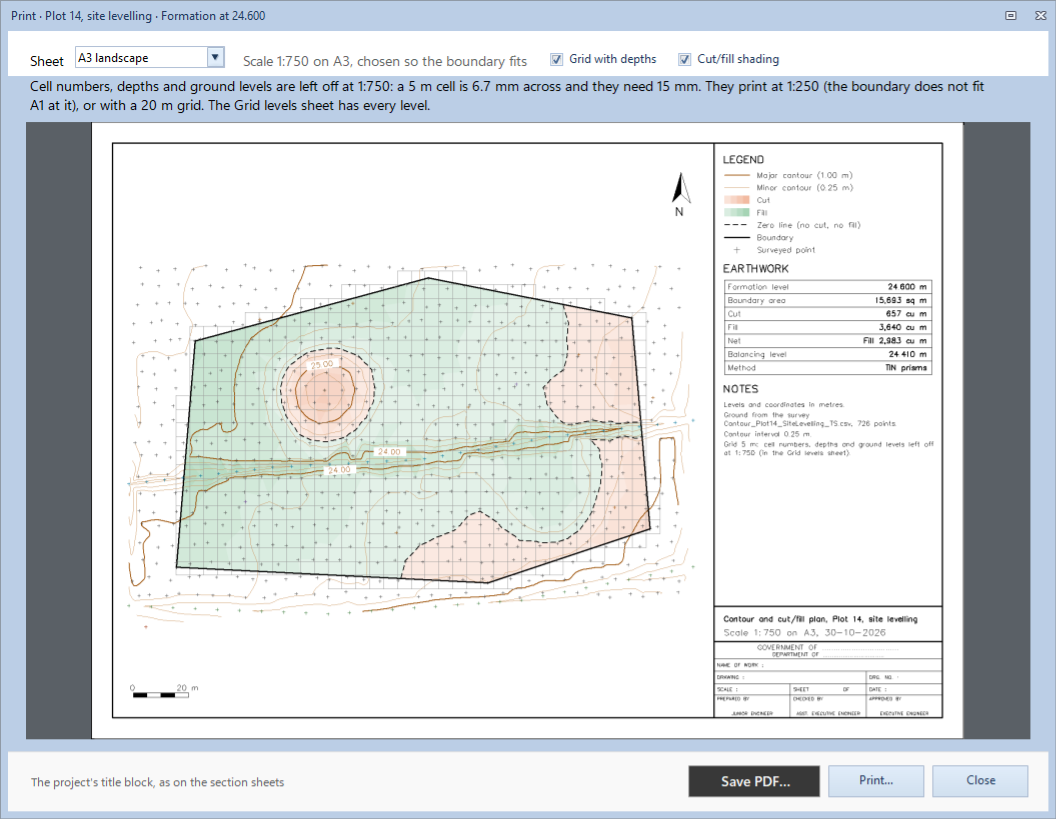
The sheet has the plan, the project's title block (as on the section sheets), and a strip with the LEGEND, the EARTHWORK table (formation level, boundary area, cut, fill, net, balancing level and method) and the notes.
Export to Excel saves the Points sheet and the result's three sheets. Export to AutoCAD… saves the plan with the result's shading, grid and zero line, each on its own layer.
Click Contour › Job › Save to Project to keep your new results in the project.
What next
- Contours, settings and your own job: see Contours from a point survey.
- Tank and pond capacity: the capacity and water spread up to the full tank level. See Tank and pond capacity.
- Sections across the site: see Sections and a profile.
- More on the printed sheet: see Print and export a contour plan.
If something looks wrong
| You see | Do this |
|---|---|
| "The job has no boundary yet." in the Volume dialog | Set the boundary in 3 Boundary first, or choose Draw one on the plan for this result. |
| "Fewer than three points have this code." | Type the code your boundary pillars have in Code in 3 Boundary. |
| "The boundary crosses itself between corners…" | The pillars were not surveyed in order. Choose Drawn and click the corners in order round the site. |
| "… m² of the boundary has no TIN under it and is left out" | Part of the boundary is outside the surveyed points. Draw the boundary inside them, or survey that part. |
| "Cell sheet is …% off the TIN: try a 5 m grid" | Use Edit… and choose a finer Grid for the cell sheet. The TIN figure is the one to report. |
| Cut / Fill, Grid and Zero Line are greyed | Show a volume: click its tile in Results. |
| A result says it is out of date | The points, the surface or the boundary changed. Click Recalculate. |
| "The boundary is larger than the sheet at this scale" in Print / PDF | Choose a larger Sheet. |