Install and activate
What you get: CivilSurvey Expert installed on your PC, started for the first time, and licensed to you. You also learn where the program keeps your projects, how to move a licence to another PC, and how to get help from support.
You need: the setup file from your vendor, and a Windows PC on which you may install programs. About 10 minutes, plus the time your vendor takes to send the licence.
1. Install
- Run the setup file.
- Read the licence agreement and accept it, then go through the steps to the end.
The program needs Microsoft .NET Framework 4.8. If the setup says it is missing, install it from Microsoft and run the setup again.
What the installer puts on your PC:
| Where | What |
|---|---|
| The program folder | The program, the template every new project is made from, the sample projects as they were shipped, and the point files the contour sample is made from. |
| The desktop and the Start menu | A shortcut to start the program. |
You don't save anything in the program folder. Your own work goes in your Documents folder:
| Folder | What goes in it |
|---|---|
| Documents › CivilSurvey Expert › Projects | Your projects. New project offers this folder, and Open starts here. The program makes the folder the first time it needs it. |
| Documents › CivilSurvey Expert › Samples | Your own copies of the sample projects, made the first time you open each sample. Change them as you like: the samples in the program folder stay as shipped. |
If Windows does not let the program make folders in Documents (Controlled folder access in Windows Security can block it), it uses the same two folders inside its own data folder in your user profile instead.
2. Start it for the first time
- Start CivilSurvey Expert from the desktop or the Start menu.
A start-up screen shows while the program gets ready: Checking your licence…, then Checking program files… and Loading the workspace…. 2. The Start page opens. The first time it says Welcome to CivilSurvey Expert.
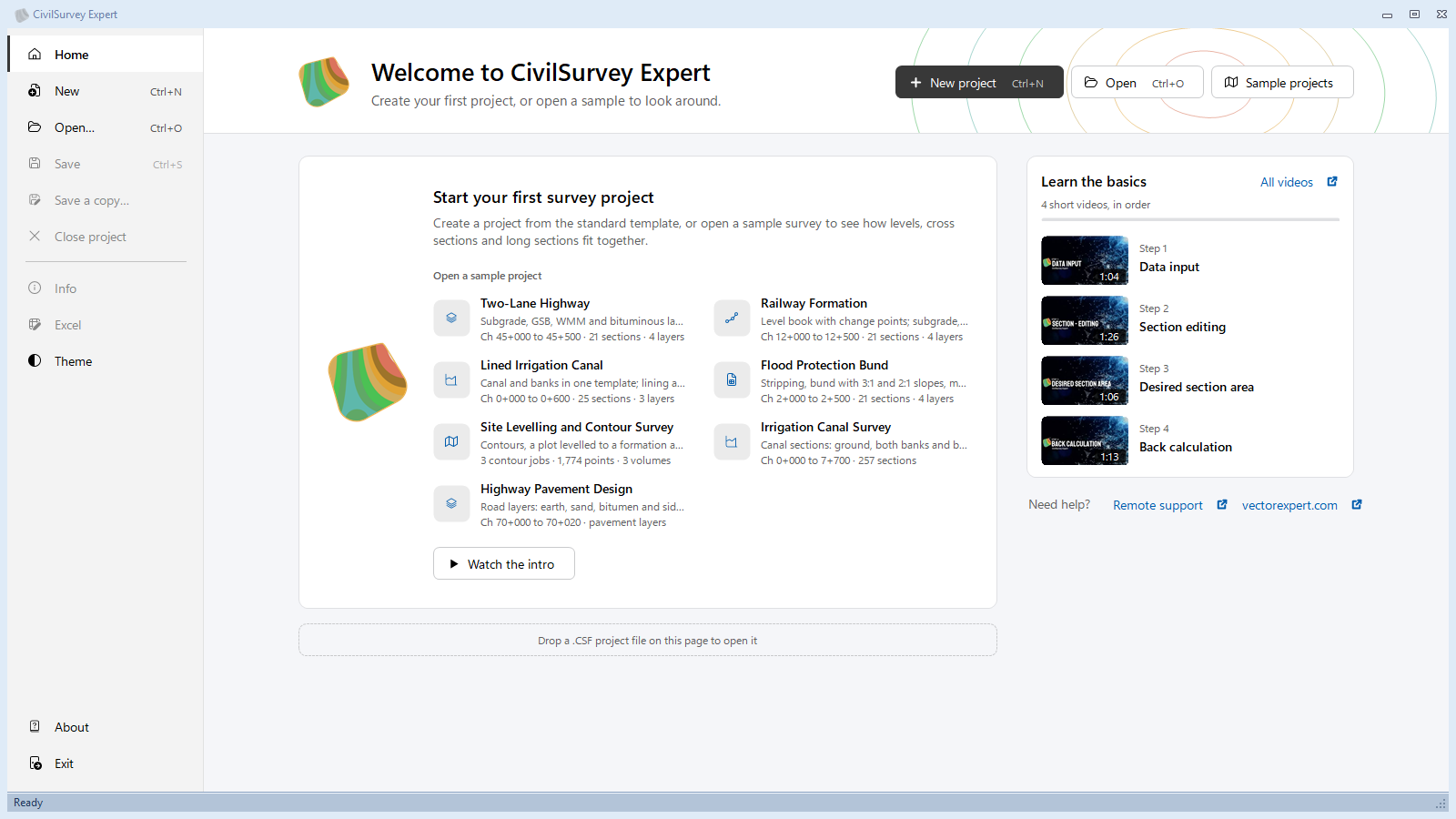
From here you can:
- click New project (Ctrl+N) to start your own project, or
- open a sample under Open a sample project to look around, or
- click Watch the intro for the short video.
See Projects and files for everything on this page, and Quick Start for a first walk through a sample.
3. Activate your licence
Your licence is made for one computer. It is tied to that computer's System ID, a code the program works out from the PC itself.
- Click Help › About (or the File tab, then About). The About CivilSurvey Expert window opens.
- Look at Licence, under This computer. Before you are licensed it says Trial version (with the days left, when the trial has a limit).
- Next to System ID, click Copy. The link says Copied for a moment: the ID is now on the clipboard.
- Send the System ID to your vendor, or by mail to the address shown at the foot of the window. Paste it; don't type it again by hand.
- Your vendor sends you a licence file made for that System ID. Put it where your vendor tells you.
- Close CivilSurvey Expert and start it again. The licence is checked only when the program starts.
- Open Help › About again. Licence now says Licensed to and your company's name (or just Licensed).
When the trial has ended and there is no licence, the program says Your trial period has ended and shows this computer's System Id. Quote that ID when you ask for a licence. OK closes the program.
4. Move the licence to another PC
A licence works only on the computer whose System ID it was made for. To use CivilSurvey Expert on a new or another PC:
- Install the program on the new PC (section 1).
- On the new PC, open Help › About and copy its System ID (section 3, steps 1 to 3).
- Send that System ID to your vendor and ask for the licence to be moved.
- Put the new licence file in place, then start the program again (section 3, steps 5 to 7).
Copy your projects across too: each project is one .CSF file. See Projects and files.
5. What About tells you
The About CivilSurvey Expert window has two columns and the details below them:
| Item | What it shows |
|---|---|
| Edition, Version, Build | Which CivilSurvey Expert you have. Quote these when you report a problem. |
| Framework | The .NET Framework the program is running on. |
| Licence | Licensed to …, Licensed, Trial version, Trial ended or Licence not valid on this computer. |
| Computer, Windows | This PC's name and its Windows version. |
| System ID | The code your licence is tied to, with Copy. |
At the foot are links to the website, the support mail address and the Licence agreement. OK or Esc closes the window.
6. Get help from support
- Remote support: click Help › Remote Support (or Remote support under Need help? on the Start page). It opens the AnyDesk download page in your web browser. Download and run AnyDesk, and the support person can see your screen and help you. Do this only when support asks you to.
- Mail: the support address is at the foot of Help › About. Send the Version, Build and what you were doing when it went wrong.
What next
- Quick Start: from field book to volume abstract on a sample, in 10 minutes.
- The screens at a glance
- Projects and files: new, open, save, copies and backups.
If something looks wrong
| You see | Do this |
|---|---|
| Licence in About still says Trial version after you put the licence file in place | Close the program and start it again: the licence is read at start-up. If it still says so, check with your vendor that the file was made for the System ID About shows now. |
| Licence says Licence not valid on this computer | The licence was made for another PC. Send this PC's System ID to your vendor. |
| Your trial period has ended when you start the program | Send the System Id it shows to your vendor for a licence. OK closes the program. |
| A program file is missing when the program starts | The template every project is made from is not in the program folder. Install CivilSurvey Expert again. |
| Something went wrong while … when the program starts | Start it again. If it happens again, click Open log folder and send the log to the support address. |
| The samples aren't on the Start page; it says The sample projects are not installed | Install the program again: the samples are installed with it, in the program folder. |
| The sample couldn't be copied | The message says why. Check that the disk has space and that Controlled folder access in Windows Security isn't blocking CivilSurvey Expert, then open the sample again. |
| A command says In the Professional Edition | That command is part of CivilSurvey Expert Professional Edition. Ask your vendor about it. |