Sections from total station or GNSS points
What you get: cross sections from a points file. The program joins the centre-line points into an alignment, gives every point a chainage along it and a distance left or right of it, and groups the points into sections. The sections open in the Cross Section and Long Section views like a field book's.
You need: a project open (your own, or New project on the Start page, Ctrl+N). A points file from the total station or GNSS controller: CSV, TXT, XYZ, PTS or ASC, with N, E and R.L. for each point and a code. The points should be surveyed in strings across the route, with the centre-line points all given one code (C, for example). To practise, download road-survey-points.csv: a made-up 250 m road survey with 11 sections, coded C on the centre line and GL on the ground, plus a base station and a bench mark. About 15 minutes.
1. Add the route
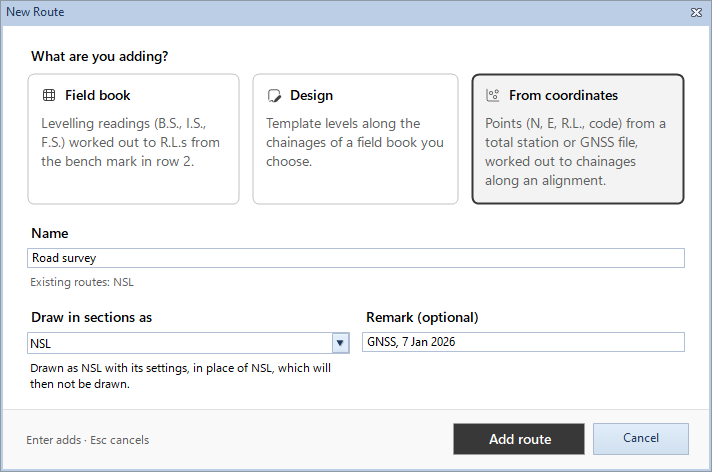
- Click Home › Routes › New Route.
- Under What are you adding?, click From coordinates.
- Type a Name, for example Road survey.
- Draw in sections as is the series the points are drawn in. In a new project it starts on NSL: keep NSL when these points are the ground. Any other series needs NSL at the same chainages, as the note under the box says.
- Add a Remark if you like (GNSS, 7 Jan 2026), then click Add route.
The route's sheet opens in the Routes workbook, with the From Coordinates panel on the left. The panel has four numbered steps; each ticks when it is done, and the next one is outlined.
The sheet's columns:
| Column | Holds |
|---|---|
| A Chainage | Worked out. Shown on the first row of each section, as in a field book. |
| B Distance | Worked out: square to the alignment, minus to the left looking up chainage. |
| C Point | The point's name. |
| D Northing, E Easting, F R.L. | From the file. |
| G Remark | The point's code. |
| H Off line | Worked out: how far the point is from its section line, along the alignment. |
| I Section | Worked out: Yes, Plan only, Merged or Left out. |
Columns from J on are yours. Chainage, Distance and Off line can't be typed in: Calculate chainages (step 4) works them out.
2. Import the points
- In step 1, Points, click Import points…. The Import Points dialog opens.
- Click Choose file… and pick the file, or drag the file onto the dialog, or paste its path in the box and press Enter.
- Check the preview. Each column has a box over it saying what it holds: Point, Northing, Easting, R.L., Remark (code), or Not used. When the first row is headings (N, E, Z, RL, Elevation, Code, Desc, Name, Point…), the columns are matched by them. Without headings they are taken in the usual order: point, N, E, R.L., code. Change any box that is wrong.
- Read the notes under the preview. They say, for example, which rows can't be read and why, and which rows repeat a point (each point is read once).
- Click Import 79 points (the button counts your points).
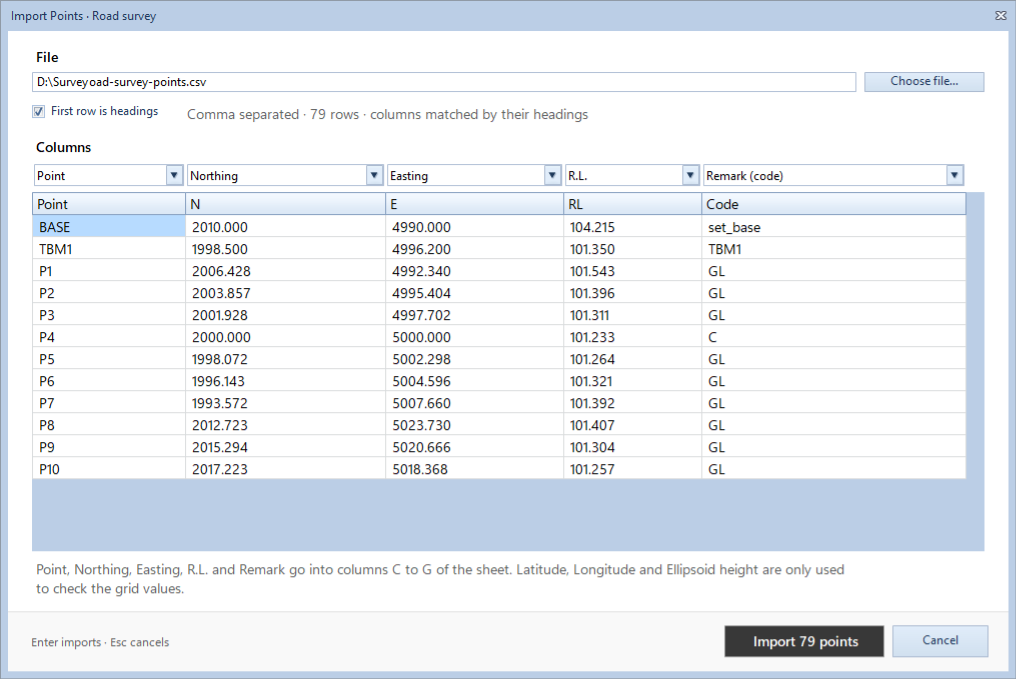
The points go into columns C to G, in the order they were surveyed. Importing again replaces the points on the sheet. You can also paste point, N, E, R.L. and code into columns C to G yourself.
Tip: a GNSS file often has Latitude, Longitude and Ellipsoid height too. Match them in the boxes and the program checks them against N, E and R.L. When they disagree, step 1 says on how many points. N, E and R.L. are always the values used.
3. Draw the alignment
- In step 2, Alignment, pick the centre-line code under Join the points coded. The list shows each code with how many points have it, C (11) in the practice file. C is chosen when the file has it.
- Set the Start chainage if the route does not start at 0.
- Click Draw alignment.
The points with that code are joined straight, in the order they were surveyed. Step 2 then shows the alignment's points, length and ends: 11 points · 250.0 m · P4 to P74 for the practice file.
If the chainage runs from the wrong end, click Reverse.
4. Check how the points make sections
Step 3, Sections, shows how the points group, worked out as you change its settings:
- A point joins a section within (m): a point further than this from its section line is kept on the plan only. 3 to start.
- Fewest points in a section: a smaller group is kept on the plan only. 3 to start.
- A section has to cross the alignment: a group with all its points on one side is kept on the plan only.
- Leave out the codes: codes that are not ground, such as the base station and the bench marks. set_base, TBM* to start; * matches any text.
How it works: each point is placed on the alignment. Points close together along it (within about 6 m) make one section. The section's chainage is its centre-line point's.
Under the settings, the result: 11 sections, distance square to the alignment, minus to the left. 0 points stay on the plan only. (The base station and the bench mark are left out by their codes.) The notes after it name what to look at: sections with no centre-line point, groups on one side only, and points under 5 cm from another that were merged. Click a name to see it on the Plan.
To keep one point out of the sections (a tree, a pole), type Plan only in its column I.
5. Work out the chainages
- In step 4, click Calculate chainages.
The program fills Chainage, Distance, Off line and Section for every row and sorts the rows into sections. The status bar says how many sections it made, and from how many points. The card at the top of the panel shows the Points, Sections and Plan only counts: 79, 11 and 0 for the practice file, with 79 points · chainage 0.0 to 250.0 over them.
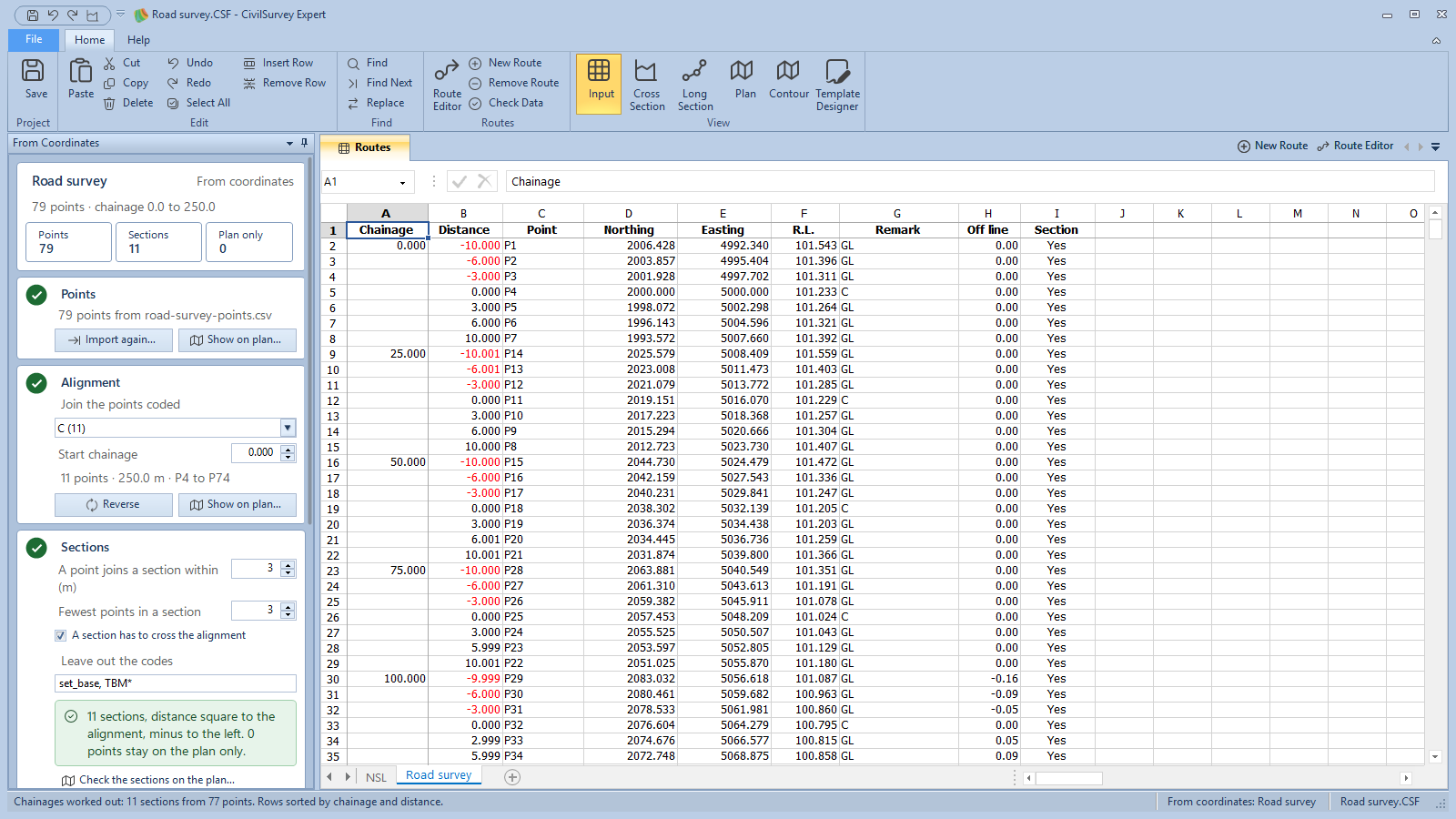
If you change a point, a code or a setting afterwards, a card over the steps says so (The chainages don't match the points from row 10.). Click Calculate chainages again.
To order the points inside each section, use Sort under Readings: Ascending, C-L-R or C-R-L.
6. Look at the Plan
Click Home › View › Plan, or Show on plan… in the panel. The button is on only while a From coordinates route is in front.
The Plan window shows the route from above: the alignment, each section's line (dashed until you calculate the chainages), the points in sections, the points on the plan only (hollow) and the left-out points (triangles). The legend is at the bottom right.
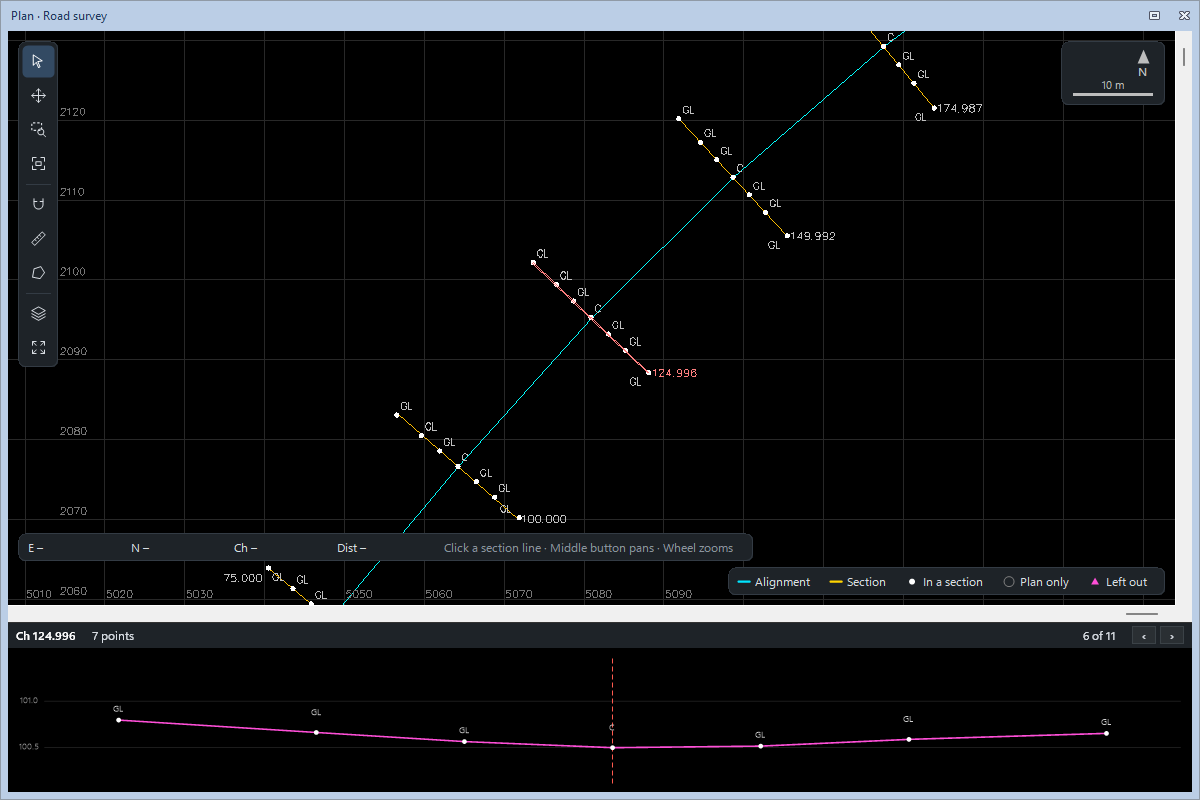
- The wheel zooms and the middle button pans, as in the Cross Section view.
- Click a section line: its rows are selected on the sheet. Click a row on the sheet: its point is ringed on the plan.
- The strip under the plan draws the selected section. ‹ and › (or the arrow keys) go to the previous and next section.
- The readout at the bottom left gives E, N, the chainage and the distance under the cursor.
- Right-click a point for Show in the sheet, Open its section in Cross Section, Copy E, N and Plan only. Right-click anywhere for the zooms, Measure distance, Measure area and Export to AutoCAD….
The Plan floats over the Input screen only. It goes when you open the cross sections, and comes back where it was when you return to Input.
7. Open the cross sections
- Press Ctrl+S to save. The sections are built from the saved routes; if you skip this, the program asks to save first.
- Click Home › View › Cross Section (or press F6).
- If the project already had sections, the program asks how to open them. Click Rebuild from routes… so that this route's sections are built.
Each section is drawn from its points, at its chainage (124.996). Press F7 for the Long Section. From the Plan, right-click a point and click Open its section in Cross Section to go straight to its section.
What next
- Sections at a regular interval: chainages every 20 m with offsets left and right. See Sections every N metres with offsets.
- Check and review: Check the data before drawing, then Review the cross sections.
- A design on these points: Home › Routes › New Route, Design, and choose this route under Target field book (it is listed as Road survey (from coordinates)). See Lay a template along the route.
- Contours from the same kind of file: Contours from a point survey.
If something looks wrong
| You see | Do this |
|---|---|
| The points file couldn't be read | Close the file in Excel or any other program that has it open, and check it is a CSV, TXT, XYZ, PTS or ASC file. |
| Choose a column for Northing. | Set the box over that column to Northing (or Easting, or R.L.). All three are needed. |
| Some rows can't be read and are left out | The note names each line and why (no R.L., a value that is not a number). Correct the file and import again. |
| Fewer than two points are coded C | Under Join the points coded, choose the code your centre-line points have. |
| The chainage runs from the wrong end | Click Reverse in step 2, then Calculate chainages. |
| A point that is not ground is in a section | Type Plan only in its column I, or right-click it on the Plan and click Plan only. Then Calculate chainages. |
| A card says the chainages don't match the points | Click Calculate chainages. |
| The Cross Section view doesn't show the route | Save, open the cross sections again and click Rebuild from routes…. |
| Plan is greyed on the ribbon | Click the route's tab at the foot of the workbook: the Plan is for a From coordinates route in front. |
| The Plan window has gone | It shows over the Input screen only: click Home › View › Input. |