The whole project to Excel
What you get: the project's input in one Excel workbook: a cover sheet, then every field book and design as a sheet, and your own sheets, as you see them on the Input screen. You also see how to send one field book on its own, and how this differs from the Volume Abstract's Excel.
You need: CivilSurvey Expert installed and activated, and Excel (or another program that opens .xlsx files) to look at the result. About 5 minutes. You use the Two-Lane Highway sample.
1. Open the sample
- On the Start page, under Open a sample project, click Two-Lane Highway.
Once you have projects of your own, the samples are under the Sample projects button at the top right of the Start page.
The Input screen opens with the Routes workbook: NSL (the field book) and the design routes Subgrade, GSB, WMM and Bituminous.
2. Export the project
- Click the File tab, then Excel in the list on the left.
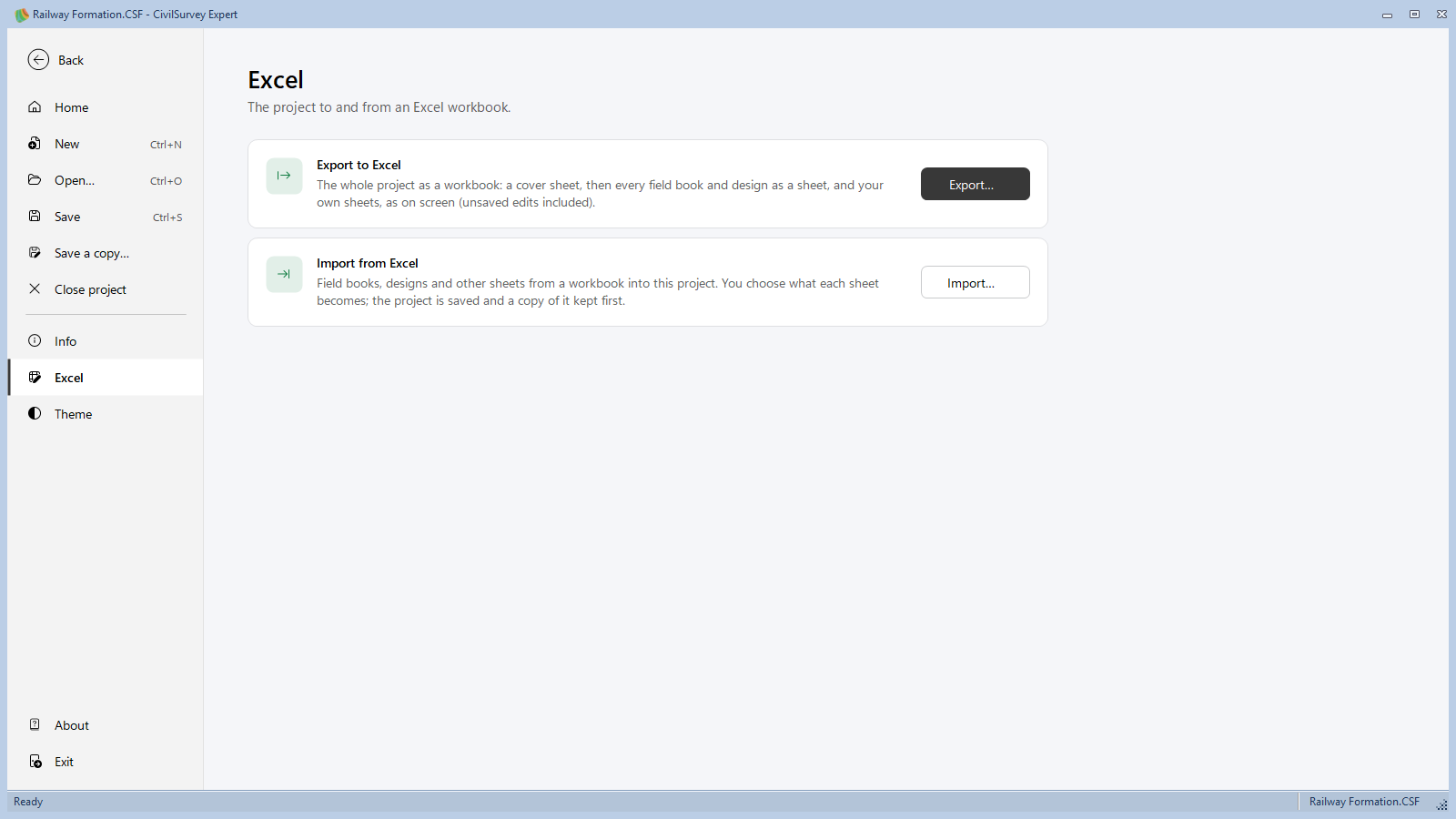
- Under Export to Excel, click Export….
- The program offers the project's name with .xlsx (Two-Lane Highway.xlsx) in the project's folder. Change the name or the folder if you like, and click Save.
- It says Saved Two-Lane Highway.xlsx and where, and asks Open in Excel or Not now. Click Open in Excel to look at it.
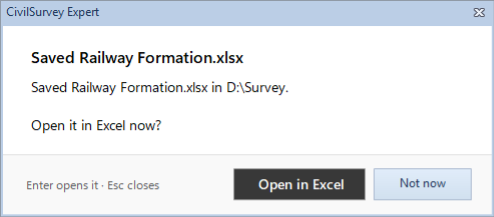
You don't have to save the project first. With the Input screen open, the sheets go out as they are on screen, with changes you have not saved yet, even a cell you are still typing in. The project itself is not changed.
3. What the workbook holds
The Project sheet comes first. It is the cover:
- At the top, CivilSurvey Expert project, then the Project name, its Description, the Project file and when it was Exported.
- Below, a table of the routes: Route, Type (Field book or Design), Rows, and for a field book its bench mark (B.M. back sight and B.M. R.L.), for a design its Target series. For this sample, NSL's B.M. R.L. is 200.000.
Then one sheet for each route, named after the route: NSL, Subgrade, GSB, WMM and Bituminous. Each is the route's sheet as the Routes workbook has it, with its formulas, formats, and your columns from I on. A From coordinates route's sheet goes out too; it is not listed on the cover.
Then your own sheets, if the project has any.
The workbook holds the input only. The cross sections' points and areas are not in it; for the quantities, see section 5.
Coming back: this workbook can be brought into a project with File › Excel › Import from Excel. A field book you corrected in Excel goes back in place of its route with Replace route. See Bring in a field book from Excel.
4. One field book on its own
To send one field book, not the whole project:
- Click the NSL tab at the foot of the Routes workbook.
- On the Field Book panel, under Data, click Export to Excel.
- The program offers the project's and the route's names (Two-Lane Highway NSL.xlsx) in the project's folder. Click Save.
- It asks Open in Excel or Not now.
The workbook has that one sheet, as it is shown, unsaved changes included. A formula on it that reads another sheet goes out as its value. There is no cover sheet.
This command is on the Field Book panel only. A design route's sheet goes out with the whole project (File › Excel).
5. The Volume Abstract's Export to Excel is different
| File › Excel › Export to Excel | Export to Excel on the Volume Abstract | |
|---|---|---|
| What goes out | The input: field books, designs, your own sheets, and a cover | The earthwork of one design route: the Abstract, Chainage-wise and Mass haul sheets |
| Worked out from | The Routes workbook | The cross sections, with their edits |
| Use it for | Keeping or sharing the survey data, checking it in Excel, bringing it back | The quantities for a bill or an estimate |
For the abstract, open Section › Output › Volume Abstract and click Export to Excel. See Volume abstract.
A contour job has its own Export to Excel on the Contour tab. See Print and export a contour plan.
What next
- Bring a workbook back in: Bring in a field book from Excel.
- The earthwork quantities: Volume abstract.
- Keep a copy of the whole project file: see Projects and files.
If something looks wrong
| You see | Do this |
|---|---|
| Excel on the File page is grey | Open a project first. |
| The project couldn't be exported | Most often the file is open in Excel. Close it there and export again, or save under another name. |
| The file couldn't be saved (the field book's Export to Excel) | Close the file in Excel and try again. |
| A From coordinates route is not on the cover | That is how the cover is. Its sheet is in the workbook after the cover. |
| The sections' areas or quantities are not in the workbook | They are not part of this export. Use the Volume Abstract's Export to Excel. |
| There is no Export to Excel on the panel | The Field Book panel shows only while a field book route's sheet is in front. Click its tab, or use File › Excel for the whole project. |