Print and export a contour plan
What you get: a contour job on a printed sheet or a PDF, with the project's title block, a legend and notes; the same plan as a DXF or DWG file for AutoCAD; and the job's points and its result's tables in an Excel workbook.
You need: CivilSurvey Expert installed and activated. About 10 minutes. It helps to have read Contours from a point survey first.
1. Choose what goes out
All three outputs are in the Output group of the Contour tab, and all work on the open job:
- Print / PDF: the plan on a sheet.
- Export to AutoCAD…: the plan as a drawing file.
- Export to Excel: the sheets as a workbook.
They take the job's surface, contours, boundary and points, and the result that is shown: click a tile in Results to show it first, or click the shown tile again to send out the surface alone. A result that is out of date goes out as it is, with a note saying so.
To follow along:
- On the Start page, open the Site Levelling and Contour Survey sample. It opens in the Contour screen.
- In the Job list, pick Sector 7 layout, contour plan. It has contours and a boundary, and no results.
2. Print / PDF
- Click Contour › Output › Print / PDF. Print · Sector 7 layout, contour plan opens, with the sheet as it will print.
- Choose the Sheet: A3 landscape, A2 landscape or A1 landscape. The line beside it gives the scale, "chosen so the boundary fits". The scale is the largest of the usual ones (1:100 up to 1:2500) at which the boundary, or all the points when there is no boundary, fits the plan's frame.
- With a volume shown, Grid with depths and Cut/fill shading are there too, both ticked; untick either to leave it off the sheet.
- Click Save PDF…. A Save dialog opens in the project's folder, with the PDF named after the job and what it is (contour plan here). After saving, it asks whether to open it.
- Or click Print…. The Windows print dialog opens, landscape, on paper of the sheet's size if the printer has it.
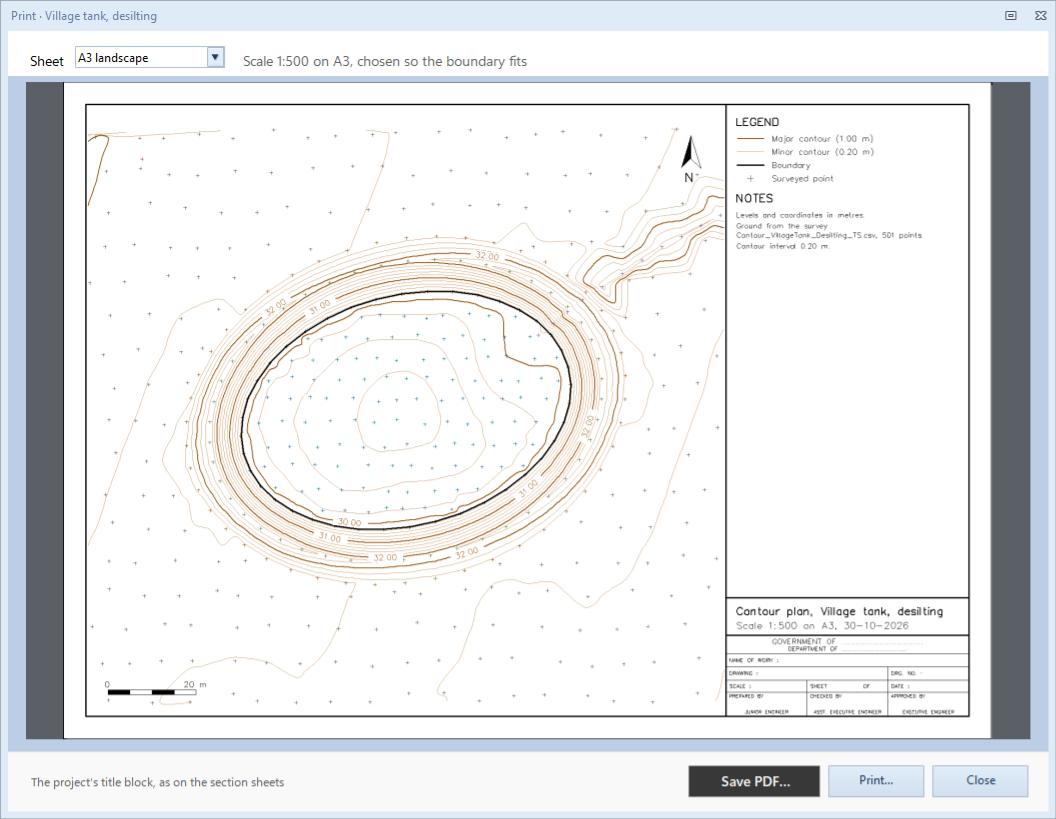
The footer says the sheet carries "The project's title block, as on the section sheets". It is set once for the project; see The title block.
3. What is on the sheet
The plan, in a frame at the left, at the chosen scale, with a north arrow at the top right and a scale bar at the bottom left. It shows what the View switches on the Contour tab show: Points, Contours, Labels and Spot Levels. The TIN is never printed. Spot levels and point names print at any zoom; on screen they wait for room.
The strip at the right, from the top:
- LEGEND: the major and minor contours with their intervals, the boundary and the surveyed points, and the shown result's own rows.
- The result's table, when one is shown: EARTHWORK for a volume (formation level, boundary area, cut, fill, net, balancing level and method), CAPACITY and the area–capacity curve for a pond, SECTIONS for sections, PROFILE for a profile.
- NOTES: units, the survey file and its number of points, the contour interval, and what the result needs said (the grid, a spill, points off the surface, out of date).
- The drawing's title, such as Contour plan, Sector 7 layout, contour plan, with the scale, the sheet and the date, over the project's title block.
The strip and its text are larger on A2 and A1, so a big sheet reads like an A3 one enlarged.
With a volume shown, a line under the choices may say what the grid's numbers leave off at this scale (ground levels, depths or cell numbers), and how to get them on: a larger sheet, or a larger grid. The Grid levels sheet always has every level.
See Cut and fill to level a site, Tank and pond capacity and Sections and a profile for each result's sheet.
4. Export to AutoCAD
- Click Contour › Output › Export to AutoCAD… (or right-click the plan and choose it).
- A Save dialog titled Export to AutoCAD opens in the project's folder. The name offered is the project's and the job's. Under Save as type, *AutoCAD DXF (.dxf) is chosen; choose *AutoCAD drawing (.dwg) for a DWG.
- Click Save. The status bar says what was saved: "contours, labels, boundary and points", with the shown result's parts, "each on its own layer."
The drawing is in real eastings and northings. Contours are polylines at their own level, and points sit at their R.L. with a cross, so the file can be used in 3D. Texts are sized for a 1:500 sheet.
| Layer | What is on it |
|---|---|
| CONTOUR_MAJOR, CONTOUR_MINOR | The contours |
| CONTOUR_TEXT | The contour labels |
| BOUNDARY | The job's boundary |
| POINTS, SPOT_LEVEL | The points and their levels |
| CUT, FILL, ZERO_LINE, GRID, GRID_TEXT | A volume's shading, zero line and grid |
| FORMATION_CONTOUR, FALL_ARROW | A volume with a fall, or down to another surface |
| RESULT_BOUNDARY | A boundary drawn for the shown result |
| WATER, FTL_CONTOUR | A pond's water and its edge |
| ALIGNMENT, SECTION_LINE, SECTION_POINT, SECTION_POINT_OFF, SECTION_TEXT | Sections |
| PROFILE_LINE, PROFILE_TEXT, PROFILE_GROUND, PROFILE_GRID, PROFILE_TABLE | A profile, its line on the plan and its drawing below the plan |
A result's layers are in the file only when a result of that kind is shown.
5. Export to Excel
- Click Contour › Output › Export to Excel.
- A Save dialog titled Export to Excel opens in the project's folder, with the job's name. Click Save.
- It says where the file was saved and asks Open in Excel or Not now.
The workbook has the sheets you see under Show the sheets:
- Points: Point, Easting, Northing, R.L., Remark and In boundary (with a volume shown, Cut (+) / Fill (−) too).
- With a result shown, its sheets after it: Grid levels, Cut-Fill by cell and Summary for a volume; Capacity and Summary for a pond; Sections and Summary for sections; Profile and Summary for a profile.
Each sheet starts with the project's name, the job and the result, then its table.
What next
- Print the cross sections of a route: see Print sections.
- The title block on every sheet: see The title block.
- A result to print: see Cut and fill to level a site or Tank and pond capacity.
If something looks wrong
| You see | Do this |
|---|---|
| "The job has no points yet: Import Points first." | Import the job's points; the outputs need them. |
| "…: the boundary is larger than the sheet at this scale; choose a larger sheet" | Choose a larger Sheet. |
| The sheet shows the surface but not the result | Click the result's tile in Results to show it, then open Print / PDF again. |
| Points, labels or spot levels are missing on the sheet | Turn them on in Contour › View; the sheet follows those switches. |
| Grid with depths and Cut/fill shading are not there | They are for a volume. Show a volume's tile. |
| A note says a result is out of date | Click Recalculate on its tile, then print again. |
| "… could not be saved. If it is open in a PDF reader, close it there and save again." | Close the PDF in the reader and click Save PDF… again. |
| "… could not be saved. If it is open in Excel, close it there and export again." | Close the workbook in Excel and export again. |
| "The sheet could not be printed: …" | Check that a printer is installed and on. Save PDF… works without one. |