Bring in a field book from Excel
What you get: a field book kept in Excel brought into a project as a route, its columns matched to Chainage, Distance, B.S., I.S., F.S., H.I., R.L. and Remark. Designs and your own sheets come in the same way. You also see how to fill a field book from a series of the sections.
You need: CivilSurvey Expert installed and activated. About 10 minutes. You practise on the Railway Formation sample: you send it out to Excel and bring its level book back in as a new route, so you need no Excel file of your own.
1. Open the sample and send it to Excel
- On the Start page, under Open a sample project, click Railway Formation.
Once you have projects of your own, the samples are under the Sample projects button at the top right of the Start page. 2. Click the File tab, then Excel in the list on the left. 3. Under Export to Excel, click Export…. The program offers Railway Formation.xlsx in the project's folder. Click Save. 4. It says the workbook is saved and asks Open in Excel or Not now. Click Not now.
The workbook has a Project sheet in front, then one sheet per route: NSL (the level book), the designs Subgrade, Blanket and Ballast, and Stripping. See The whole project to Excel for what each sheet holds.
2. Open the workbook to import
- Click the File tab, then Excel.
- Under Import from Excel, click Import….
- Pick Railway Formation.xlsx and click Open. Excel workbooks (.xlsx or .xls) can be picked.
The Import from Excel window opens. The list at the top has one row for each sheet of the workbook:
| Column | What it shows |
|---|---|
| Sheet | The sheet's name in the workbook. |
| Looks like | What the program takes it for: Field book, Field book route sheet or Design route sheet (a sheet written by CivilSurvey Expert), Project cover sheet, or Other. |
| Rows | How many readings (or design rows) it found. |
| Import as | What the sheet becomes: Skip, New route, Replace route or Add as a sheet. |
| Route name | The route it makes or replaces. It starts as the sheet's name. |
| Notes | What to look at: blank rows left out, cells that are not numbers, the bench mark it found. |
Click a row to see that sheet's first 15 rows, as they will come in, in the table at the bottom.
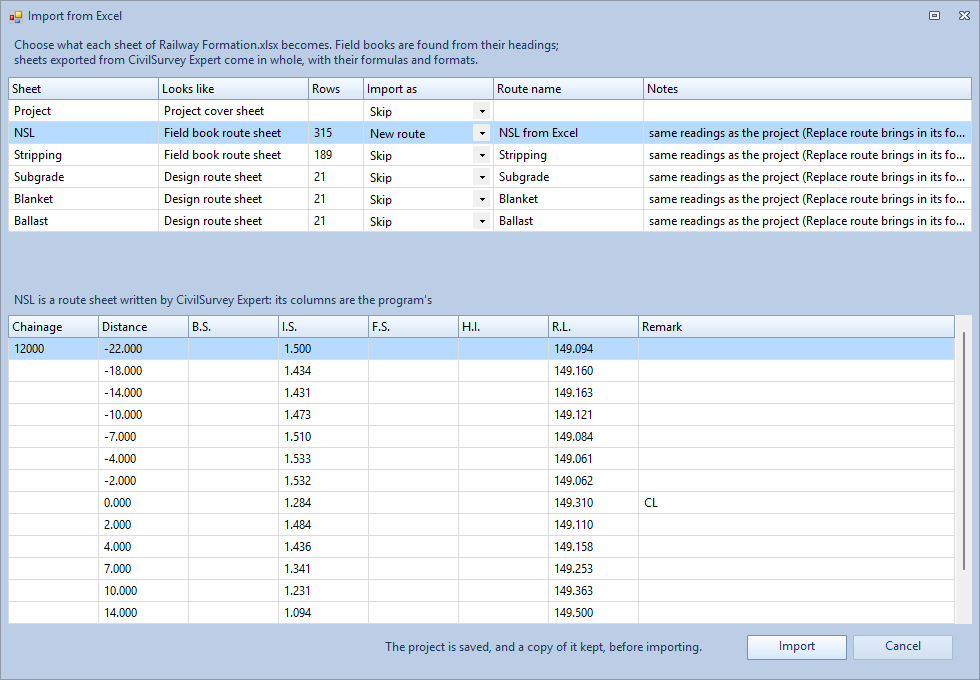
3. Choose what each sheet becomes
The project already has every route of this workbook with the same readings, so each route sheet starts on Skip, with the note same readings as the project. Bring the level book in as a new route:
- In the NSL row, under Import as, choose New route. Rows shows 315: 21 chainages with 15 offsets each. The note says the bench mark came from its BM row.
- Under Route name, type NSL from Excel. A name the project already has is refused.
- Leave the other rows on Skip.
- Click Import.
What each choice does:
- New route adds a route of the sheet's kind: a field book, or a design for a design route sheet. Its remark is Imported from and the workbook's name.
- Replace route puts the sheet's readings in place of the route of that name. Use it to bring back a field book you corrected in Excel. A sheet written by CivilSurvey Expert comes in whole, with its formulas, formats and your columns from I on.
- Add as a sheet keeps the sheet as one of your own sheets in the Routes workbook, beside the routes. A sheet that is not a field book can only be added as a sheet or skipped.
- Skip leaves the sheet out. The Project cover sheet is always skipped.
4. Import
- If a field book or design has changes you have not saved, the program asks Save before importing? and lists them. Click Save and import.
- The program saves the project and keeps a copy of it beside the project file, named after the project with (before import and the date and time). Then it imports.
- A message lists what came in (NSL: new route NSL from Excel, with its rows) and where the copy is. Click OK.
The Input screen opens again with the new sheet NSL from Excel at the foot. It has the level book and the bench mark (R.L. 150.000) of NSL.
An import can't be undone with Undo. To go back, open the copy the program kept (File › Open…).
5. Your own field book in Excel
A level book typed in Excel comes in the same way. The program finds the field book from its headings, in any of the first 15 rows of the sheet. It needs a chainage column, an offset or a level column, and at least three headings in all. These headings are recognised (in capitals or not, with or without dots, with or without (m)):
| Column | Headings it knows |
|---|---|
| Chainage | Chainage, Ch, Chain, Station, Sta, Stn |
| Distance | Distance, Offset, Dist, Off |
| B.S. | B.S., Back sight, Backsight |
| I.S. | I.S., Intermediate sight, Intermediate, Inter sight |
| F.S. | F.S., Fore sight, Foresight |
| H.I. | H.I., Height of instrument, HOI, Instrument height, Collimation, HC |
| R.L. | R.L., Reduced level, Level, Elevation, Elev |
| Remark | Remark, Remarks, Description, Desc, Note, Notes, Code |
- Pick the workbook as in step 2.
- Click its row. Over the table at the bottom, Columns of … shows the row the headings were found on, and a box for each column of the field book.
- If a column was matched wrong, or not at all, pick the right sheet column in its box, or (none). The Rows, the Notes and the first rows follow at once.
-
Choose New route (or Replace route), give the Route name, and click Import.
-
The bench mark: if the first row has BM (or B.M., TBM, Bench Mark) in the chainage column, its B.S. and R.L. become the route's bench mark, as in row 2 of a route sheet.
- The chainage can be on the first reading of each chainage only, as in a field book.
- Staff readings without R.L.s: after the import, click Calculate R.L.s on the Field Book panel, then Check level sheet. See Enter a field book.
- A From coordinates route's sheet is not brought back as points: it would come in as a field book of its chainages, offsets and levels. Leave it on Skip.
A new route is not always drawn. Open Home › Routes › Route Editor and set its Drawn as. A new design route has no target field book yet: choose it in step 1, Target field book, of the Design panel. See Find, replace and edit rows.
6. Fill a field book from a series
Import series data on the Field Book panel works the other way: it takes a series of the sections (its chainages, offsets and levels) and puts them in the field book in front. Use it with Back calculate to get staff readings for setting out a layer.
- Click the NSL from Excel tab.
- On the Field Book panel, under Data, click Import series data.
- The window Import Series (Back Calculation) opens. Under Series, pick the series of the Subgrade route, and click OK.
The rows of the sheet are replaced by the series' points: the chainage, the offset and the R.L. A toe of the side slopes has the Remark Toe Point. The bench mark in row 2 stays. It is one step for Home › Edit › Undo.
To finish with the practice route, click its tab and Home › Routes › Remove Route.
What next
- Check the readings: Enter a field book explains Calculate R.L.s, Check level sheet and Back calculate.
- Check the data before drawing: Check the data before drawing.
- Send the project out again: The whole project to Excel.
- Tidy the sheets: Find, replace and edit rows.
- See the sections: if you replaced a route the sections are drawn from, open them with Rebuild from routes. See Review the cross sections.
If something looks wrong
| You see | Do this |
|---|---|
| Excel on the File page is grey | Open a project first. |
| The workbook could not be opened. | Close the workbook in Excel, or save it again as .xlsx, and try again. |
| A field book sheet shows Looks like Other | Its headings were not found. Give it headings from the table in section 5, in one of its first 15 rows. |
| Choose at least one sheet to import. | Set Import as on at least one row. |
| A route called … exists already. | Choose Replace route, or type another Route name. |
| There is no field book route called … to replace. | Choose New route, or type the name of a route the project has. |
| Two sheets would make the route … | Give one of the two rows another Route name. |
| The sheet … has no readings with these columns. | Set the column boxes under the list to the right sheet columns. |
| The note … cells in number columns are not numbers (left empty) | Those cells come in empty. Correct them in Excel and import again, or type them in the sheet after. |
| The note the chainage goes back … | Check the chainages in Excel. On a hill road the chainage may go back on purpose; that is fine. |
| The import stopped part way. | The message names the copy of the project as it was. Open that copy (File › Open…). |
| The new route is not in the sections | Set its Drawn as in Home › Routes › Route Editor. |