Change how sections are drawn
What you get: the cross sections drawn the way you want them: the text, the table under each section, the scales, the line of each series, and the side slopes of the designs. You also learn which series each design is measured against.
You need: the Railway Formation sample. About 10 minutes. The Quick Start shows where things are on the Cross Section screen.
1. Open Section Settings
- On the Start page, open the Railway Formation sample.
- Click Home › View › Cross Section (or press F6), then Open saved sections.
- Click Section › Options › Section Settings (or press F8).
The Section Settings window has five pages down its left: Drawing, Table, Scale, Series and Side slopes. Click a page to go to it.
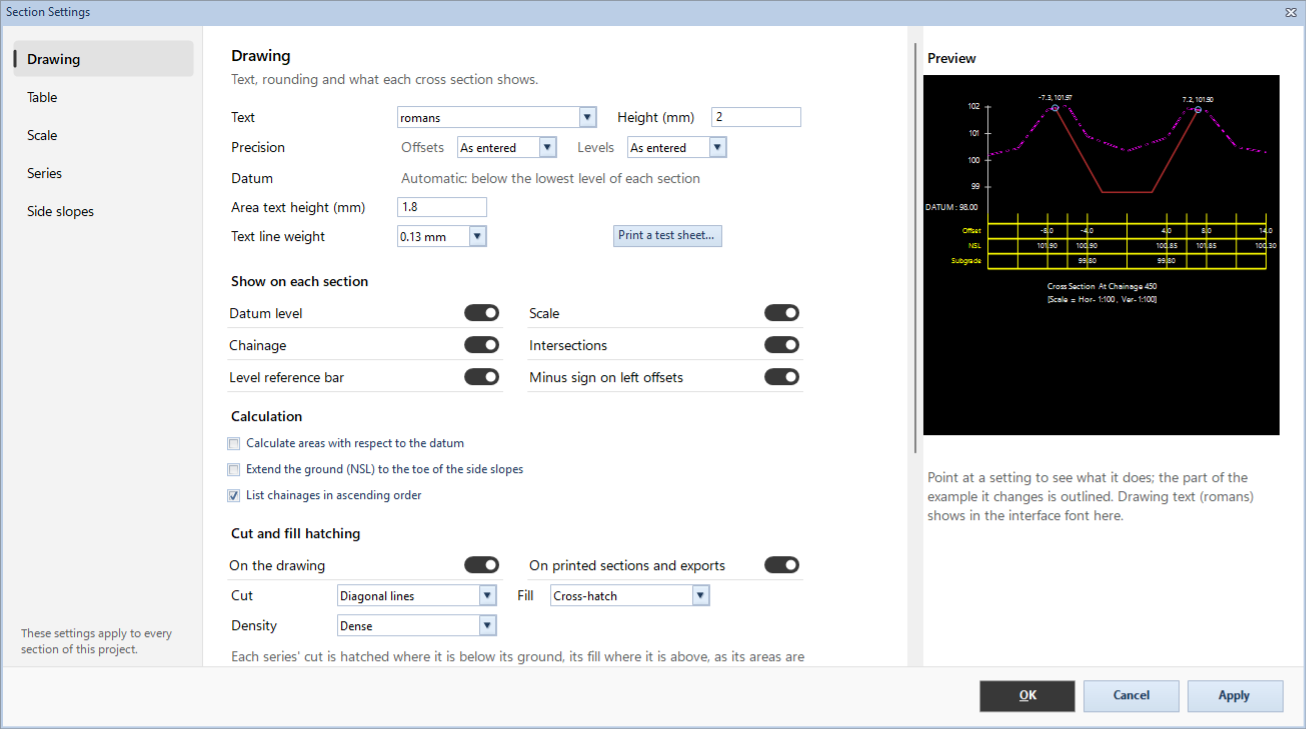
On the right, the Preview draws an example cross section (a canal between two banks) with the settings as you change them, before you apply them. Point at a setting: the text under the preview says what it does, and the part of the example it changes is outlined. The same text shows as the setting's tooltip.
At the foot:
- Apply saves the changes and keeps the window open.
- OK saves the changes and closes it.
- Cancel closes it without saving what you have not applied.
Note: most settings are the project's: These settings apply to every section of this project. A few are yours instead, kept on this computer for every project. Each of those says so under it (Yours, kept on this computer). They are listed in section 7.
The section on screen takes the new settings the next time it is drawn. Press F5 (Section › View › Redraw) to see them at once.
2. Drawing: text, rounding and what each section shows
Text
| Setting | What it does |
|---|---|
| Text | The font of all text in the drawings: the labels, the table and the titles. The fonts come from the program's Fonts folder. |
| Height (mm) | The height of the drawing's labels, in millimetres on the sheet: the levels on the bar, the datum, the title and the scale. |
| Precision: Offsets and Levels | How the offsets and levels of the design templates and the toe points are rounded: As entered leaves them as they are, or 1, 2 or 3 decimals. |
| Datum | Automatic: below the lowest level of each section. Each section's datum is a metre below its lowest level, rounded to a whole metre. The table starts there. |
| Area text height (mm) | The height of the area calculations, in millimetres on the sheet: the same in the section view, on paper, in PDFs and in the AutoCAD drawing. |
| Text line weight | How thick the strokes of text print. Fonts such as romans and simplex are made of lines, so small text in them can print bold. Arial is a filled font and prints at its own weight whatever this is. The screen looks the same either way: click Print a test sheet… to compare on paper. |
Show on each section
| Switch | What it does |
|---|---|
| Datum level | Writes the datum level (DATUM : 98.00) at the left, on the datum line. |
| Scale | Writes the scales under the section: [Scale = Hor- 1:100 , Ver- 1:100]. |
| Chainage | Writes the title under the section: Cross Section At Chainage …. |
| Intersections | Marks the points where the design meets the ground, with the offset and level of each. |
| Level reference bar | The bar at the left with a tick at each whole metre and its level. |
| Minus sign on left offsets | Offsets left of the centre line written with a minus sign (-12.0) in the table; off, as 12.0. |
Calculation
- Calculate areas with respect to the datum: works out each section's cutting and filling areas against the datum line.
- Extend the ground (NSL) to the toe of the side slopes: draws the ground line on to the toe points where the side slopes run past the surveyed width. Off, it stops at the surveyed points.
- List chainages in ascending order: lists the sections by chainage, smallest first. Off, in the order they were entered in the field book.
Cut and fill hatching
- On the drawing and On printed sections and exports: hatch each series' cut where it is below its ground, and its fill where it is above.
- Cut and Fill: the pattern of each: Diagonal lines, Cross-hatch, Dots or Level lines.
- Density: how close the lines are: Dense, Medium, Open or Very open. It looks the same on paper at every scale.
Which series are hatched is set for each series on the Series page.
Dimensions and Leaders
Switches for what is written on each cross section and its printed sheets. None is on until you turn it on.
- Dimensions: Top widths, Bed widths, Depth or height at the centre, Side slopes (1 : n) and Centre to the toes.
- Leaders: Chainage notes, Top and bed levels and Toe points.
The Layers card on the drawing's toolbar shows, locks and prints them (see Edit a section).
3. Table: the offsets and levels under each section
| Setting | What it does |
|---|---|
| Row height (mm) | The height of each row of the table, in millimetres on the sheet, when rows are not fitted to their values. |
| Text height (mm) | The height of the offsets and levels written in the table. |
| Line colour | The colour of the table's lines and its row labels. |
| Row line weight | The thickness of the table's horizontal lines, as AutoCAD's line weights (0.40 mm and so on). |
| Vertical line weight | The thickness of the lines from each ground point down through the table. |
Under Row heights:
- Fit each row to its values: each row as tall as its longest value stood on end, or its label. Every row and value stays; the table gets shorter. Row height is greyed out while this is on.
- Width of the values: 100%, 90% or 80%. Narrower values make the rows shorter still; 80% keeps the text height.
The decimals in the table follow Precision on the Drawing page (3 when it is As entered).
Which series have rows in the table is set on the Series page.
4. Scale
Each scale is written as 1 : n.
- Cross sections: Horizontal and Vertical. A smaller vertical number than the horizontal one stretches the heights. The Railway Formation sample draws its sections at 1 : 100 both ways.
- Long section: Horizontal (along the route) and Vertical. See The long section.
These are the project's scales. Print Sections starts from them and can print at others without changing them (see Print sections).
5. Series: the line of each route, and what it is measured against
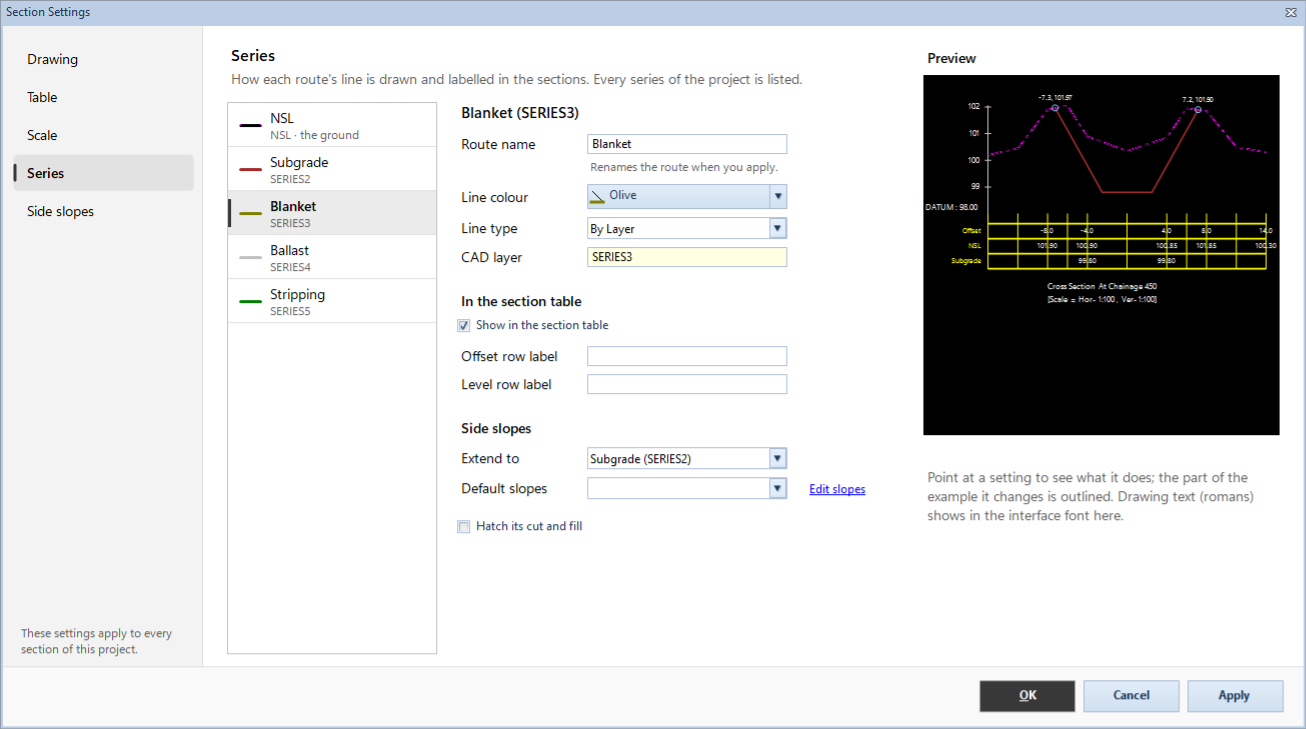
The list on the left has every series of the project, NSL first: each with its colour, its name and its key under it (SERIES2 and so on). NSL is marked the ground. A series made by a template's layer says whose layer it is (Template layer of …).
In the Railway Formation sample the list is NSL, Subgrade, Blanket, Ballast and Stripping.
- Click Blanket in the list. Its settings show on the right.
- Change what you need:
- Route name: the route's name, used in the table. Renames the route when you apply. For a template layer's series this is Layer name instead.
- Line colour, Line type (continuous, dashed, centre and others) and CAD layer (the layer its line is drawn on, in the drawing and in AutoCAD exports).
- Under In the section table:
- Show in the section table: this series' level and offset rows in the table under each section, on screen and on paper. Print Sections has the same choice under Table rows.
- Offset row label: the label of the offset row; blank for the default.
- Level row label: the label of this series' level row; blank for the series name.
- Under Side slopes:
- Extend to: the series this one's side slopes run to, usually the ground (NSL). Its cut and fill are worked out against that series. Blanket extends to Subgrade (SERIES2): its side slopes run down to the subgrade, and its area is the blanket between the two.
- Default slopes: the set of side slopes this series uses at every chainage, unless another set is chosen there in the section view. Edit slopes takes you to the Side slopes page.
- Hatch its cut and fill: on to start with for a series that extends to the ground.
- Click Apply.
The Extend to list offers only the series above it in the list (NSL included) and Surface below. Each series is measured on the series below it, so a series can't extend to itself or to one numbered after it. Surface below is the highest of the series below it at each offset, never the ground: for pieces side by side on one base, such as earthen shoulders beside a pavement.
NSL has no Extend to or Default slopes: NSL is the ground: it is not extended and has no side slopes.
For layers and the areas between two series, see Add layers.
6. Side slopes: named sets of slopes
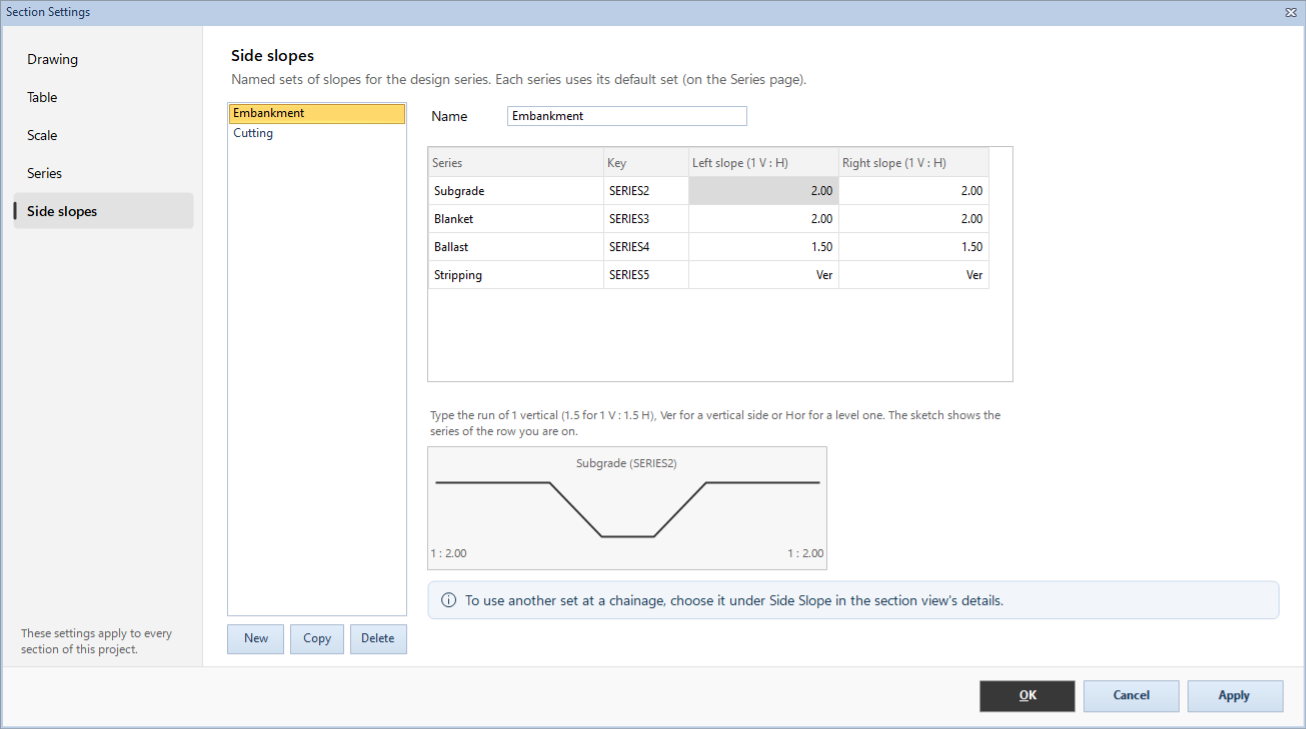
A side slope set gives the left and right slope of every design series. Each series uses its Default slopes set; at any chainage you can choose another set.
The Railway Formation sample has two sets: Embankment and Cutting. In cutting, the subgrade's sides are 1 : 1 instead of the bank's 2 : 1; the note at Ch 12350 says so.
- Click Side slopes, then Embankment in the list on the left. The preview gives way to a sketch.
- The grid has a row for each series: Series, Key, Left slope (1 V : H) and Right slope (1 V : H).
- Click a slope and type the run for 1 vertical: 1.5 for 1 V : 1.5 H. Type Ver for a vertical side, or Hor for a level one.
- The sketch under the grid shows the slopes of the row you are on.
- Click Apply.
The buttons under the list:
- New: asks for the set's name (Enter name of the Side Slope Definition:). A new set starts with every slope at Ver: type its slopes.
- Copy: a new set with the selected one's slopes, named after it (Embankment copy).
- Delete: removes the selected set. The first set in the list stays: it is used wherever no other set is chosen.
Use another set at some chainages
On the Cross Section screen, the Quantities panel has a Side slope section:
- Go to the chainage.
- Under Side slope, pick the set in Slope.
- In Apply to, choose This section, Each section I go to, From here to the end… or Every section….
Edit slopes… there opens Section Settings at the Side slopes page.
Note: a template made in the Template Designer meets the ground by its own side slopes, not by these sets (see Design a template).
7. Yours, or the project's
Everything here is saved in the project and goes with it, except these, which are kept on this computer for every project you open:
- Text line weight
- Fit each row to its values and Width of the values
- Cut and fill hatching: the two switches, the patterns and the density
- Dimensions and Leaders
To copy the section settings, series settings and side slope sets of one project into another, see Projects and files.
What next
- The long section's scales and series: The long section.
- Print at another scale: Print sections.
- Edit points by hand: Edit a section.
- Layers and areas between two series: Add layers.
If something looks wrong
| You see | Do this |
|---|---|
| The section on screen hasn't changed | Click Apply or OK, then press F5 to draw it again. |
| A number is needed | A scale or a height takes a number, such as 1.5. The last character typed was taken out: type the number again. |
| … can't extend to …, which is numbered above it | Each series is measured on the series below it. In Extend to, choose a series above it in the list, or Surface below. |
| Type a slope as a number (1.5 for 1 V : 1.5 H), Ver for a vertical side or Hor for a level one. | Type the run of 1 vertical, or Ver or Hor. |
| The Default side slopes stay | The first set can't be deleted. Change its slopes instead, or make a new set. |
| A design's slopes don't change when you change a set | Its template comes from the Template Designer and has its own side slopes. Change them in the template. Or the chainage uses another set: look under Side slope in the Quantities panel. |
| Small text prints bold | Choose a thinner Text line weight, and click Print a test sheet… to compare. |
| The table is too tall for the sheet | Turn on Fit each row to its values, or choose a narrower Width of the values. |
| No hatching on one series | On the Series page, turn on Hatch its cut and fill for it. Check the two switches under Cut and fill hatching too. |